What is Visual Builder?
Visual Builder is a new way to create integration flows in Chain.io. If you've built flows before, you'll find this approach more flexible—you can add multiple data sources and multiple destinations to a single flow, something that wasn't possible with traditional flows.
The interface shows your entire flow visually, with real-time validation that tells you exactly what's missing or misconfigured before you deploy.
Visual Builder is priced at a flat $400 per month per integration (see Billing and Usage below). If your integration is still on the older usage-based pricing, see Legacy Visual Builder Pricing.
How Visual Builder Differs from Traditional Flows
Traditional flows require you to choose a direction (receive or send) upfront, and you're limited to one source and one destination. Visual Builder removes these restrictions. You can bring data in from multiple sources—say, an upload page and an HTTP endpoint—and send processed data to multiple destinations simultaneously.
The configuration experience is also different. Instead of a single large page of configuration settings, you are presented with avisual editor where you can see how the components connect to each other and edit each individually. You also have direct access to the underlying JSON source, which means you can copy and paste configuration within or between flows or make bulk changes that would be tedious through the interface.
The Interface
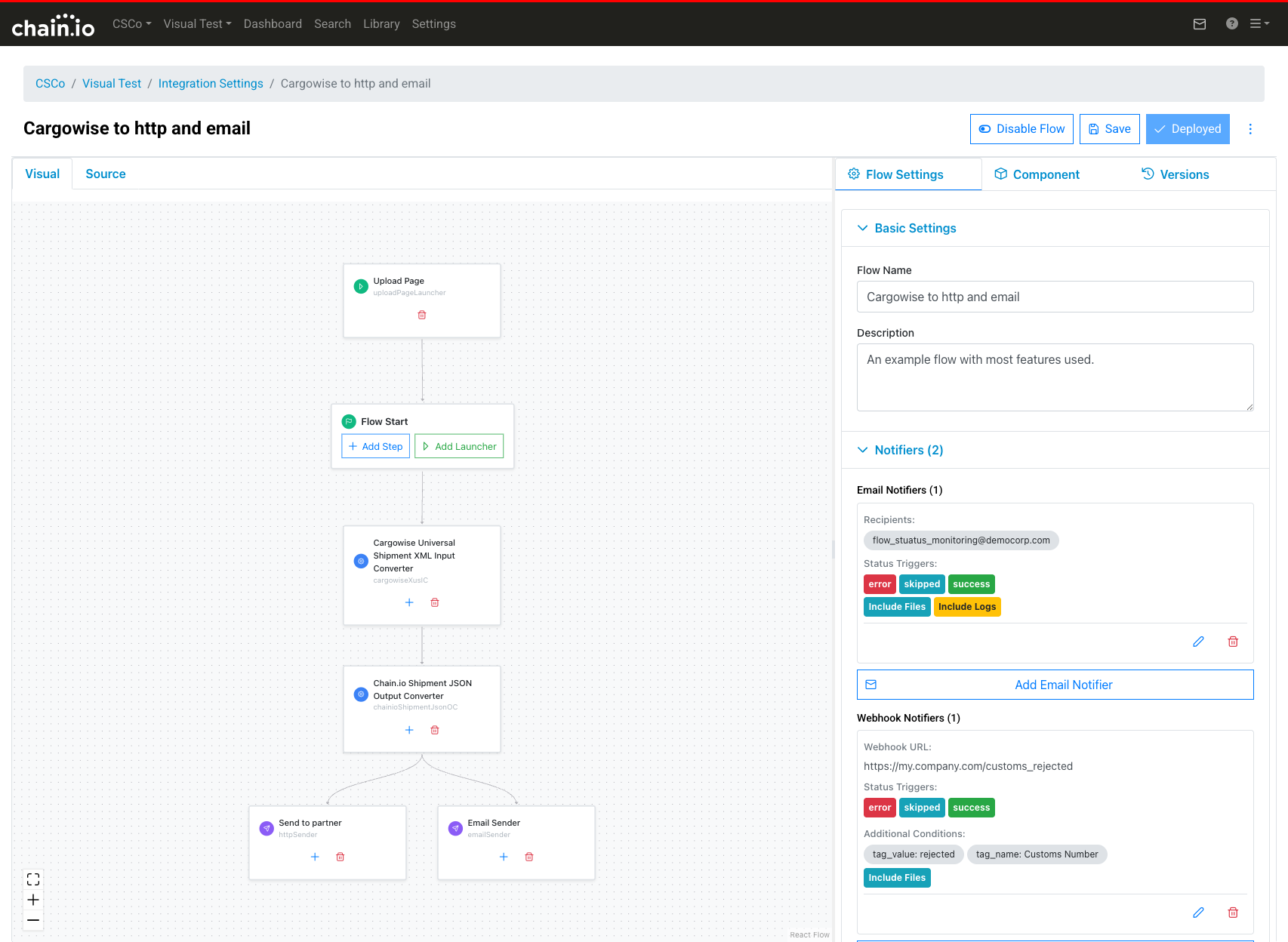
The Visual Builder interface has three main areas: the canvas, source view, and the right panel.
The Canvas
The canvas is the central workspace where you build your flow visually. Each step in your flow appears as a node, and connections between nodes show how data flows from one step to the next.
To navigate the canvas, click and drag on the background to pan around. Use the zoom controls in the bottom-left corner or your mouse scroll wheel to zoom in and out. The expand icon fits the entire flow in view.
Nodes are positioned automatically based on your flow's structure. When you add or remove steps, the layout updates to keep things organized. You cannot drag nodes to rearrange them manually. Clicking on a node will bring up configuration settings for that node in the right pane.
Source View
The entire flow is defined as a single JSON file that is built by the canvas and component settings. You can view or edit this at any time by clicking on the source tab. The source and visual editors are always kept in sync.
The Right Panel
The right panel has three tabs. The Flow Settings tab configures properties that apply to the entire flow, like the name, throttling, and notifiers. The Component tab shows configuration options for whatever node you have selected on the canvas. The Versions tab displays the version history of your flow.
Adding Launchers and Steps
When you click the on the Add Launcher button on the Flow Start node, or the Add Step button (the + icon) on any node, a dialog appears showing available components. The dialog filters components based on data type compatibility—you only see components that can accept the output of the parent node. For example, after a launcher (which outputs a file), you'll see input converters that accept files. After an input converter (which outputs canonical format), you'll see output converters that work with canonical data.
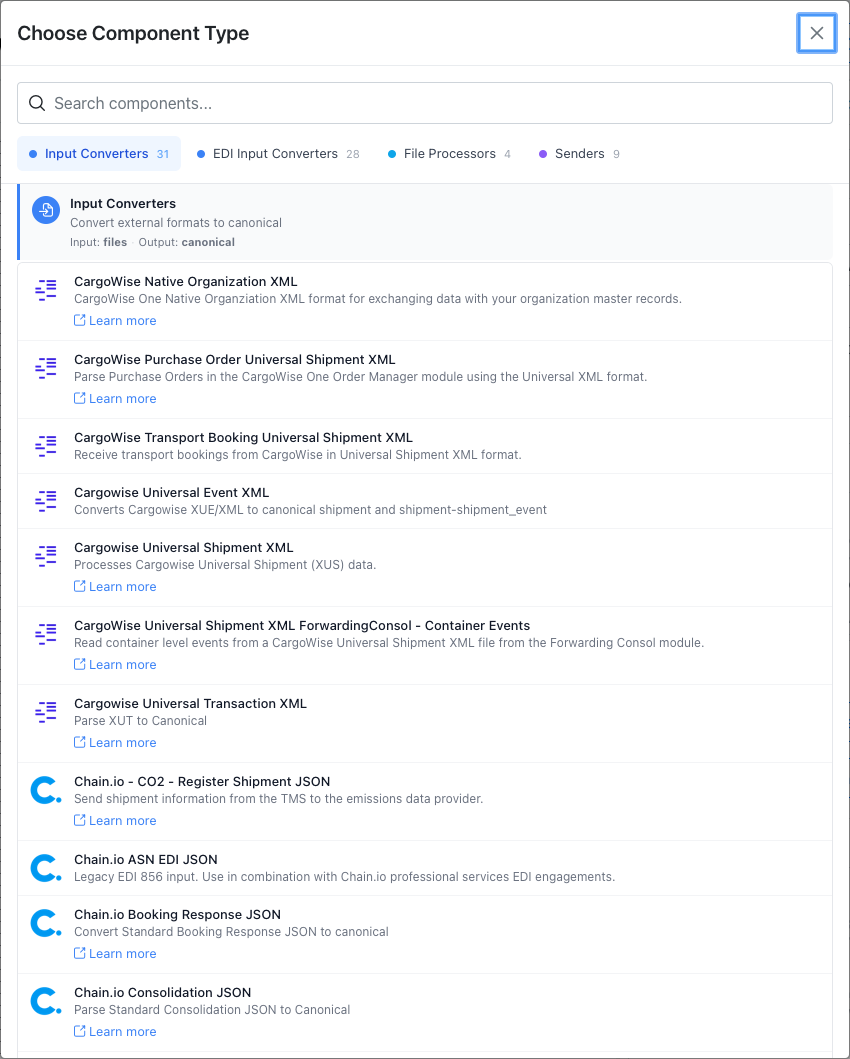
Components are grouped by type, such as Input Converters, Output Converters, File Processors and Senders, with a tab for each group showing how many components it contains. Click a tab to jump to that group, or type in the search box at the top to find a component by name.
Core Terminology & System Scoping
Visual Builder simplifies how data moves and how systems are managed. Because Visual Builder allows for much more flexible workflows and supports multiple inputs and outputs in a single flow, we have updated our terminology to be more functional and descriptive.
Mapping Traditional Source and Destination Systems/Connections to Visual Builder Components
In Traditional Flows, each flow only has a single entry and exit point, a Source and Destination System or Connection. Because Visual Builder allows multiple inputs and outputs to a flow, it uses consistent names regardless of the flow direction or system type:
Launcher (Traditional Source Connection or Source System): A starting point that triggers the flow and brings data in.
Sender (Traditional Destination Connection or Destination System): An endpoint where data is delivered after processing.
Understanding External Systems
External Systems are how Host Systems and Connections defined in your Workspaces and Integrations are exposed inside Visual Builder. These hold the credentials and settings needed to allow communication with the external endpoints (FTP, HTTP, AS2, etc.) used by your Launchers and Senders. To make their context obvious, these are now these are now categorized by their Scope:
| Scope | Traditional Term | Best For... |
| Workspace | Host System | Shared Resources. Connections available to every integration in your workspace (e.g., a company-wide TMS or data repository). |
| Integration | Connection | Private Resources. A unique resource that is only associated with a particular integration. For example a trading partner's SFTP server or AS2 connection. |
How Data Flows Through Components
A typical flow follows this pattern: Launcher, then Input Converter, then Output Converter, then Sender. Each component type has a specific role in the pipeline and can accept a certain type of input and generates a certain type of output:
| Component Type | Input | Output | Example Component | Purpose |
|---|---|---|---|---|
| Launcher | None | File | Upload Page Launcher | Provides a web page where a user can upload a file that will be processed by the flow. |
| Input Converter | File | Canonical | Cargowise Universal Shipment XML | Converts incoming Cargowise XUS file to Chain.io's canonical JSON format. |
| Output Converter | Canonical | File | Chain.io Shipment JSON | Converts canonical format to Chain.io Standard JSON |
| Sender | File | None | HTTP Sender | Sends the file to an external webhook |
This architecture routes all data through a standardized canonical format. That makes it easier to add transformations, support multiple file formats, and troubleshoot issues.
Creating Your First Flow
Start by creating a new integration and selecting Visual Builder as the integration type. Once you're in the integration, click Add New Flow.
Visual Builder creates a sample flow to help you get started. The sample includes an Upload Page launcher, a CargoWise XUS Input Converter, a Chain.io Standard JSON Output Converter, and an HTTP Sender. It also includes a notifier and flow monitor to demonstrate those features.
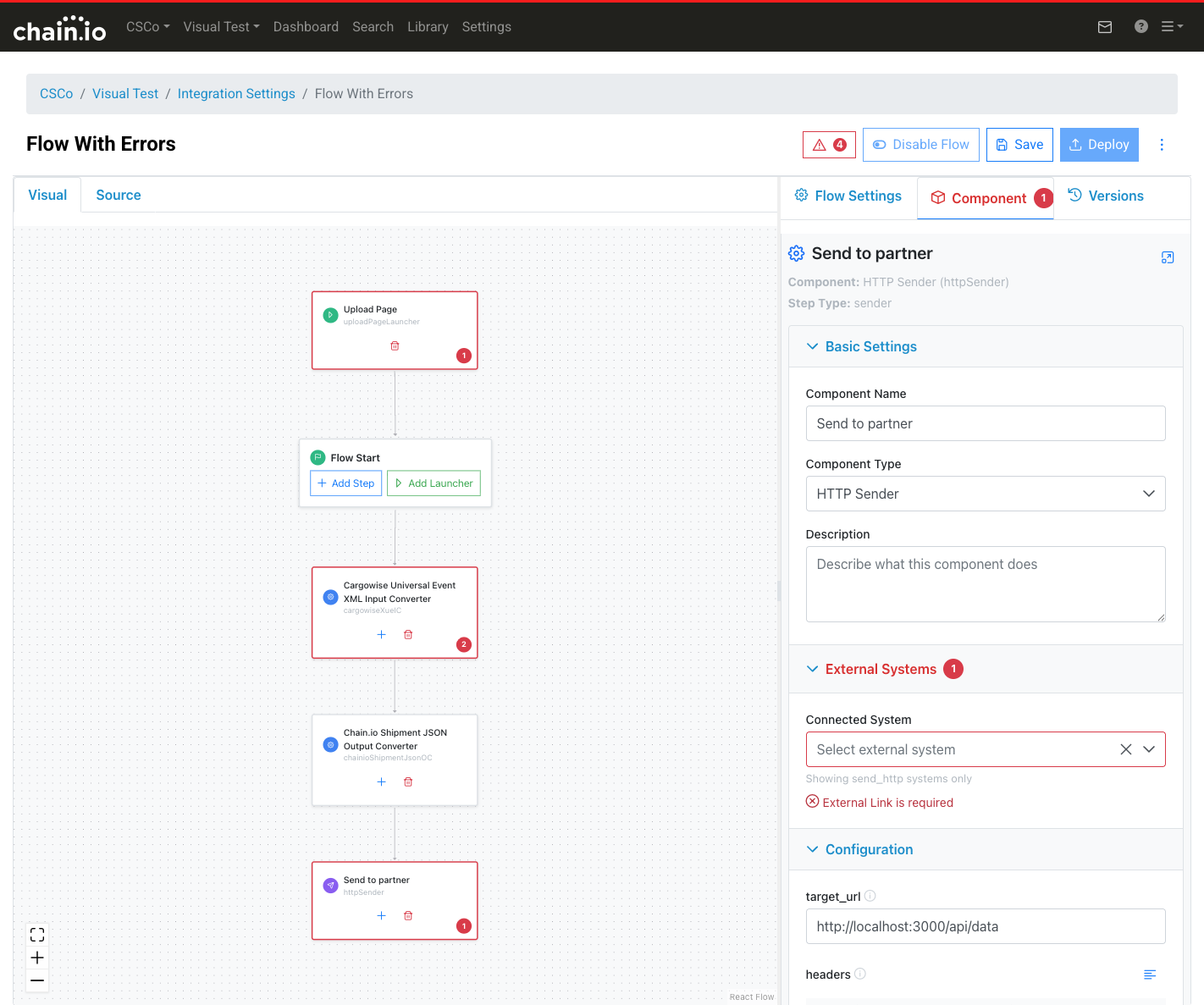
The sample flow will show validation errors until you configure three things: the flow name (in Flow Settings), the URL suffix (on the Upload Page launcher), and an external system connection (on the HTTP Sender, you will need either a Integration Connection of Host System of type Send API to assign to this ). Once those are set, the errors clear and you can save and deploy.
Adding a Launcher
Every flow begins with at least one launcher, but you can have multiple launchers on the same flow. Each launcher defines how and when the flow triggers. Current launcher types available are:
- Upload Page: Provides a web form for manual file uploads
- Http Launcher: Creates a webhook that can be posted to by an external system or http client
- Email: Launches flows with files attached to emails that are sent to a specific email address (requires a Receive Email Integration Connection or Host System)
To add a launcher, click the Add Launcher button on the Flow Start node. This is a separate button from Add Step—it has a play icon. Select a launcher type, then configure it in the Component tab.
For an Upload Page launcher, you'll need to set a URL suffix (this becomes part of the upload page address) and choose an authentication method. The URL suffix is required.
Adding Steps
To add processing steps after a launcher or any existing node, click the Add Step button (the + icon) on that node. The dialog shows only compatible components based on data type. Choose a component, and it appears as a new node connected to the parent.
Click any node to select it, then use the Component tab to configure its settings. Required fields are marked and will show validation errors if left empty. Components that connect to external services need an External System selected.
Changing a Component Type
You can change a step's component type after adding it. Select the node, find the component type dropdown in the Component tab, and choose a different component. The dropdown only shows compatible replacements—components that accept the same input type and produce the same output type (if the step has children).
Be aware that changing a component's type erases all existing configuration for that step. The new component starts with empty settings, so you'll need to reconfigure it.
Creating Branches
To send data down multiple parallel paths, click Add Step on a node that already has a child. A new branch is created, and data flows down both paths simultaneously. Branches execute independently—data from one branch does not merge with another.
Working with Filters
Filters let you control which files get processed by a launcher. This is useful when you're receiving multiple document types but only want certain ones to trigger this particular flow.
The filter interface includes example templates to help you get started. The two types of filters currently available are JSONATA for JSON documents and XPATH for XML documents. There are extensive samples and documentation for each type below the settings fields.
File Mappings and Custom Code
If you need to transform data beyond what the standard converters provide, you have two options: file mappings and custom file processors.
File mappings use the Chain.io JSONATA mapping tool. You can add a File Mapping step after any step that outputs a file (Launcher, Output Converter, etc). Add a File Mapping step, select a mapping and a version, or if you do not have one already, click the link to open the Mapping Editor. Once you have created and deployed one, it can be used in the flow.
Custom file processors let you write JavaScript code for more complex transformations. There is an extensive Help and Examples section below the editor. The editor also includes AI tooling to help you write or update the code given an english language description. If you've used the pre-processor or post-processor in traditional flows, this is the Visual Builder equivalent—but you can place it after any step that outputs a file, not just at fixed points.
The Source Code View
Everything you build in the visual editor has a source code representation, and you can switch between views at any time. Click the Source tab to see the raw JSON configuration.
This isn't just for viewing. You can edit the JSON directly, and your changes appear in the visual editor immediately. The sync works both ways—changes in the visual editor update the JSON, and changes in the JSON update the visual editor. When you click in the JSON, the corresponding node is selected in the right panel.
For experienced users, editing the source can be faster than clicking through the interface, especially for bulk changes or copying configuration between flows.
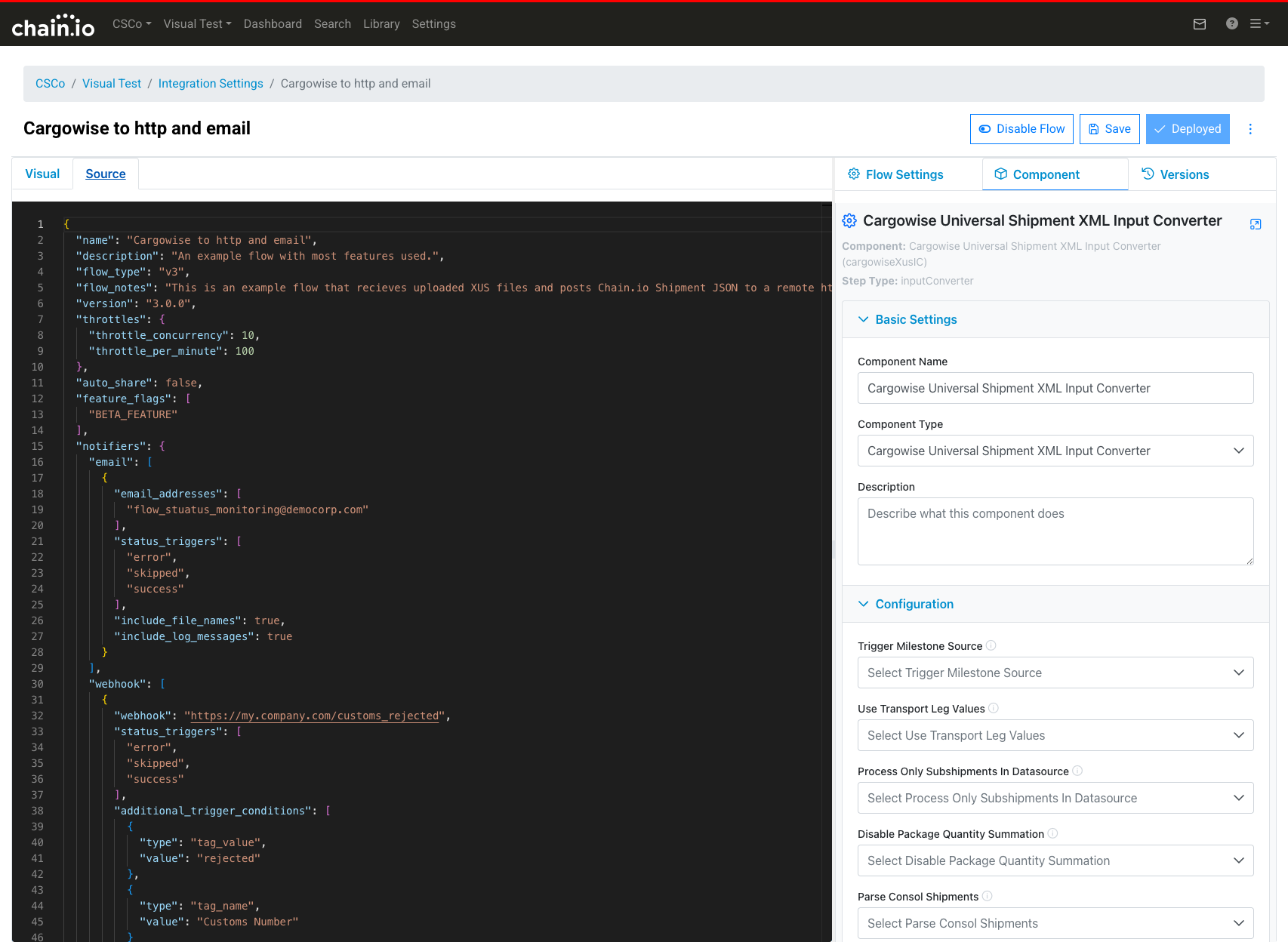
One caution: direct JSON editing bypasses visual safeguards. If you introduce invalid JSON, you won't be able to switch back to the Visual tab until you fix it or revert your changes.
Saving and Version History
Visual Builder uses manual saves. There is no auto-save, so click the Save button frequently to commit your changes. Each save creates a new entry in the version history.
The Versions tab in the right panel shows all saved versions with timestamps. You can click on any version to load it for viewing, and save it again to make it the current draft.
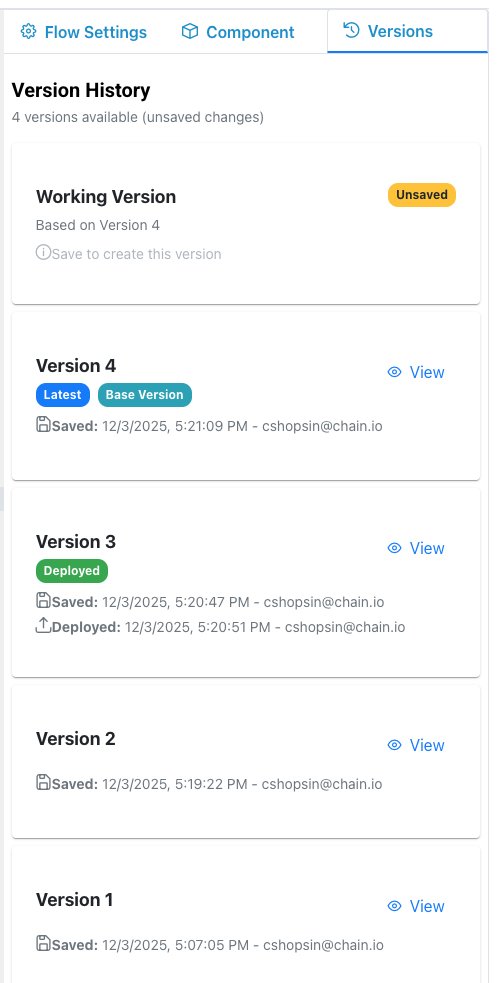
Versions display status flags to help you understand their state:
| Flag | Meaning |
|---|---|
| Unsaved | You have changes that exist only in your browser. They'll be lost if you navigate away without saving. |
| Latest | This is the most recently saved version. |
| Deployed | This version is live and will execute when the flow is triggered. |
Deployment
Saving a flow does not make it live. To activate your changes, save your flow, make sure there are no validation errors, then click Deploy. You can confirm your deployment by going to the versions tab and ensuring that the latest version is marked as Deployed.
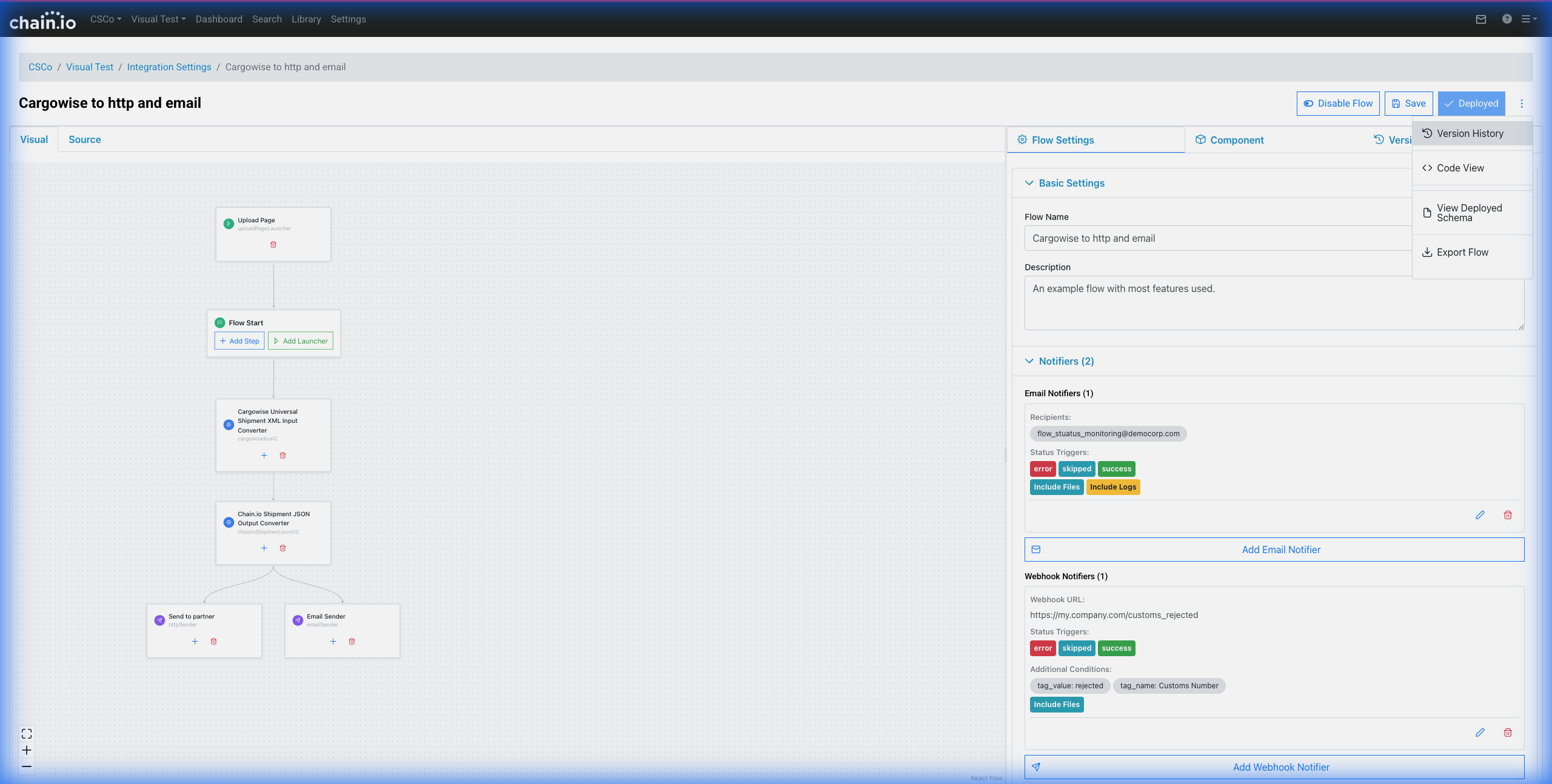
Only deployed flows execute when triggered by their launchers.
Validation and Troubleshooting
Visual Builder validates your flow continuously as you build it. Nodes with errors show a red border and a badge with the error count. The Flow Settings and Component tabs also show error badges when they contain issues. The header displays a total error count—click it to see all validation errors in a popup, with links to jump directly to each problem.
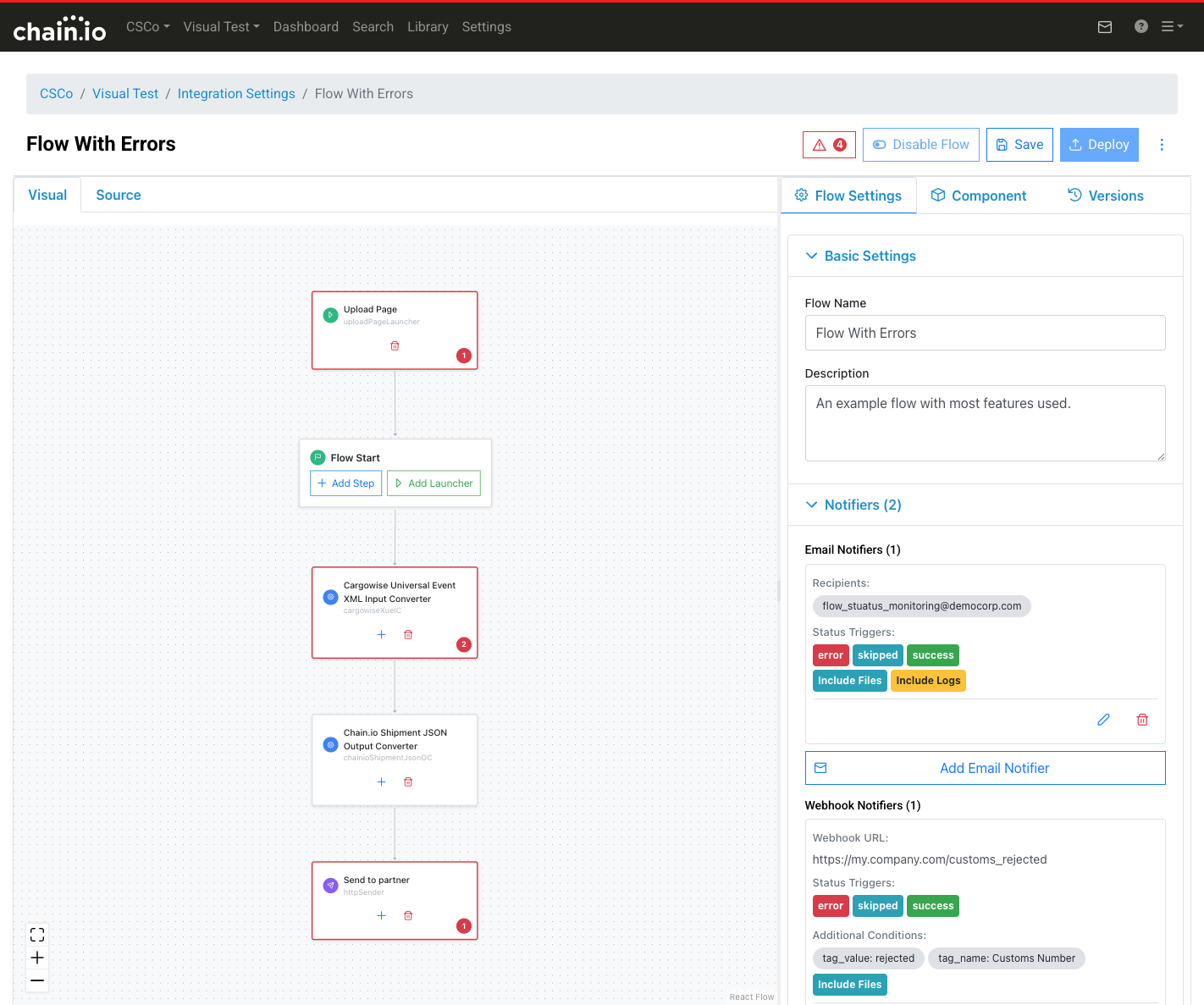
Common validation errors on a new flow:
- Flow name is required: Set the name in the Flow Settings tab
- URL suffix is required: Configure the suffix on the Upload Page launcher
- External system is required: Select a connection for senders and launchers
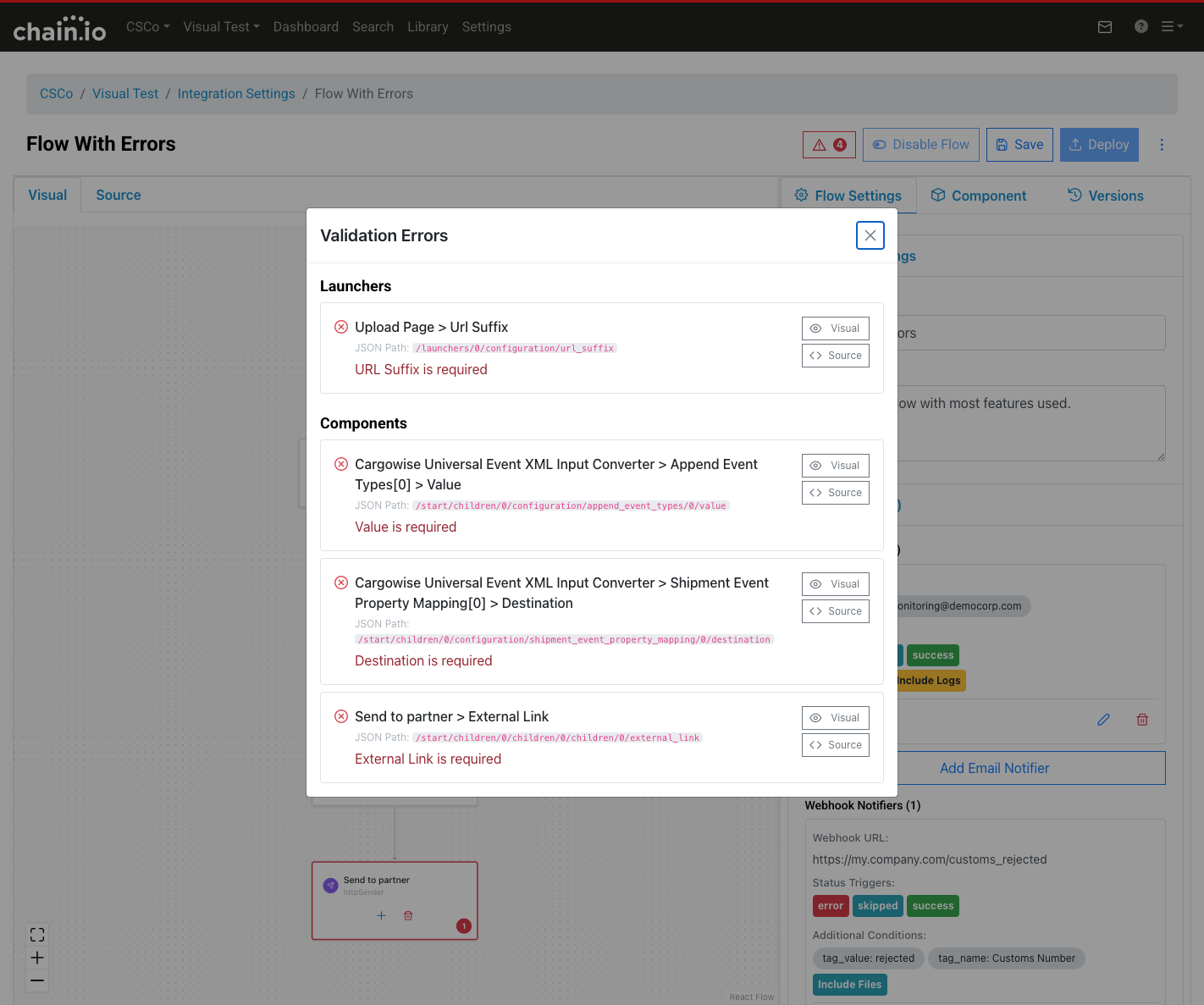
If you're stuck, select the node with errors and review the specific messages in the Component tab. Make sure all launchers and senders have valid external system connections. For testing, use an Upload Page launcher so you can manually upload files before enabling scheduled or automated triggers.
Setting Up Notifications
Visual Builder supports both email and webhook notifications. Email notifiers send messages when specific events occur (like flow failures). Webhook notifiers post to external URLs, which is useful for integrating with monitoring systems or triggering downstream processes.
Configure notifiers in the Flow Settings tab.
Example: Building a Pass-Through Flow
A pass-through flow receives a file and sends it somewhere else without transformation. Here's how to build one that accepts files and sends then to a remote webhook.
- Create a new Visual Builder flow
- Either keep and configure the Upload Page launcher, or create and configure a different one
- Delete the Cargowise Input Converter step below the Flow Start step. This will remove all of the steps below.
- Add an HTTP Sender step to Flow Start.
- Configure the sender with your destination
- Save and deploy
That's it. Files uploaded to the page go straight to your destination.
Example: Multiple Outputs from One Input
This example shows one of Visual Builder's key advantages—sending the same data to multiple places in different formats.
- Create a new Visual Builder flow with an Upload Page launcher
- Remove the existing child steps under the Flow Start step
- Add a JSON Shipment Input Converter
- From the converter, add a Shipment Output Converter, then an HTTP Sender
- Go back to the input converter and add an Event Generator as a second output
- Add another HTTP Sender for the event
- Save and deploy
Now when you upload a JSON shipment, the flow produces both a shipment file and an event file, sending each to its configured destination. In traditional flows, you'd need two separate flows to accomplish this.
Billing and Usage
Visual Builder Pricing
Visual Builder is priced per integration, at a flat $400 per month. Each Visual Builder integration includes 10,000 transactions per month and up to 10 enabled flows, with up to five senders per flow.
Like other integration types, each Visual Builder integration needs its own Visual Builder license, assigned on your workspace's License page.
Some Visual Builder integrations created before flat pricing was introduced are still billed by usage, in Power Blocks. If yours is one of them, see Legacy Visual Builder Pricing.
For volume discounts or questions about licensing, contact your Chain.io sales representative.
Premium Execution Mode
Standard flow executions have a 5-minute time limit. For flows that need more time—complex transformations or high-latency external systems—you can enable Premium Execution Mode. This runs your flow in a separate environment without the time constraint.
Common Questions
Can I convert an existing integration to Visual Builder? No, Visual Builder requires a new integration. You'll need to recreate your flows manually.
Can I have multiple source connections? Yes, that's one of Visual Builder's main features. Add as many launchers as you need.
How much does Visual Builder cost? $400 per month per integration, including 10,000 transactions per month, 10 enabled flows and five senders per flow.
What are Power Blocks? Power Blocks measure flow execution for integrations still on usage-based pricing. See Legacy Visual Builder Pricing.
Where do I get help? Each component in the Visual Builder editor has a Help and Examples section. For additional support, contact your Chain.io account team.
Was this article helpful?
That’s Great!
Thank you for your feedback
Sorry! We couldn't be helpful
Thank you for your feedback
Feedback sent
We appreciate your effort and will try to fix the article