In this article:
- Overview
- Getting Your API Key
- Give The API Key Permission To Another Workspace
- Using The API Key
- Keys Created On Or After October 1, 2026
- Keys Created Before October 1, 2026
Overview
Customers have the ability to set up their own API keys to access some features in the Chain.io portal. Below is a guide on how to get your API Key and how it can be used.
There are two kinds of keys, depending on when the key was created:
| Created on or after October 1, 2026 | Created before October 1, 2026 | |
|---|---|---|
| Client ID | Starts with cio_ | No prefix (a 32-character ID) |
| Secret | Shown once, when you create the key | Can be viewed and copied on the Portal API Keys page at any time |
| Client Secret column | The first and last three characters of the secret (for example abc...xyz), to help you tell keys apart | The first and last three characters of the secret, with View and Copy buttons for the full secret |
| Token URL | https://portal-api.chain.io/oauth/token | https://portal-api.chain.io/oauth/token (the older https://chainio.auth0.com/oauth/token keeps working) |
Existing keys keep working. You do not need to replace them or change anything.
Getting Your API Key
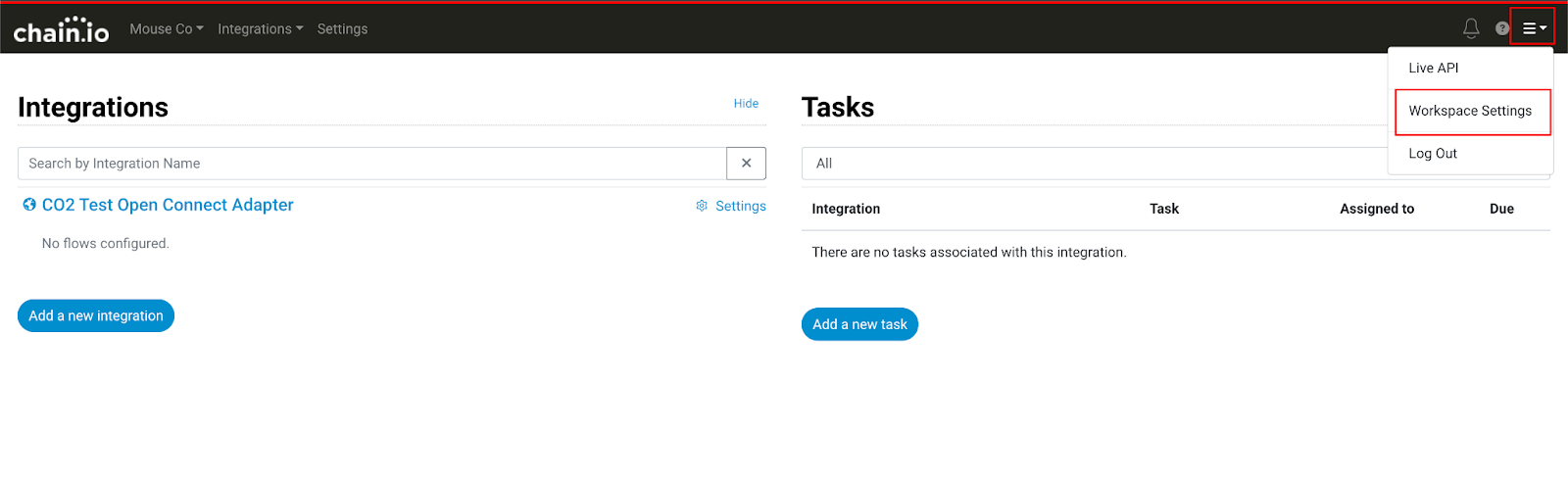
To get your API key, you need to navigate to your Workspace Settings, this can be found by clicking the menu button highlighted below, then clicking Workspace Settings.
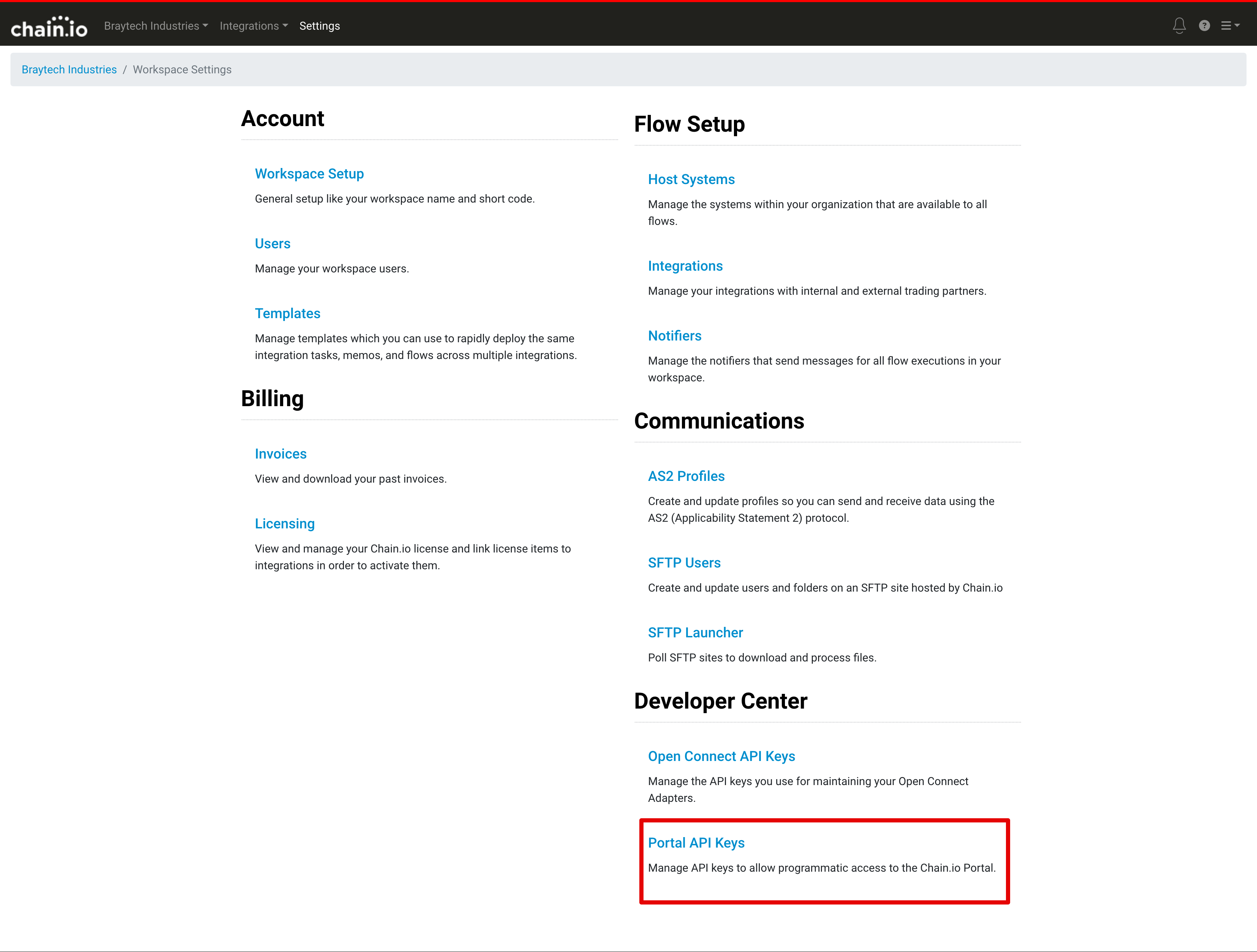
Once in Workspace Settings, click on Portal API Keys in the Developers section
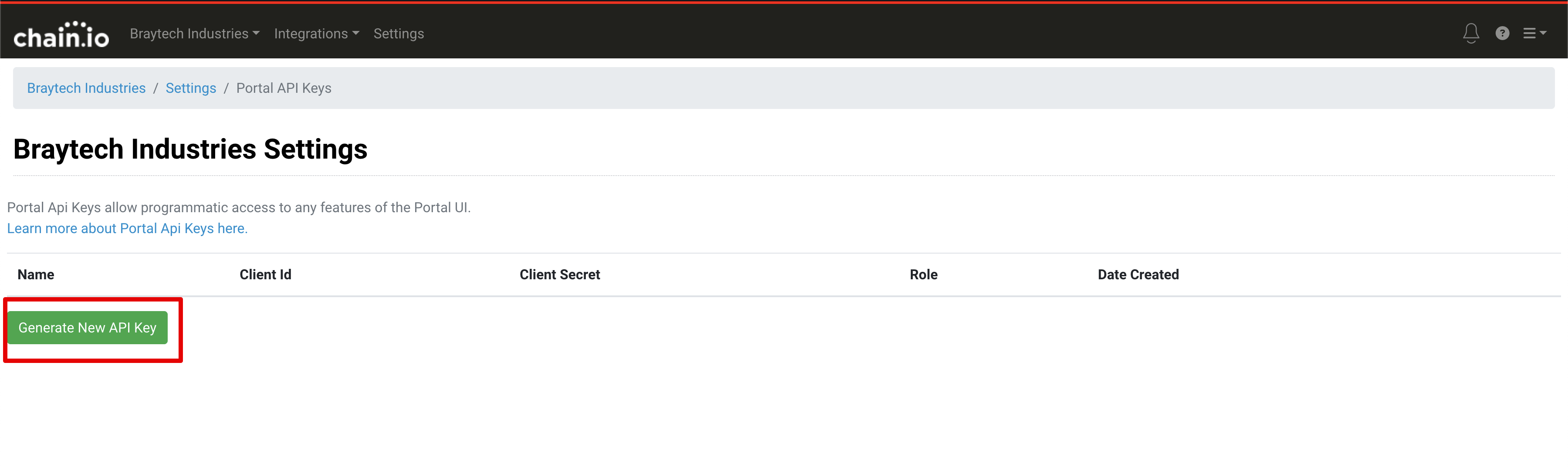
Next, click the Generate New API Key button to generate a new API key.
A modal window will appear, where you enter the name of the API Key and the user role you wish to assign to the key.
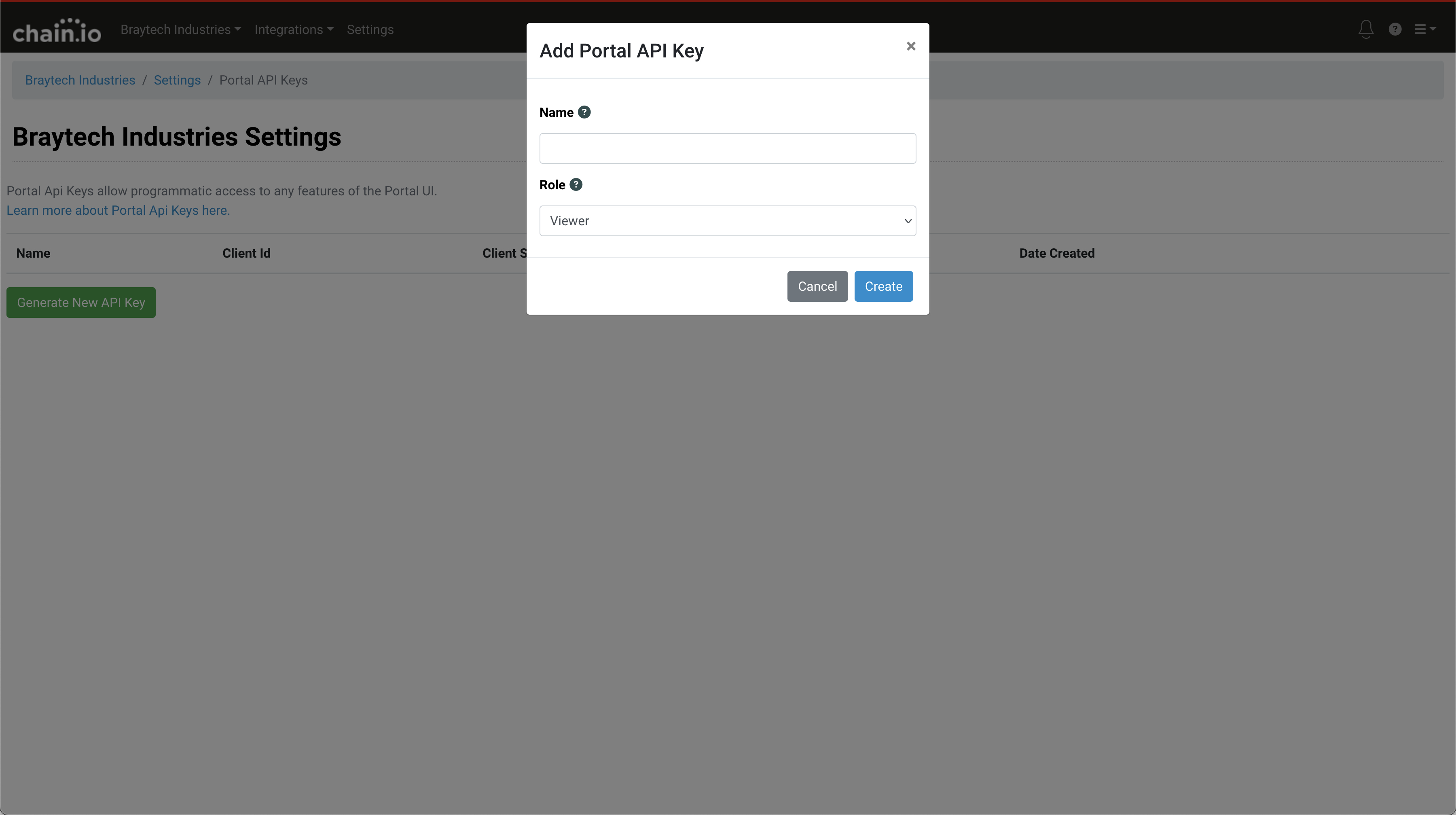
When complete, click Create to generate your API key.
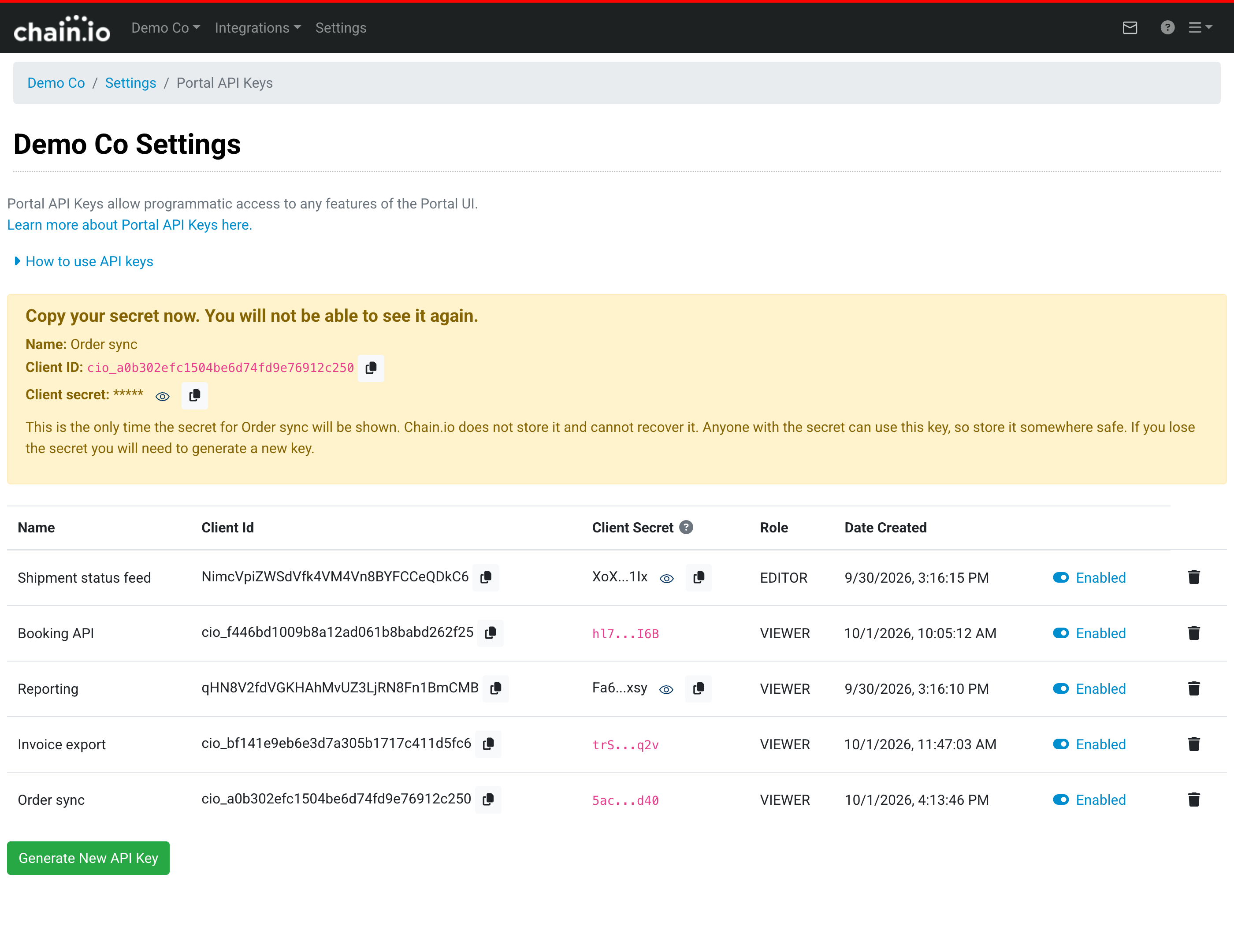
Your key should immediately show up in the table above the button.
- Keys created on or after October 1, 2026: a yellow box appears above the table with the heading "Copy your secret now. You will not be able to see it again." It lists the key's Name, Client ID and Client secret. Use the eye icon to show the secret and the copy icon to copy it, and store it somewhere safe before you leave or reload the page. Chain.io does not store the secret and cannot recover it, so the box is the only place it is ever shown. If you lose the secret you will need to generate a new key. After you leave the page, the Client Secret column shows only the first and last three characters of the secret, so you can tell which key is which.
- Keys created before October 1, 2026: the Client Secret column shows the first and last three characters of the secret. Click the eye icon to display the full secret, or the copy icon to copy it to the clipboard, at any time.
Hover over the ? next to the Client Secret column heading for a reminder of how the two kinds of key differ.
Give the API Key Permission To Another Workspace
By default an api key only grants permission to the workspace where it was created. If it is desired that the key have access to more than one workspace, it can be added as a user:
To grant this API key access to a company, create a new user under any company in the portal with the email address in the format of [Client ID]@api.chain.io. So if the Client ID is ABC1234 then set the email address to ABC1234@api.chain.io
Once you add the API key to a Company, all other interactions with our GraphQL API work just like a normal user.
Using The API Key
The Portal API Keys page has a short version of these steps under How to use API keys; click it to expand.
When the customer wants to use the API key, they need to exchange it for an Access Token. They do this by sending a POST to https://portal-api.chain.io/oauth/token with Content-Type set to application/json (or application/x-www-form-urlencoded) and a JSON body like:
{
"client_id": "[CLIENTID GOES HERE]",
"client_secret": "[CLIENT SECRET GOES HERE]",
"audience": "https://portal-api.chain.io",
"grant_type": "client_credentials"
}
The response will look like
{
"access_token": "abc123",
"expires_in": 86400,
"token_type": "Bearer"
}
The application can then submit the access token with Bearer authentication like Bearer abc123 to our graphql endpoint at https://portal-api.chain.io/graphql. A token is good for 24 hours; request a new one when it expires.
Customers can also explore the GraphQL api with our gui at https://portal.chain.io/graphql
Keys Created On Or After October 1, 2026
- The client ID starts with
cio_. - The secret is shown only once, when you create the key. Chain.io does not store it and cannot recover it.
- The Portal API Keys page shows the first and last three characters of the secret so you can recognise the key.
- If you lose the secret you will need to generate a new key: create it, switch your application to it, then delete the old key.
- You can disable, re-enable and delete a key from the Portal API Keys page. A disabled or deleted key can no longer get new tokens.
- Tokens come only from https://portal-api.chain.io/oauth/token. These keys do not work with https://chainio.auth0.com/oauth/token.
Keys Created Before October 1, 2026
- The secret can still be viewed and copied on the Portal API Keys page. The Client Secret column shows its first and last three characters.
- Requests to https://portal-api.chain.io/oauth/token work with these keys and are the recommended URL. Requests to the older https://chainio.auth0.com/oauth/token also keep working, so existing applications do not need to change.
- An existing key cannot be converted into the newer kind. To move to a
cio_key, create a new key, switch your application to it, then delete the old key.
See more information at: https://support.chain.io/hc/en-us/articles/360053497734-Using-the-Chain-io-Portal-GraphQL-API
Was this article helpful?
That’s Great!
Thank you for your feedback
Sorry! We couldn't be helpful
Thank you for your feedback
Feedback sent
We appreciate your effort and will try to fix the article