Certificates and Keys
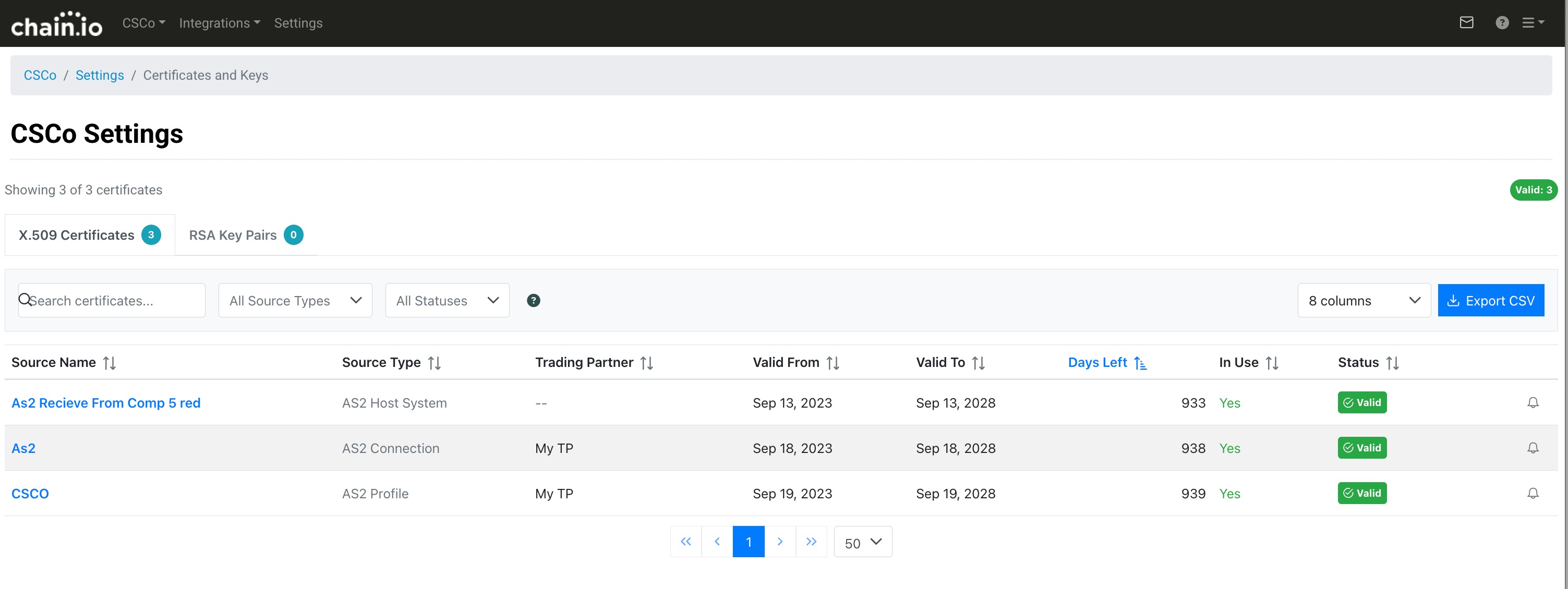
The Certificates and Keys page gives you a single view of every credential across your workspace — X.509 certificates from AS2 and CargoWise Next integrations, and RSA key pairs from Snowflake integrations. Instead of clicking into each profile, host system, and connection to check expiration dates one by one, this page pulls them all together. You can see what's expired, what's expiring soon, and what's healthy — all at a glance.
The page is available to all workspace roles (Owner, Editor, and Viewer) and is completely read-only. You can't modify credentials here, but you can click through to the settings page where each one lives.
Getting There
Go to Workspace Settings, then click Certificates and Keys in the settings menu. The page is listed under the Communications section, alongside AS2 Profiles and Host Systems.
Two Tabs: Certificates and Key Pairs
The page is split into two tabs based on credential type. Each tab shows a badge with the total count of credentials in that category.
The X.509 Certificates tab shows SSL/TLS certificates from your AS2 Profiles, AS2 Host Systems, AS2 Connections, and CargoWise Next endpoints. These certificates have expiration dates, and the tab is designed to help you spot ones that are expired or expiring soon.
The RSA Key Pairs tab shows Snowflake authentication keys from your Snowflake Host Systems and Snowflake Connections. RSA keys don't expire, but the tab tracks how old each key is so you can plan rotation on your own schedule.
What You'll See
Each tab shows one row per credential. The columns differ slightly between tabs to reflect the different nature of X.509 certificates and RSA key pairs.
X.509 Certificates Columns
| Column | What It Shows | Visible by Default |
|---|---|---|
| Source Name | The name of the profile, host system, connection, or endpoint where the certificate is configured. Click it to go directly to that source's settings page. | Yes |
| Source Type | The kind of source: AS2 Profile, AS2 Host System, AS2 Connection, or CargoWise Next. | Yes |
| Trading Partner | The trading partner associated with this certificate. For AS2 Profiles, this shows partner names from connections that use the profile. Blank when no partner applies. | Yes |
| Issued To | The certificate's subject common name — who the certificate was issued to. | Yes |
| Issued By | The certificate authority that issued the certificate. | Yes |
| Valid From | The date the certificate became valid. | Yes |
| Valid To | The date the certificate expires. | Yes |
| Days Left | Days until expiration. Negative means it's already expired (e.g., "-15" means it expired 15 days ago). | Yes |
| In Use | Whether this certificate is actively in use by an integration, including acknowledgment channels (997/CONTRL). Shows "Yes" or "No". | Yes |
| Status | A color-coded badge showing the certificate's health. See the status descriptions below. | Yes |
| Serial Number | The certificate's serial number in hex format. Has a copy button for convenience. | Yes |
| Thumbprint | The certificate's SHA-1 fingerprint in hex format. Has a copy button for convenience. | Yes |
RSA Key Pairs Columns
| Column | What It Shows |
|---|---|
| Source Name | The name of the Snowflake host system or connection. Click it to go to its settings page. |
| Source Type | Either Snowflake Host System or Snowflake Connection. |
| Trading Partner | The trading partner for Snowflake Connections. Blank for host systems. |
| Last Rotated | The date the key was last rotated (or initially created). |
| Key Age (Days) | How many days since the key was last rotated. Higher numbers mean older keys. |
| In Use | Whether this key pair is actively in use by an integration. Shows "Yes" or "No". |
| Status | Always "Active" for RSA key pairs, since they don't expire. |
Both tables show 50 rows per page by default. You can switch to 25 or 100 using the pagination controls at the bottom.
Choosing Which Columns to Display
The column selector dropdown on the right side of the filter bar lets you toggle columns on and off. All columns are visible by default. If you prefer a more compact view, you can hide columns you don't need — your preferences are saved and restored each visit. Your column preferences are saved and remembered the next time you visit.
You can also drag column headers left or right to reorder the table to your liking. The order you set is saved alongside your column visibility preferences and restored automatically the next time you visit.
The Summary Bar
At the top of each tab, a summary bar shows how many credentials you're viewing out of the total, along with colored badges that break down the counts by status.
On the certificates tab you'll see counts for Expired, Expiring Soon, Not Yet Valid, Valid, and Unreadable. On the key pairs tab you'll see an Active count along with an Oldest Key indicator showing the age of your oldest key in days — useful for deciding when it's time to rotate.
Click the help icon next to the summary badges to see detailed definitions of what each status means.
Certificate and Key Statuses
Every credential gets a status, calculated fresh each time you load the page.
| Status | Color | What It Means | What To Do |
|---|---|---|---|
| Expired | Red | The certificate's expiration date has passed. It may be causing integration failures right now. | Replace or renew this certificate as soon as possible. Click the source name to go to the settings page. |
| Expiring Soon | Amber | The certificate will expire within the next 30 days. | Plan to replace it before it expires. |
| Valid | Green | The certificate is within its validity period with more than 30 days until expiration. | No action needed. |
| Not Yet Valid | Blue | The certificate's start date is in the future. It's been uploaded but isn't active yet. | Usually means it was uploaded ahead of a planned rotation. Verify the timing is correct. |
| Active | Blue | The RSA key pair exists and is in use. RSA keys don't expire. | Check the Key Age column and rotate if your security policy requires it. |
| Unreadable | Grey | The certificate data couldn't be interpreted. Expiration dates are unknown. | The certificate may be corrupted or in an unexpected format. Click the source name to investigate and consider re-uploading. |
Each status badge includes both a color and an icon, so you don't need to rely on color alone to tell them apart. Expired rows also have a subtle red background tint, and Expiring Soon rows have a subtle amber tint, making them easy to spot when scanning the table.
Filtering and Searching
Use the search box to find credentials by name, source type, trading partner, or — on the certificates tab — by technical details like the Issued To name, serial number, or thumbprint. The filter applies instantly as you type.
The Status dropdown lets you narrow the table to one or more statuses — for example, show only Expired and Expiring Soon certificates to focus on what needs attention. The Source Type dropdown narrows results by integration type, like AS2 Connection or Snowflake Host System.
You can combine all filters together. Selecting Status = "Expired" and Source Type = "AS2 Connection" shows only expired certificates from AS2 connections. The summary bar updates to show "Showing X of Y" so you always know how many credentials match.
When any filter is active, a Clear button appears. Click it to reset everything and see the full list again.
The certificates table is sorted by expiration date (ascending) by default, so the most urgent certificates appear at the top. The key pairs table is sorted by key age (descending) by default, so the oldest keys appear first. You can re-sort by clicking any column header. Click again to reverse the direction. Certificates with unreadable expiration dates sort to the end.
Your filter selections, sort preferences, and active tab are all saved and restored the next time you visit the page.
Exporting to CSV
Click the Export CSV button in the toolbar to download the currently displayed credentials as a CSV file. The export respects your active filters and column selections — if you've filtered to show only Expired certificates, that's what you'll get in the file, and only your enabled columns will be included.
Filenames follow these patterns:
- Certificates:
certificate-report-ACME-2026-02-06.csv - Key pairs:
keypair-report-ACME-2026-02-06.csv
One thing to note: if the Partner column in the table is truncated (showing "+2 more" for a long list), the CSV always includes the full, untruncated partner list. The Export button is disabled when there are no credentials to export.
Expiration Notification Recipients
Workspace Owners and Editors can configure which email addresses receive expiration alerts for each individual certificate. This lets you route notifications to the right people — such as a specific team or partner contact — rather than relying solely on the workspace default, which sends to all enabled Workspace Owners. Custom recipients completely replace the default list for that certificate — workspace owners will not receive a separate copy.
To configure recipients for a certificate, click the bell icon in the rightmost column of its row. A filled bell means custom recipients are already configured for that certificate. An outlined bell means the certificate is using the workspace's default notification list.
Clicking the bell opens a panel where you can add or remove email addresses. You can type addresses one at a time or paste a list separated by commas or line breaks — the field will split them automatically. Each address is validated before it's added, and duplicates are ignored. You can configure up to 10 recipients per certificate.
The notification column is visible to Owners and Editors only. Viewers do not see it. The column is also not shown for Snowflake key pairs, since RSA keys do not expire and do not trigger expiration alerts.
Expiration Email Notifications
Chain.io automatically sends email notifications when your X.509 certificates are approaching expiration. These emails are sent daily and are designed to give you advance warning so you can renew certificates before they cause integration failures.
When Emails Are Sent
The system checks all certificates daily. Any certificate that is within 30 days of its expiration date and is linked to an active flow will trigger a notification email. Once a certificate expires, notifications stop.
Notifications are not sent regarding the age of RSA key pairs.
What the Email Contains
The subject line reads: Action Required: Certificate Expiration Notice - [Workspace Name].
When multiple certificates share the same recipient list, they are grouped into a single email. The email body includes:
- A list of expiring certificates grouped by source type (AS2 Profile, AS2 Host System, AS2 Connection, CargoWise Next Host System, or CargoWise Next Connection)
- For each certificate: the source name (linked to its settings page), the number of days until expiration, the expiration date, and the certificate common name
- A list of affected active flows for each certificate, showing the trading partner, flow name, and flow type
- Guidance on why certificate expiration matters and what steps to take
Clicking Through to Source Settings
Certificates and Keys is a monitoring tool — it shows you where problems are so you can go fix them. Click any source name to navigate directly to the settings page where that credential is managed.
- AS2 Profile rows take you to the AS2 Profiles settings page.
- AS2 Host System rows take you to the Host Systems settings page.
- AS2 Connection rows take you to that specific connection's edit page.
- CW Next Host System rows take you to the Host Systems settings page.
- CW Next Connection rows take you to that specific connection's edit page.
- Snowflake Host System rows take you to the Host Systems settings page.
- Snowflake Connection rows take you to that specific connection's edit page.
For Profiles and Host Systems, the link goes to the list page for that resource type rather than directly to the individual item. You'll need to find the specific item in the list. Connection links go straight to the connection's edit page. Hold Cmd (Mac) or Ctrl (Windows) while clicking to open in a new tab.
Warnings and Error States
Occasionally, the system might not be able to load credentials from every source. When this happens, you'll see a yellow warning banner at the top of the page telling you which source couldn't be loaded (e.g., "Failed to load: AS2 Host Systems"). The credentials that did load successfully are still shown in the table, and you can sort, filter, and export them as usual.
If you see a warning, try refreshing the page. If the problem keeps happening, contact support.
If none of the credential sources can be loaded at all, you'll see an error message with a Retry button instead of the table.
No Credentials Found
If your workspace doesn't have any certificates or keys configured yet, the page shows a message explaining this and provides links to the settings pages where you can set up AS2 Profiles, Host Systems, and Connections.
No Credentials Match Your Filters
If credentials exist but your current filter combination matches none of them, you'll see a message with a Clear All Filters button to reset and see everything again.
Common Questions
Who can see this page?
Everyone with access to the workspace: Owners, Editors, and Viewers. The page is read-only for all roles.
Is the data live?
Yes. Credential data is loaded fresh every time you open the page or refresh your browser. There's no caching or delayed updates — what you see is the current state.
Why is a certificate showing as "Unreadable"?
This means the system couldn't interpret the certificate data. It might be corrupted, in an unsupported format, or the data field might not contain a valid certificate. Click the source name to go to the settings page, where you can inspect and re-upload the certificate if needed.
Why is the Partner column blank?
The Partner column is blank when no trading partner is associated with the credential source. This is normal for Host Systems, which are workspace-level resources. For AS2 Profiles, the column is blank when no connections currently reference that profile. When connections do reference a profile, the partner names from those connections are shown automatically as a comma-separated list.
What does a negative number in "Days Left" mean?
It means the certificate has already expired. "-10" means it expired 10 days ago. These certificates have an "Expired" status and may be causing active failures.
Can I renew certificates or rotate keys from this page?
No. This page is read-only. To update a certificate or rotate a key, click the source name to go to the settings page where the credential is managed. Your ability to make changes there depends on your workspace role.
What credential sources are covered?
The report covers five source types: AS2 Profiles, AS2 Host Systems, AS2 Connections, CW Next integrations (host systems and connections), and Snowflake integrations (host systems and connections). Credentials from other protocols like SFTP or FTP are not included at this time.
Why are there multiple rows for one CargoWise Next system?
A single CargoWise Next system can have more than one client certificate. Each certificate gets its own row. The source name includes both the system name and the certificate name (e.g., "CW Next Production - My Client Cert") so you can tell them apart.
How do I know when to rotate an RSA key?
RSA key pairs don't expire, so there's no automatic warning. Use the Key Age column on the RSA Key Pairs tab to see how old each key is. The Oldest Key badge in the summary bar highlights your most aged key. Follow your organization's security policy for rotation frequency — many organizations rotate keys every 90 to 365 days.
What does "Last Rotated" mean for Snowflake keys?
This is the date the RSA key pair was last changed in the system. If the key has never been rotated, this shows the date it was originally created.
Was this article helpful?
That’s Great!
Thank you for your feedback
Sorry! We couldn't be helpful
Thank you for your feedback
Feedback sent
We appreciate your effort and will try to fix the article