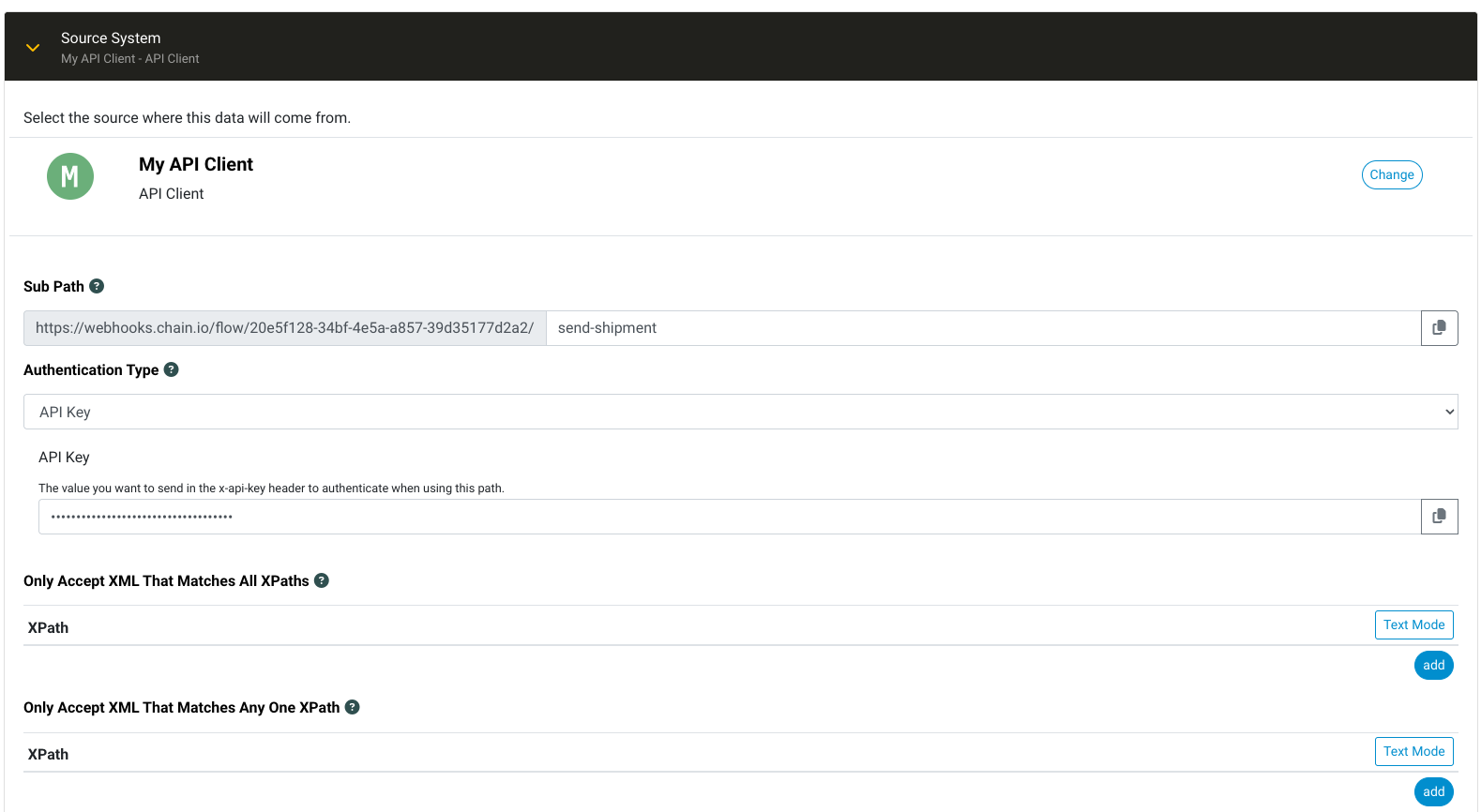
An API Client source lets your own system, or your partner's, start a flow by sending an HTTPS request to Chain.io. Each flow gets its own web address, and every request sent to that address runs the flow with the request body as its input file. This article walks through the settings on that source: the Sub Path that makes up the address, how callers authenticate, the XPath filters, tracing requests with an X-Request-ID header, and data tags, which let a caller label each execution with its own references.
Where these settings live
You'll find these settings in two places in the flow editor, depending on the type of flow:
- Source System: on a flow where your own system sends data, open the Source System pane and choose an API Client host system.
- Source Connection: on a flow where a trading partner sends data, open the Source Connection pane and choose an HTTPs/API connection.
Both show the same fields, and everything below applies to either one. The only difference is the start of the web address: an API Client source system uses the host system's ID, and an HTTPs/API connection uses the integration's ID.
If you build flows in the Visual Builder, the same settings are on the HTTP Launcher. It has the same Sub Path and Authentication Type fields, and data tags work the same way. It doesn't have the two XPath fields; you filter files with the launcher's Filters section instead. See the Visual Builder User Guide for working with launchers.
Sub Path
The Sub Path finishes the web address callers send their requests to. Chain.io fills in the start of the address for you and shows it in a gray box in front of the field. Whatever you type goes on the end, and the copy button next to the field copies the full address.
For example, if the prefix is https://webhooks.chain.io/flow/3f9a1c2e-6b7d-4e8f-9a0b-1c2d3e4f5a6b/ and you enter orders, callers send requests to https://webhooks.chain.io/flow/3f9a1c2e-6b7d-4e8f-9a0b-1c2d3e4f5a6b/orders.
The Sub Path is required. Keep it short and readable, using letters, numbers, hyphens, underscores, and slashes, so it's easy to tell flows apart. A request sent to an address that doesn't match any flow gets a 400 "Invalid Flow" response.
Sub Paths don't have to be unique. If two flows on the same source share a Sub Path, one request runs both flows, and each one checks the caller's credentials separately. That's useful when one file needs to go to two places. If it isn't what you want, give each flow its own Sub Path.
Authentication Type
The Authentication Type decides how a caller proves it's allowed to send to this address. Chain.io checks the credentials on every request before it starts the flow, and a request that fails the check never runs. API Key is selected by default.
API Key
Enter a key of at least 10 characters in the API Key field. The caller sends the same value in an x-api-key header on every request. Use a long, random value, and treat it like a password: anyone who has it can start this flow.
If the key contains characters outside plain ASCII, the caller must percent-encode it in the header, the same way as data tags (described below).
Basic Authentication
Enter a Username and Password. The caller sends them with standard HTTP Basic authentication, as an Authorization: Basic header holding the Base64 encoding of username:password. Most HTTP tools and libraries build this header for you when you give them a username and password.
OAuth Client
Choose a client from the OAuth Client ID list. The list groups your workspace's clients by status, and only an active client can be used. The caller uses that client's ID and secret to get an access token, then sends the token as an Authorization: Bearer header. If you don't have a client yet, create one under Workspace Settings > Flow OAuth Clients. Using OAuth 2.0 Clients In Flow covers creating a client and getting tokens.
No Authentication
With No Authentication, anyone who knows the address can start the flow. We strongly discourage it. Use it only for testing, and switch to one of the other types before real data flows through.
Authentication errors
When a request is rejected, the caller gets one of these responses:
| Response | What it means |
|---|---|
| 400 "API Key is required" | The flow uses API Key, and the request had no x-api-key header. |
| 400 "Authorization header is required" | The flow uses Basic Authentication or OAuth Client, and the request had no Authorization header. |
| 401 "Party does not have access to this flow" | The credentials were sent but didn't match: a wrong key or password, or a token for a different OAuth client. |
| 400 "Invalid Flow" | No flow uses this address. Check the Sub Path, and that the flow is enabled. |
XPath filters
Filtering decides which requests actually start the flow. A request that passes the filters runs the flow as usual. A request that doesn't is still accepted, and the caller gets a success response that says the flow was skipped, but the flow never starts. Because the flow doesn't run, skipped requests don't appear in Flow Execution Search.
The two XPath tables filter XML request bodies. Add an XPath to Only Accept XML That Matches All XPaths when every one of them must find something in the body. Add it to Only Accept XML That Matches Any One XPath when finding any one is enough. If you fill in both, a request has to pass both tables. Leave both empty to accept every request.
For example, an XPath of /Shipment/Mode[text()='AIR'] in the All table means only shipments whose Mode is AIR start the flow. These filters only understand XML. If you add XPaths and a caller sends JSON, or XML that can't be read, every request is skipped.
For JSON filters, regular expression filters, and more involved filtering, use the flow's Filters pane. Filters For Source Files In Flow Configurations explains how those work.
Tracing requests with X-Request-ID
Every request that matches a flow and passes its credential check is recorded on the Launcher Files page, along with what became of it, so you can confirm a request arrived even when the filters skipped it. If the caller sends an X-Request-ID header with its own reference for each request, Chain.io records that value with the file:
X-Request-ID: order-batch-20261021-0042To trace a request, search Launcher Files for the same value in the File name or identifier box. The search matches the whole value, ignoring case, and records are kept for 14 days. If a request has no X-Request-ID, Chain.io uses its X-Correlation-ID or Request-ID header instead. Requests that don't match any flow, or that fail their credential check, aren't recorded, because the caller already got an error response. Tracking the Files Your Launchers Received (Launcher Files) covers searching and reading the results.
Labeling executions with data tags
Data tags let the caller attach its own labels to the executions a request starts, such as a PO number, a shipment reference, or a customer code. Each tag is a name and value pair, and the tags show on the execution in the portal. You can then find the execution by the reference your system already knows instead of hunting by time or file name. When you're tracking down "what happened to PO 12345?", that saves a lot of searching. Finding Flow Executions covers searching for executions.
Tags are optional and need no setup in the flow. The caller adds an X-Chainio-Data-Tags header to the request, and every flow the request starts gets the same tags.
Header format
The header holds a comma-separated list of name=value pairs:
X-Chainio-Data-Tags: customer=acme, region=us-east-1, po%20number=PO%2F12345That request gets three tags: customer is acme, region is us-east-1, and po number is PO/12345. Spaces around each pair and around the = are ignored.
The caller can also send the header more than once. These two requests produce exactly the same tags:
X-Chainio-Data-Tags: customer=acme, region=us-east-1

X-Chainio-Data-Tags: customer=acme
X-Chainio-Data-Tags: region=us-east-1
Here's a complete request using curl and an API key:
curl -X POST "https://webhooks.chain.io/flow/3f9a1c2e-6b7d-4e8f-9a0b-1c2d3e4f5a6b/orders" \
  -H "x-api-key: YOUR_API_KEY" \
  -H "Content-Type: application/xml" \
  -H "X-Chainio-Data-Tags: customer=acme, po%20number=PO%2F12345" \
  --data-binary @order.xml
When to percent-encode
Commas, equals signs, and a few other characters have a special meaning in the header, so a name or value that contains them has to be percent-encoded. Percent-encoding replaces a character with % and its code, so a comma becomes %2C. The safest habit is to encode every name and value, then join them with a plain = between each name and value and a plain , between pairs. Those separators are the only characters that should be left unencoded.
These are the cases where encoding is required:
| The name or value contains | Without encoding | Send it as |
|---|---|---|
| A comma | note=a,b becomes the tag note: a, and b is dropped | note=a%2Cb |
| An equals sign in the name | a=b=c becomes the name a and the value b=c | a%3Db=c |
| A percent sign | discount=10% is dropped, because % has to be followed by a two-character code | discount=10%25 |
| Spaces at the start or end you want to keep | code= A1 becomes A1 | code=%20A1%20 |
| Accented letters or other non-ASCII text | city=café arrives garbled, as café | city=caf%C3%A9 |
An equals sign in a value doesn't strictly need encoding, because only the first one separates the name from the value. Spaces in the middle of a name or value don't either. Encoding them is harmless, and it keeps the habit simple.
Most languages have a built-in function that encodes a name or value correctly. Use one that turns a space into %20, not +. A + is kept as a literal plus sign, so a value sent as New+York arrives as "New+York".
| Language | Use | Avoid |
|---|---|---|
| JavaScript | encodeURIComponent(value) | URLSearchParams, which turns spaces into + |
| Python | urllib.parse.quote(value, safe='') | quote_plus, which turns spaces into + |
| C# / .NET | Uri.EscapeDataString(value) | HttpUtility.UrlEncode, which turns spaces into + |
| Java | URLEncoder.encode(value, StandardCharsets.UTF_8).replace("+", "%20") | URLEncoder.encode on its own, which turns spaces into + |
In JavaScript, for example, a caller can build the header like this:
const tags = { customer: 'acme', 'po number': 'PO/12345', note: 'rush, fragile' }
const header = Object.entries(tags)
  .map(([name, value]) => `${encodeURIComponent(name)}=${encodeURIComponent(value)}`)
  .join(', ')
// customer=acme, po%20number=PO%2F12345, note=rush%2C%20fragile
What happens to bad or extra tags
A problem with the tags never stops a request. The flow still runs, and anything that can't be used is left off the execution:
- An entry with no
=, or with a%that isn't followed by a valid code, is dropped. - A tag with an empty name or an empty value is dropped.
- A name or value longer than 255 bytes is cut to 255 bytes. Most characters are one byte, but accented and non-Latin characters take two to four.
- If the same name and value appear more than once, the tag is kept once. Names are case-sensitive, so
Customer=ACMEandcustomer=acmeare two different tags, and one name can carry several values, such aspo=1, po=2. - Only the first 100 tags are kept.
Keep the whole header to a few kilobytes. Requests whose headers add up to more than 16 KB, counting every header including Authorization, are rejected with a 431 response before any flow runs.
Keep secrets out of tags
Data tags are shown to everyone who can see the execution in the portal, and they're kept with the execution record and in our logs. Never put passwords, API keys, tokens, or other secrets in a tag.
Was this article helpful?
That’s Great!
Thank you for your feedback
Sorry! We couldn't be helpful
Thank you for your feedback
Feedback sent
We appreciate your effort and will try to fix the article