In this article:
- Setting Up A JSON Filter
- Setting Up A XPath Filter
- Setting Up A RegEx Filter
- Filters in the Visual Builder
Filters allow users to better manage which data transactions ultimately get sent into their system by reducing any unwanted or redundant messages. Customers can set up filters for JSON, XML, and text-based source files within the Flow configuration screen. Options include a simple JSON filter or a more advanced JSONata filter for JSON documents, an XPath filter for XML documents, and a RegEx filter for pattern matching in text-based files.
Setting up a JSON Filter
Using basic key/value pairs or JSONata expressions, users can quickly define which JSON files get processed while discarding the rest.
You can set up a JSON filter by navigating to your flow configuration screen.
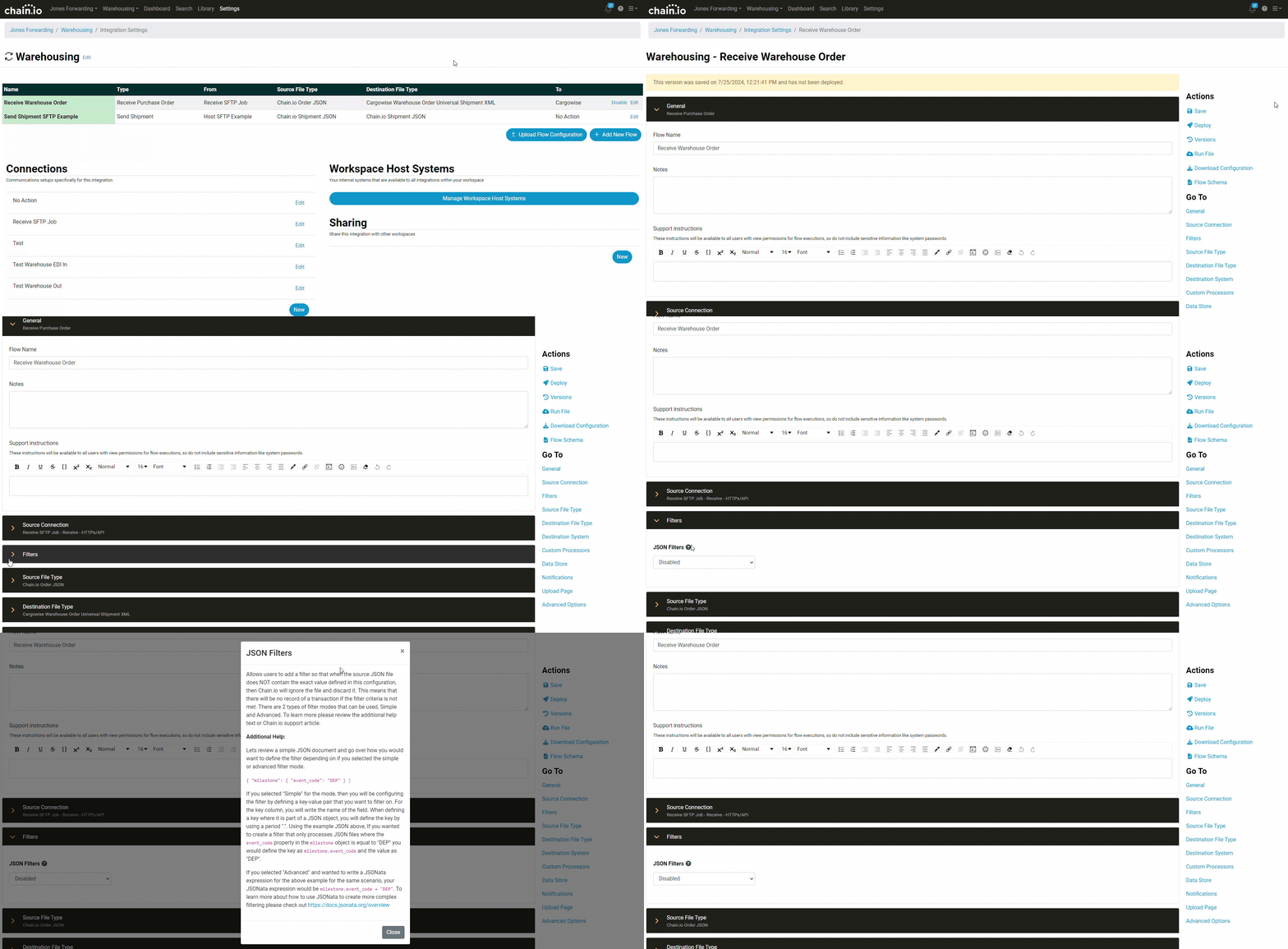
Click the panel labelled Filters to reveal the JSON Filter options. By default Disabled is selected.
In the dropdown, you can enable JSON filtering by selecting either of the following options:.
1) Simple: This filter mode allows users to filter by defining a key-value pair. For the key column, fill in the simple path to the field. A simple JSON path to a property within a nested object is written with a “.” between every object key from JSON root to the target field. You would then put what value you would expect for the key. Any files that match that criteria will be processed by Chain.io and can be found in the “Search” screen where you can view the flow executions. Any file that does not meet the criteria will be filtered out and discarded (not visible or processed in portal.chain.io).
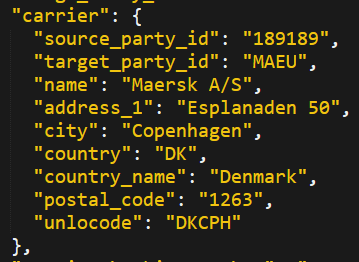
Simple Mode JSON Filter Example: If someone wants to filter all JSON files where the carrier is NOT Maersk they could setup a simple JSON filter as such:
Example Input:
Simple JSON filter:
2) Advanced: This allows you to take advantage of using JSONata expressions to build more complex filtering logic. To learn more about the JSONata you can visit: https://docs.jsonata.org/overview and to practice writing your own JSONata expressions using your own data, you can use https://try.jsonata.org/
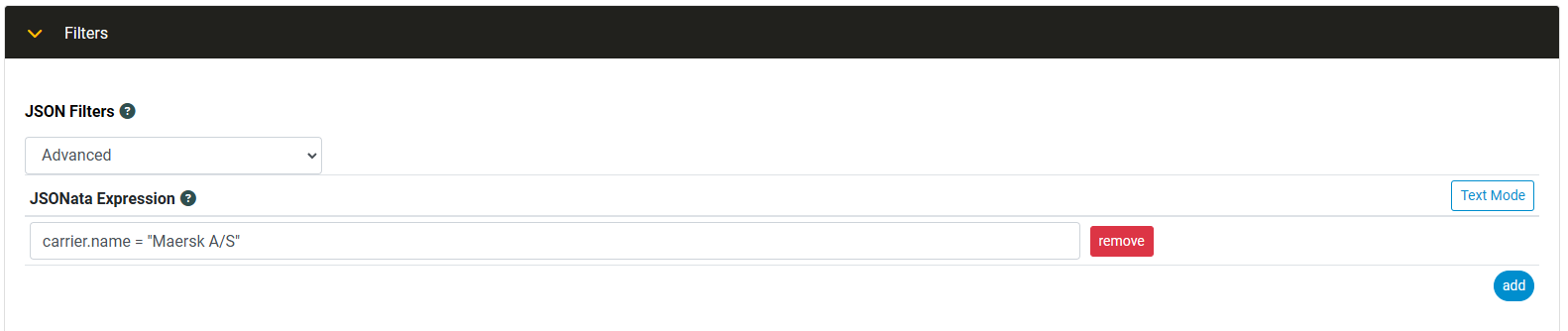
Advanced JSONata filter:
In the previous example, the correct way to filter on carrier name using the advanced mode would be to write this JSONata expression: carrier.name = "Maersk A/S"
Filters use standard JSONata. Chain.io's additional functions, such as $uuid and $lookupTable, are available in mappings but not in filters. A filter that uses them fails, both in the tester and in a deployed flow.
Setting up an XPath Filter
Using XPath expressions, customers have the ability to filter data within their source files from being processed by the Flow execution. To add an XPath Filter, navigate to your flow configuration and open the Filters panel:
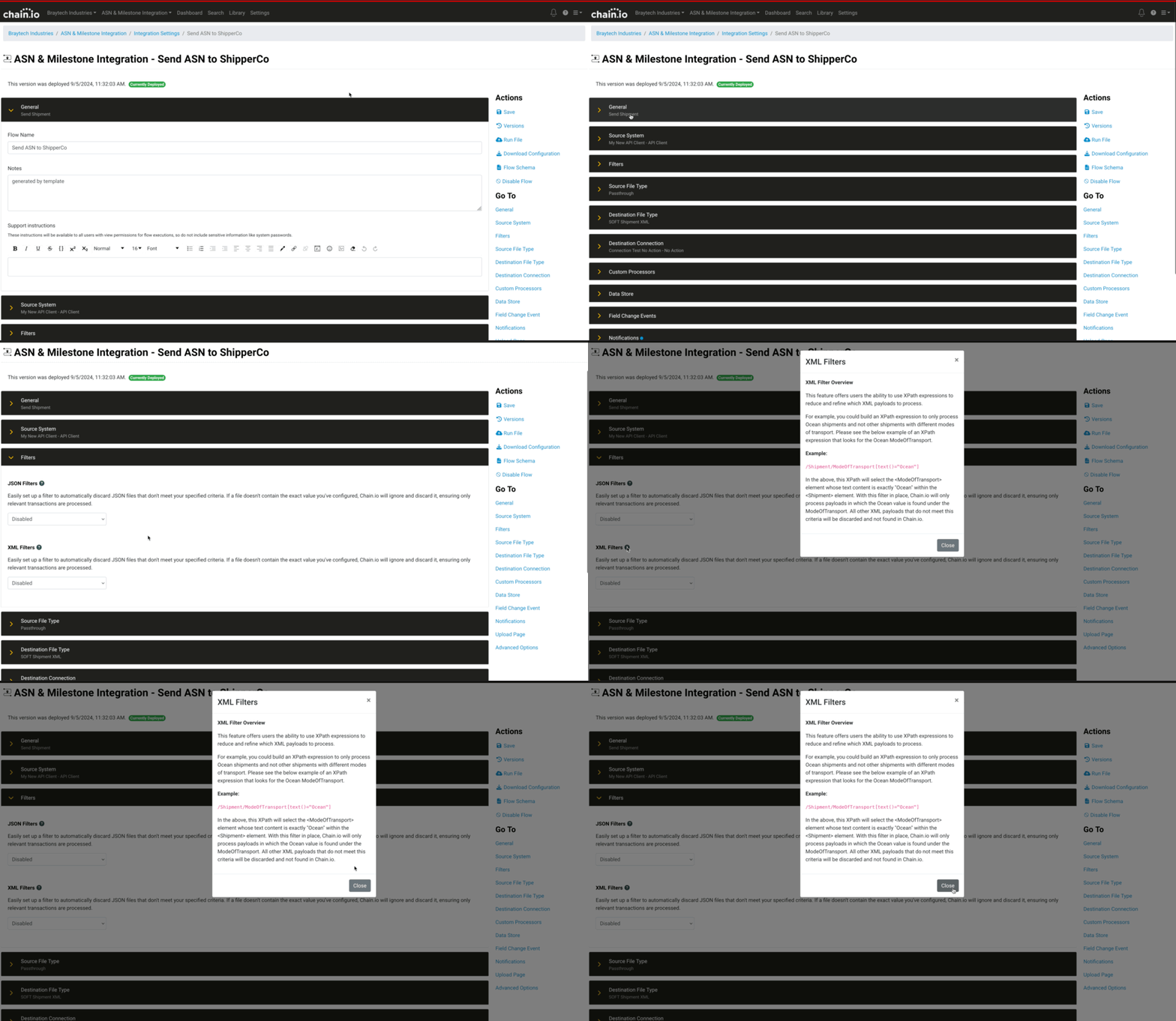
Select Enabled from the dropdown then click the Add button to add a new Xpath Filter Expression:
In the field the appears add your XPath expression.
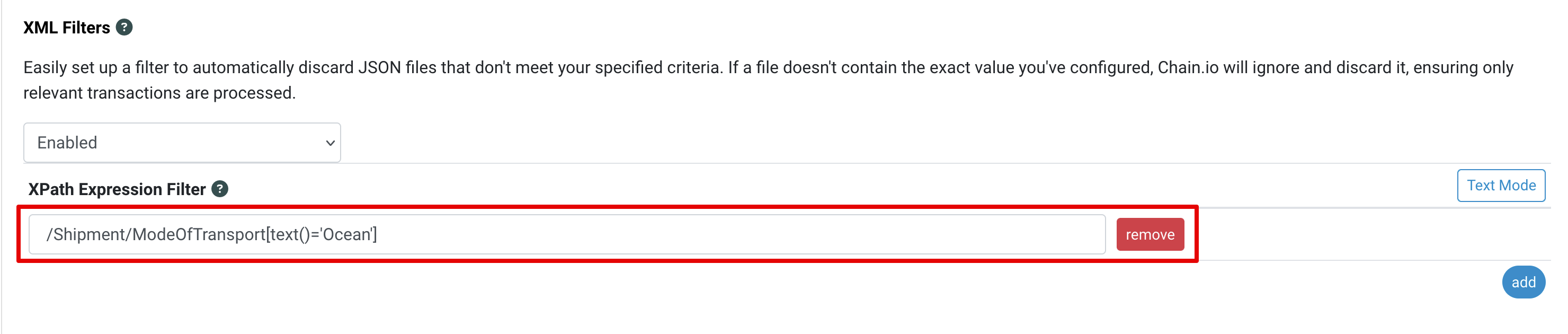
How an XPath filter decides whether a file is processed
Chain.io evaluates each XPath expression against the file, and the file passes the filter when the result is not falsy. These results are falsy and cause the file to be discarded:
- an expression that matches nothing (no elements, attributes or text)
false0orNaN- an empty string
Any other result passes. That means you aren't limited to expressions that select elements, because XPath functions and comparisons work too:
| Expression | The file is processed when… |
|---|---|
/Shipment/ModeOfTransport[text()="Ocean"] | a ModeOfTransport element under Shipment contains "Ocean" |
count(//Container) >= 2 | the file has at least two Container elements |
sum(/Order/Items/Item/Price) > 1000 | the item prices add up to more than 1000 |
/Order/@priority | the Order element has a priority attribute, whatever its value |
not(//CancelledDate) | the file has no CancelledDate element |
Filters that select elements work exactly as they did before.
Setting up a RegEx Filter
Using regular expressions, customers have the ability to filter data within their source files from being processed by the Flow execution. To add a RegEx Filter, navigate to your flow configuration and open the Filters panel:
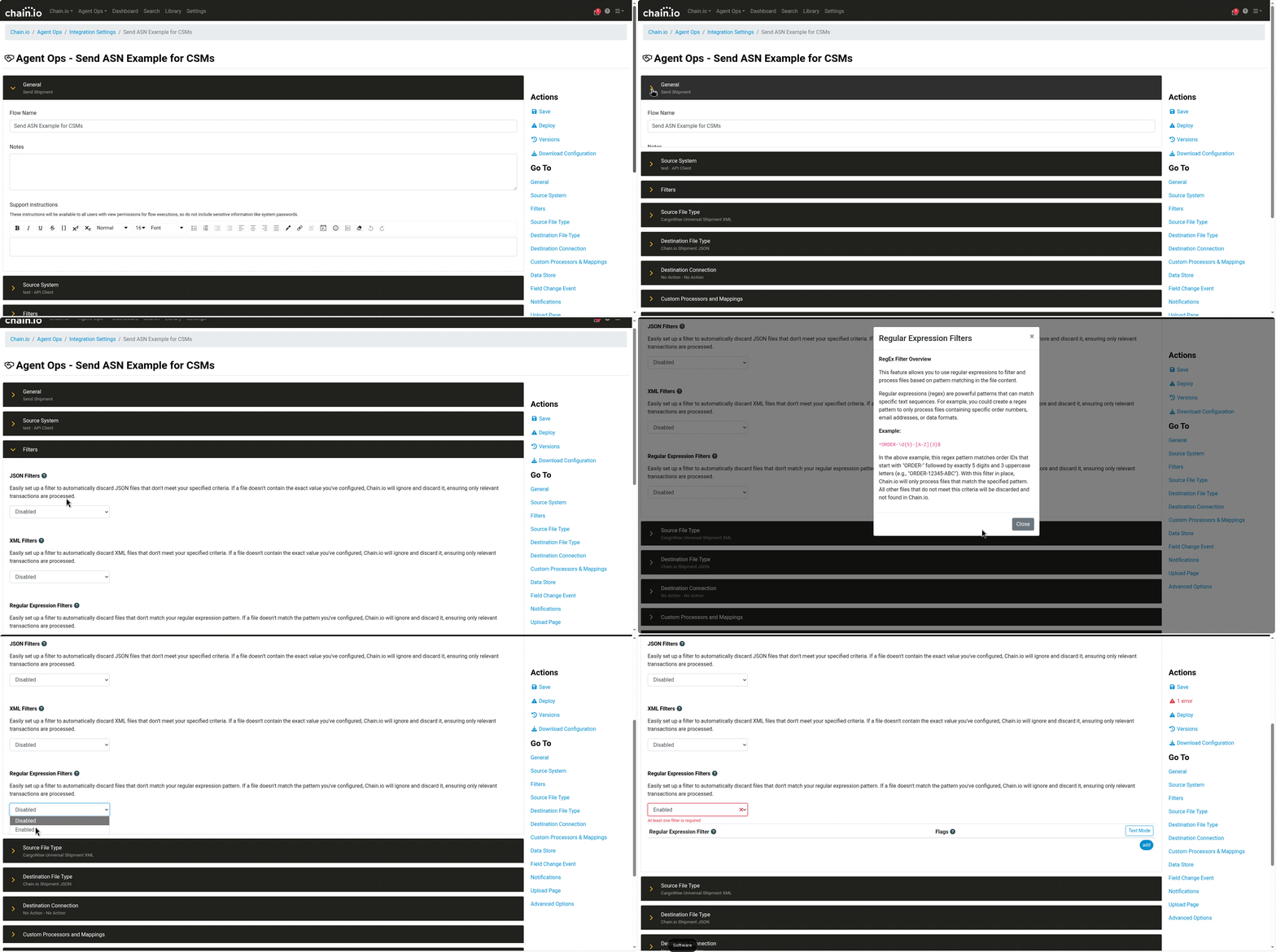 Select Enabled from the dropdown then click the Add button to add a new Regular Expression Filter:
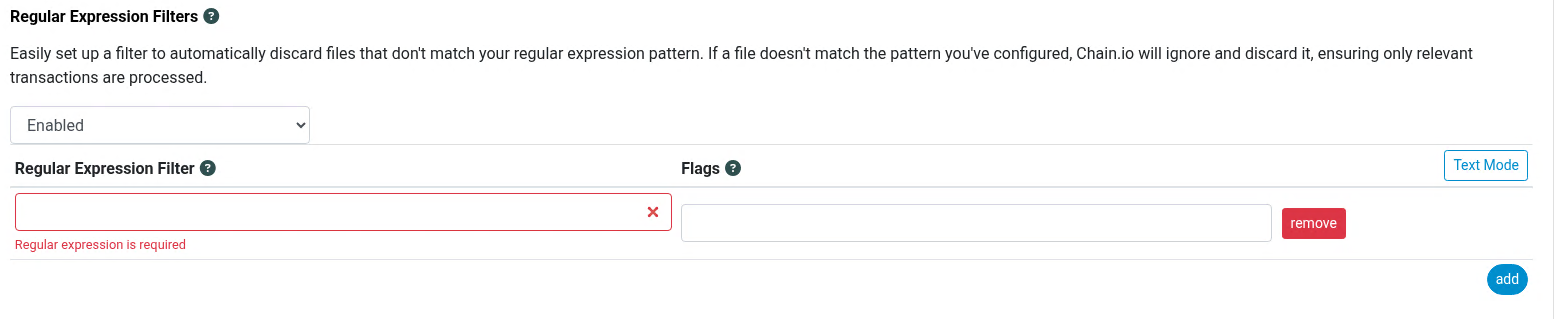
In the Regular Expression Filter field, add you RegEx:
If there are any Flags needed for this RegEx, add those in the Flags field:
Testing Your Filters
Once you've configured one or more filters, you can test them against a sample file before saving — no need to wait for a real transaction to see whether your filter logic works as expected.
Click the Test Filters button in the flow's right-hand navigation.
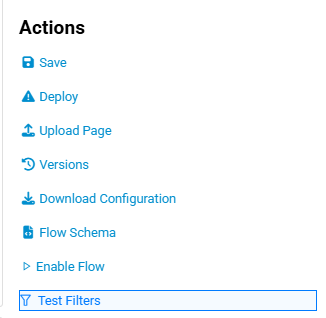
Note: This button is disabled until at least one filter is configured on the flow.
This opens the Test Filters dialog. Paste an XML or JSON document into the text box, drag and drop a file directly onto it, or click Choose File. Files up to 1 MB are supported, and Chain.io automatically detects whether the document is XML or JSON. While you stay on the flow's page, the document is kept in the dialog, so you can adjust your filters and run the test again without pasting it in again.
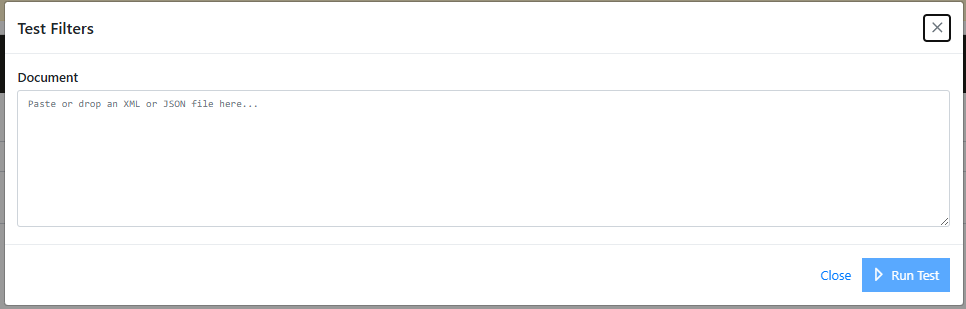
Click Run Test to evaluate your sample against every filter on the flow.
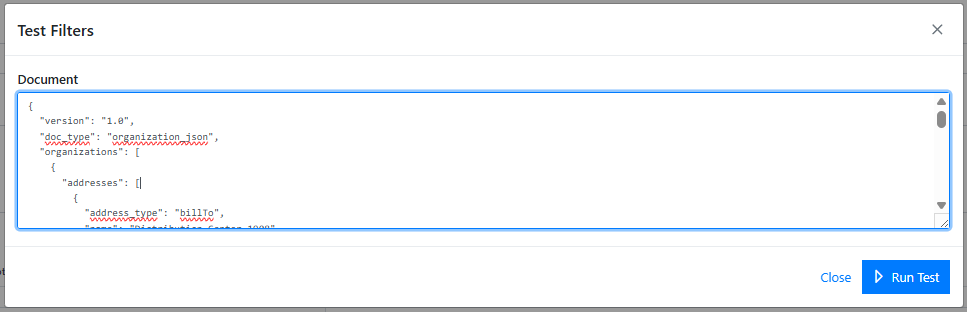
Reading the results
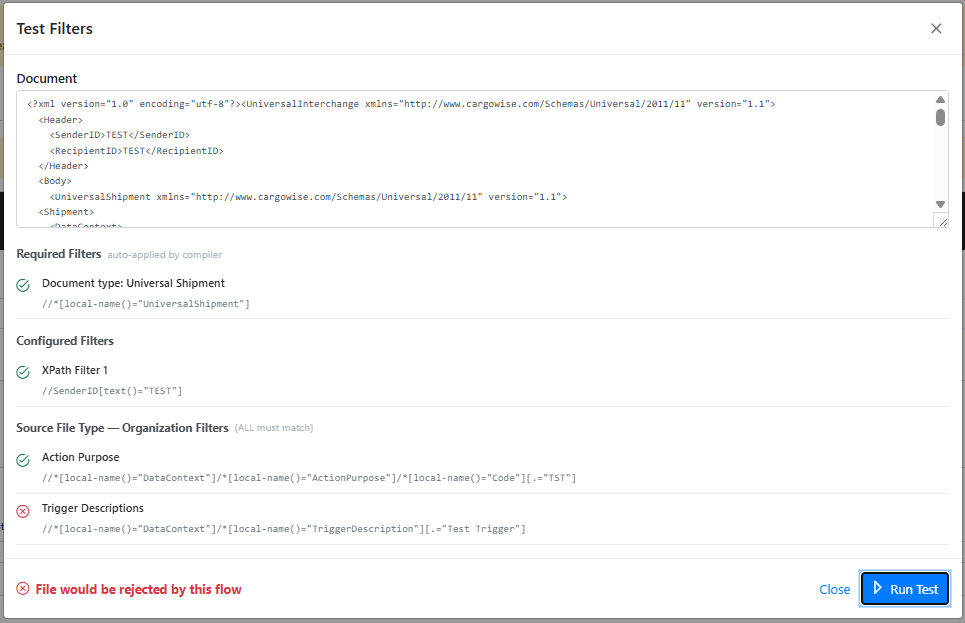
Each filter is listed with a pass/fail indicator, plus an overall verdict at the bottom of the dialog:
Verdict Meaning
Green The file would be accepted into this flow
Red The file would be rejected by this flow
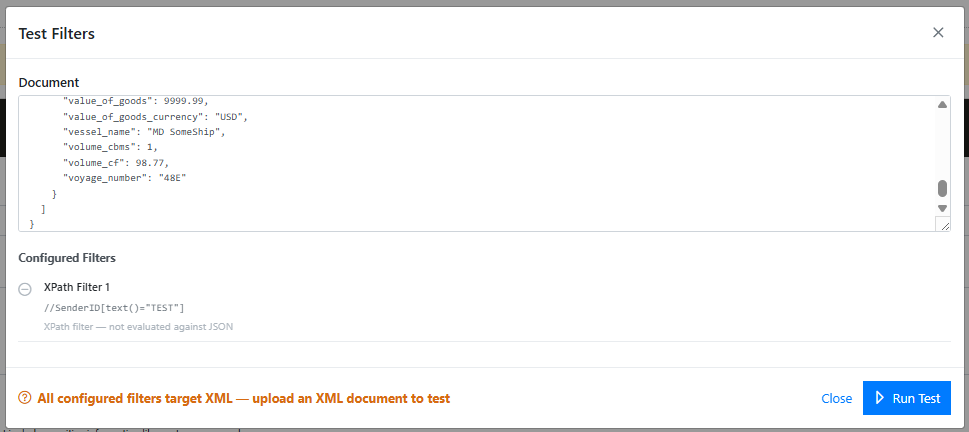
Orange — type mismatch All your filters target one format (XML or JSON) but you uploaded the other
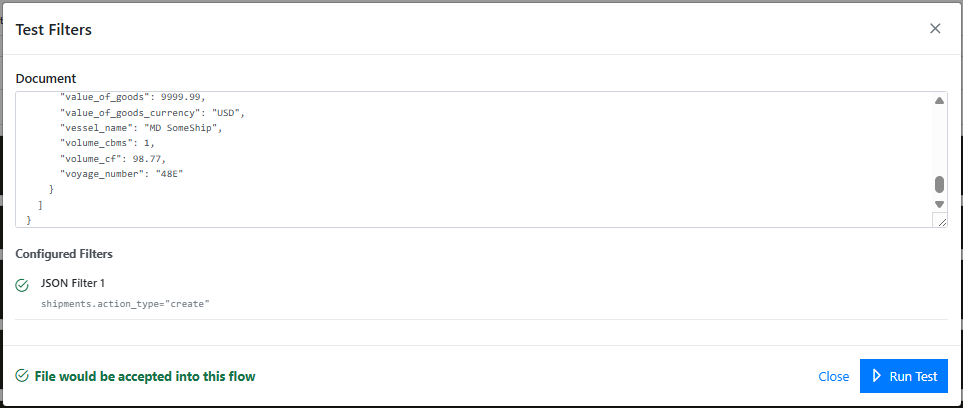
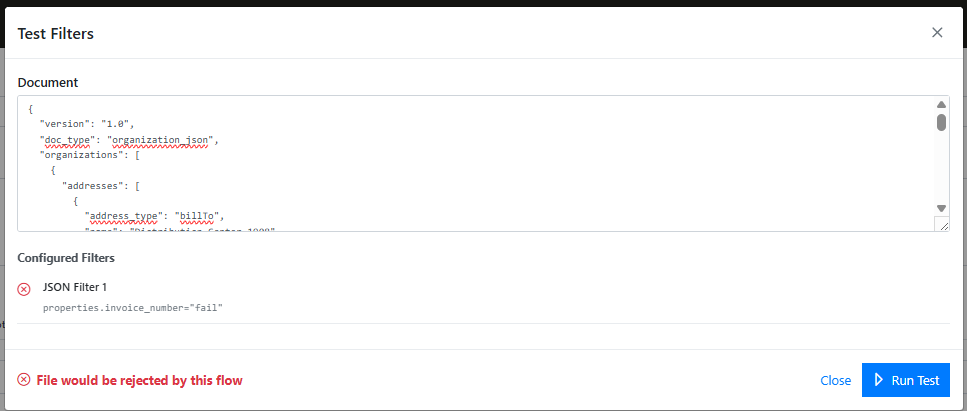
Depending on your flow's setup, results are grouped into up to three sections:
Required Filters — For Cargowise source file types, these are XPath filters Chain.io automatically applies at compile time (for example, confirming a CargowiseXUS file is a Universal Shipment document). You don't configure these yourself, but they can still cause a file to be rejected.
Configured Filters — The JSON, XPath, RegEx, or JSONata filters you've set up on this flow, as described earlier in this article.
Organization Filters — CargoWise organization-level filters (e.g., recipient org restrictions), shown only when the flow's source connection or file type has them configured.
A note on filter types and file formats
Filters are matched to the format of the file you upload:
XML documents: XPath and RegEx filters are evaluated. JSONata filters show as N/A since they only apply to JSON.
JSON documents: JSONata and RegEx filters are evaluated. XPath filters show as N/A, and the Required/Organization Filters sections aren't shown, since those are CargoWise (XML) specific.
Tip: If you've made changes to your filters but haven't saved them yet, the dialog will show a banner reminding you that you're testing against unsaved changes.

Filters in the Visual Builder
In flows built with the Visual Builder, filters belong to the flow's launcher. Select the launcher on the canvas and open its Filters group to find Input Filters.
Use Expression Filter Mode to choose XPath (for XML files) or JSONata (for JSON files). A launcher uses one expression type at a time. Regex Filters are always available, either on their own or alongside expression filters. The XPath rules described earlier in this article apply here too.
Each filter type has two lists. Every expression in Match All (AND) must pass, and at least one expression in Match Any (OR) must pass. When both lists have entries, the file has to satisfy both.
A launcher can also pick up filters from a step in the flow. Under Allow Component To Set Filters, choose a Source Step, such as a CargoWise input converter, and that step's filter settings (document type, organization IDs and so on) apply to the launcher as well. The Applied Filters panel shows the combined list, with a lock icon on filters set by the component and a person icon on the ones you added. When a component sets filters it also sets the Expression Filter Mode, and you can still add your own filters of that type.
Testing filters in the Visual Builder
Click Test Filters at the top of Input Filters. The button becomes available once at least one filter applies to the launcher. The test uses your current edits, whether or not you've saved them, and includes the filters set by the source step.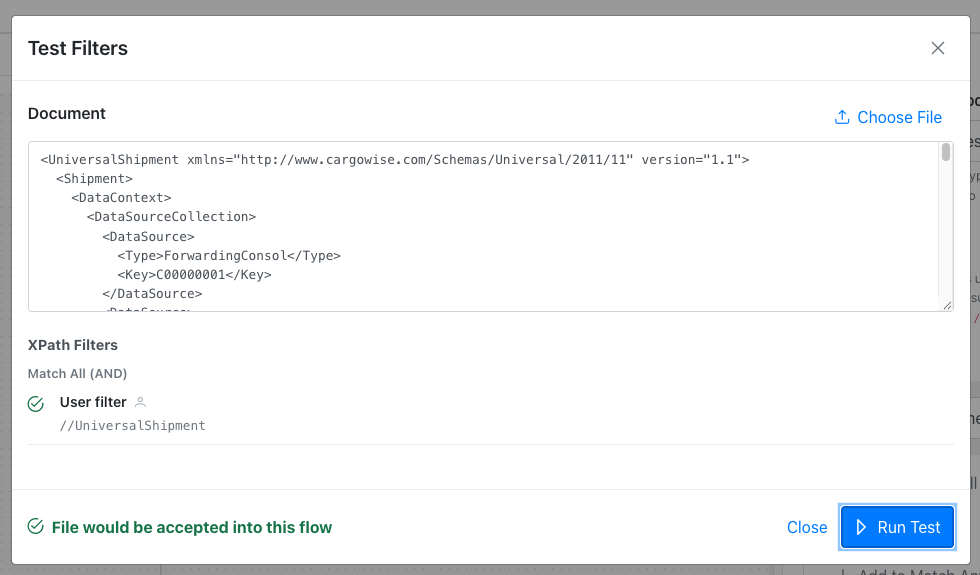
Paste a sample file, drag one onto the box, or click Choose File (up to 1 MB), then click Run Test. You can test any type of file, since Regex filters work on any content. While you stay on the flow's page the document is kept, so you can adjust your filters and test again.
Results are grouped by filter type (XPath, JSONata, Regex) and then by Match All and Match Any, and each row shows whether that expression passed and who set it. The verdict at the bottom reads File would be accepted into this flow or File would be rejected by this flow. If an expression has an error, you'll see A filter could not be evaluated instead, with the error shown on that row.
The Visual Builder tester checks a file exactly the way a deployed flow does, which makes it behave a little differently from the flow configuration tester:
- Filter types run in order: XPath, then JSONata, then Regex. Once a type rejects the file, later types aren't checked and show as Not evaluated.
- A file in the wrong format is rejected, not skipped. An XPath filter tested against a file that isn't XML, or a JSONata filter tested against a file that isn't JSON, fails, because a deployed flow would discard that file too.
Diagnosing a file that didn't show up where expected
If a file you expected to see in a flow's execution history never turned up, filters are one of the most common culprits — the file may have been silently discarded because it didn't match a configured filter, a compiler-added required filter, or an organization filter.
To check:
- Get a copy of the source file that should have triggered the flow (from your source system, or from whoever sent it).
- Open the tester. In a flow configuration, click Test Filters in the right-hand navigation. In the Visual Builder, select the launcher and click Test Filters in its Input Filters.
- Paste in or drop the file and click Run Test.
If the result comes back red, the failing filter(s) will be highlighted, telling you exactly which rule rejected the file — no need to guess or ask support to trace it manually.
Was this article helpful?
That’s Great!
Thank you for your feedback
Sorry! We couldn't be helpful
Thank you for your feedback
Feedback sent
We appreciate your effort and will try to fix the article