When a partner says they sent you a file, you need to know what happened to it. Usually you'd look in Flow Execution Search, but a file only shows up there once it starts a flow. If the file didn't match any of your flows, or the launcher failed before it could start one, there's no execution to find. From your side, it looks like the file vanished or never arrived.
The Launcher Files page fills that gap. It lists the files your launchers received in the last 14 days and shows what became of each one: submitted to a flow, filtered out, errored, or still processing. You can confirm a file arrived, see which flows it went to, and find out why it didn't go anywhere, all without opening a support ticket.
Opening Launcher Files
Go to Workspace Settings and click the Launcher Files tile in the Communications section. You need the Owner or Editor role to open the page. Viewers and integration users can't see it.
Which files are recorded
Launcher Files records files received by these launchers. The name in bold is how each one appears in the Launcher column.
- AS2
- CargoWise eAdaptor, which also covers CargoWise eAdaptor Next
- HTTP
- S3
- Upload Page
Scheduled launchers don't receive a file, so they have nothing to record. SFTP launchers aren't included either, because their files are picked up inside the flow and already appear in that flow's execution logs.
Most launchers record a file even when it doesn't match any of your flows, so you can see it was filtered. A few cases work differently, because we can't always tell which workspace a file was meant for:
- HTTP: a request that doesn't match any flow is rejected right away with a 400 "Invalid Flow" response, so the sender already knows it failed and the file isn't recorded. A request that fails its credential check isn't recorded either.
- Email: an email that doesn't match any flow isn't recorded.
- S3: a file that doesn't match any flow is recorded only when every launcher watching that bucket belongs to your workspace.
- CargoWise eAdaptor Next: acknowledgements aren't recorded, because they report on a file that was already sent rather than delivering a new one.
Searching for a file
Choose a time range, add a file name, identifier, or status if you want to narrow things down, and click Search. You can also press Enter in the search box. Nothing loads until you search.
The quick-range buttons cover the last hour, 24 hours, 7 days, and 14 days, and Last hour is selected by default. For a specific window, set Received after and Received before. Leave Received before empty to search up to now. Records are kept for 14 days, so a range that starts earlier than that only goes back 14 days.
The File name or identifier box looks for an exact match on the whole value, ignoring case. Searching for INV-1001.xml finds inv-1001.xml, but searching for INV-1001 won't. One box covers file names and every identifier in the table below, so you can paste in whatever reference your partner gave you.
The Status filter limits results to one status. Leave it on Any status to see everything.
What each status means
| Status | What it means |
|---|---|
| Processing | We received the file and haven't recorded an outcome yet. |
| Submitted | The file was submitted to one or more flows. Expand the row to see which ones. |
| Filtered | The file didn't match any of your flows, or every flow it matched filtered it out. See Filters For Source Files In Flow Configurations for how flow filters work. |
| Errored | The file couldn't be processed. Expand the row to see why. |
A file appears on the page as soon as it finishes, or about a minute after it arrives if it's still running. So a file that landed seconds ago may not show up yet. Give it a minute and search again.
If a file stays in Processing for 15 minutes, it's marked Errored with "No result was recorded for the file within 15 minutes of receiving it."
Errored isn't always final. Launchers retry many failures automatically, and if a later attempt succeeds, the status changes to Submitted or Filtered.
File identifiers
When a file arrives, Chain.io records identifiers from it so you can search by the reference your partner or your own system uses, not just the file name. Here's what's captured and which launchers capture it:
| Identifier | Where it comes from | Launchers |
|---|---|---|
| File name | The name the file arrived with. For HTTP, that's the file name in the request's Content-Disposition header. Without one, it's the file name set in the flow configuration, and failing that, the request's ID. For CargoWise, it's the file name CargoWise sent with the message, or the Tracking ID followed by .xml when it didn't send one. | All |
| ISA13 (X12 control number) | The interchange control number from the ISA segment of an X12 file. Recorded only when it's exactly nine digits. | All |
| UNB 0020 (EDIFACT control reference) | The interchange control reference from the UNB segment of an EDIFACT file, up to 14 characters. | All |
| CargoWise Tracking ID | The Tracking ID CargoWise assigns to each eAdaptor message. | CargoWise eAdaptor |
| AS2 message ID | The message ID your trading partner's AS2 system assigned to the message. | AS2 |
| Email sender | The email address the file was sent from. | |
| Sender request ID | The sender's own ID for the request, taken from the first of the X-Request-ID, X-Correlation-ID, or Request-ID headers on the request. | HTTP |
ISA13 and UNB 0020 are read from the first 4 KB of the file, where the EDI envelope sits. XML, JSON, CSV, and other non-EDI files don't have these, so it's normal for them to be missing.
If you control a system that sends files to an HTTP launcher, set an X-Request-ID header to your own reference for each request. You can then search Launcher Files with the same ID your system logged.
Reading the results
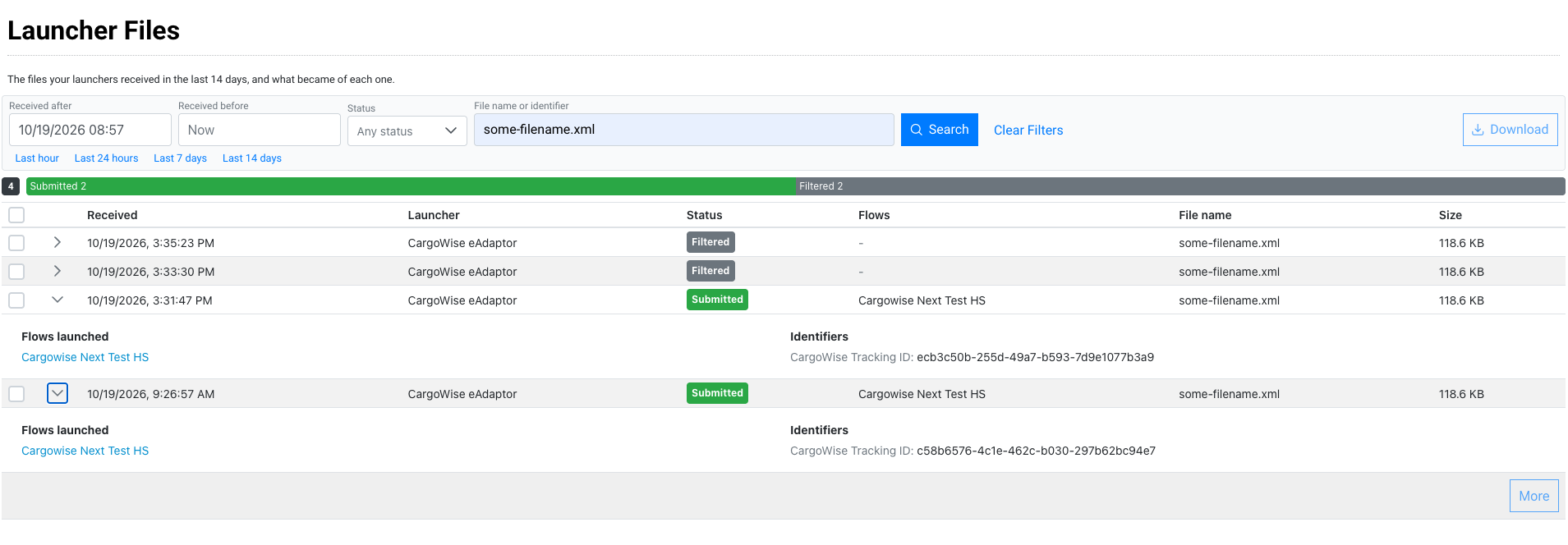
Each row shows when the file was received, the launcher type, its status, the flows it was submitted to, its file name, and its size. When a file was submitted to more than one flow, or has more than one name, the row shows the first and a "+N more" count. Flows are shown with their current names, so a renamed flow shows its new name. A flow that has since been deleted, or that you don't have access to, shows as "Unknown flow."
Expand a row with the arrow to see everything recorded for that file: the error message if it errored, the flows it launched, its identifiers, and any other file names. Each flow under Flows launched links to Flow Execution Search, so you can jump straight to the execution the file started and pick up from there.
Results load 200 at a time, newest first. Click More to load the next 200. The total box and status bar next to the results show how many files matched and how they break down by status.
A search returns at most the newest 2,000 files. If your search hits that limit, the total box shows "2000+" and a message tells you older files in the range weren't searched. Narrow the time range, or search for a specific file name or identifier, to see them.
Downloading results
To export files to a spreadsheet, tick the checkbox on each row you want, or use the checkbox in the header to select every loaded row, then click Download. The CSV includes only the rows you selected, so click More first if you need files beyond the first 200. The file has these columns:
- Received
- Launcher
- Status
- Error
- Flows launched
- File name
- Other file names
- Size (bytes)
- Identifiers
When a cell holds more than one value, such as several flows or identifiers, the values are separated by semicolons.
Error messages
When a file errors, expand its row to see one of these messages:
| Message | What to do |
|---|---|
| The launcher ran out of memory. The file may be too large to process. | Ask the sender to split the file into smaller files, or contact support to talk through your options. |
| The launcher timed out while processing the file. | Large files are the usual cause. Ask the sender to split the file, or contact support if it keeps happening. |
| The file is larger than this launcher accepts. | Ask the sender to split the file into smaller files. |
| The file is not valid for this launcher, for example an unsupported name or extension. | Check the file's name and extension against what the launcher expects. For HTTP, make sure the Content-Disposition header is well formed. Then ask the sender to resend it. |
| The file could not be found when the launcher went to read it. | The file was moved or deleted before the launcher could read it, for example removed from an S3 bucket right after it was uploaded. Ask the sender to resend it. |
| The file could not be processed after retries. | Contact support with the file's details. |
| No result was recorded for the file within 15 minutes of receiving it. | The launcher stopped before it could report back. Contact support with the file's details. |
| The file could not be processed. | Contact support with the file's details. |
When you contact support, the quickest way to share a file's details is to select its row and attach the downloaded CSV.
Troubleshooting tips
I can't find a file my partner says they sent
Switch to Last 14 days and search for the most specific reference you have, such as a CargoWise Tracking ID, an AS2 message ID, an ISA13, or the exact file name. If the file arrived in the last minute, wait a moment and search again. Check whether it's one of the unmatched files that aren't recorded, described in Which files are recorded above. For example, an HTTP sender whose request didn't match a flow got a 400 "Invalid Flow" response, so ask them what response they received. Files older than 14 days are no longer kept.
The file was filtered, but I expected it to go to a flow
Filtered means none of your flows accepted the file. Check that a flow is set up and enabled for that launcher, and that the flow's source file filters match the file. See Filters For Source Files In Flow Configurations and Enabling & Disabling Flows.
The file was submitted, but I can't see what happened next
Once a file is submitted, its flow takes over. Expand the row and click the flow under Flows launched to open its execution in Flow Execution Search. For more on what you'll see there, read Finding Flow Executions and Flow Execution Statuses.
Was this article helpful?
That’s Great!
Thank you for your feedback
Sorry! We couldn't be helpful
Thank you for your feedback
Feedback sent
We appreciate your effort and will try to fix the article