The Licensing page shows what your workspace is licensed for and which integration each license is assigned to. Its most important job is making sure every license you have is assigned to an integration, because an integration only counts as licensed once a license is assigned to it.
New licenses, and changes to your contract, go through your Chain.io account executive or support@chain.io. You can't buy or add a license on this page. What you can do here is assign licenses to integrations, and review what you have.
Open the Licensing page
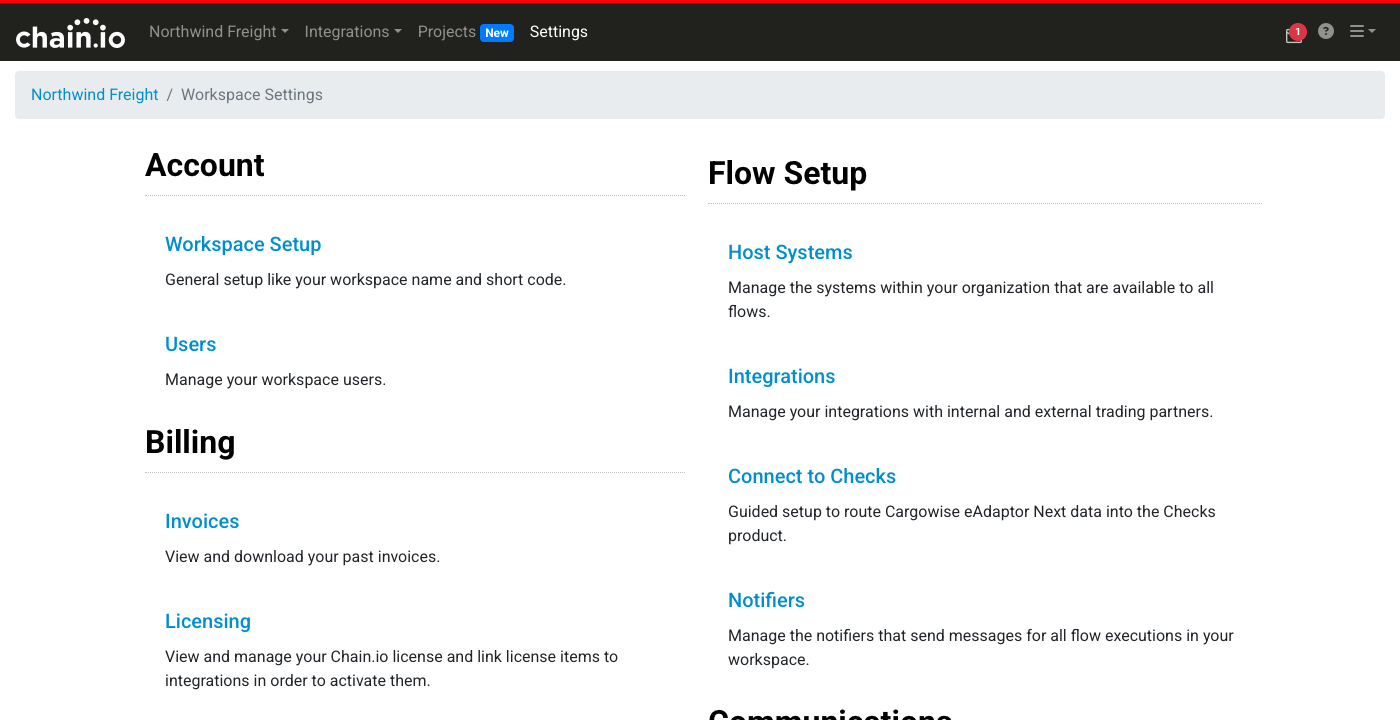
Click Settings in the top navigation bar of your workspace. On the Workspace Settings page, find the Billing group and click Licensing. The page isn't available to users with the Viewer role.
If your workspace doesn't have a contract yet, the page shows only a short message asking you to contact support@chain.io or your account executive. Once a contract is in place, the sections below appear.
Workspace License
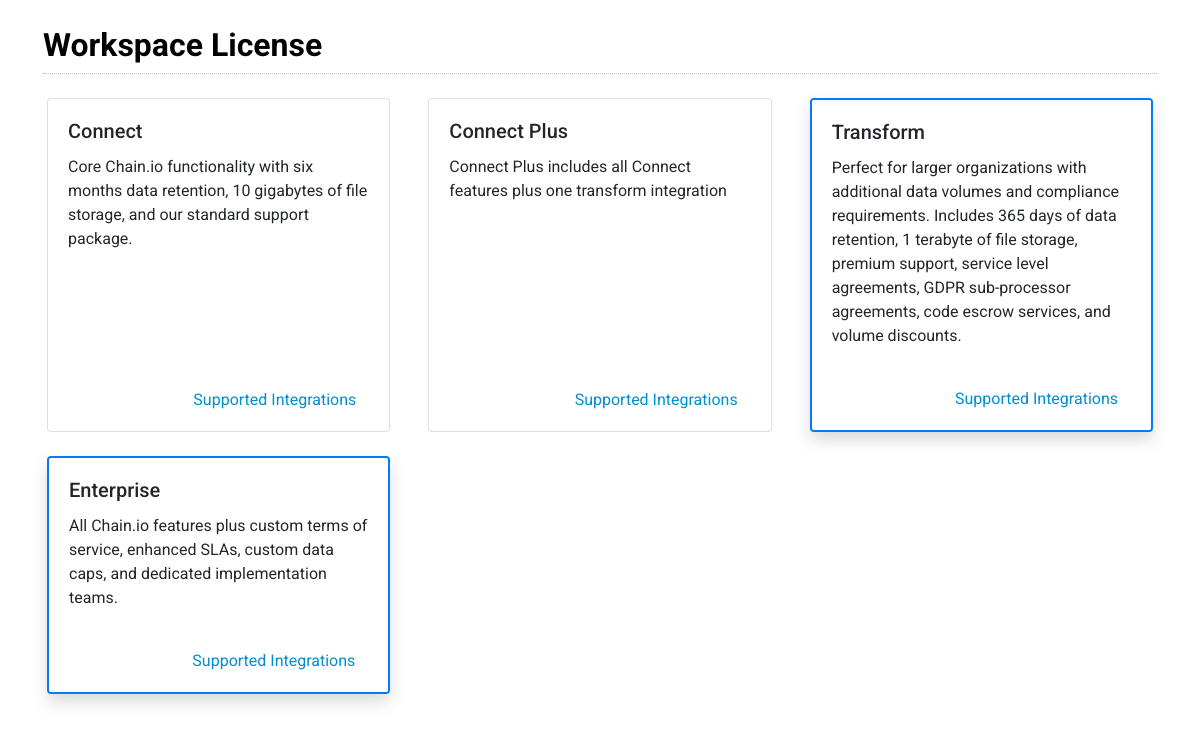
The Workspace License section shows a card for each license level: Connect, Connect Plus, Transform and Enterprise. Each card describes what that level includes, such as data retention, file storage and support. The cards are for reference. The license your workspace has is outlined in blue.
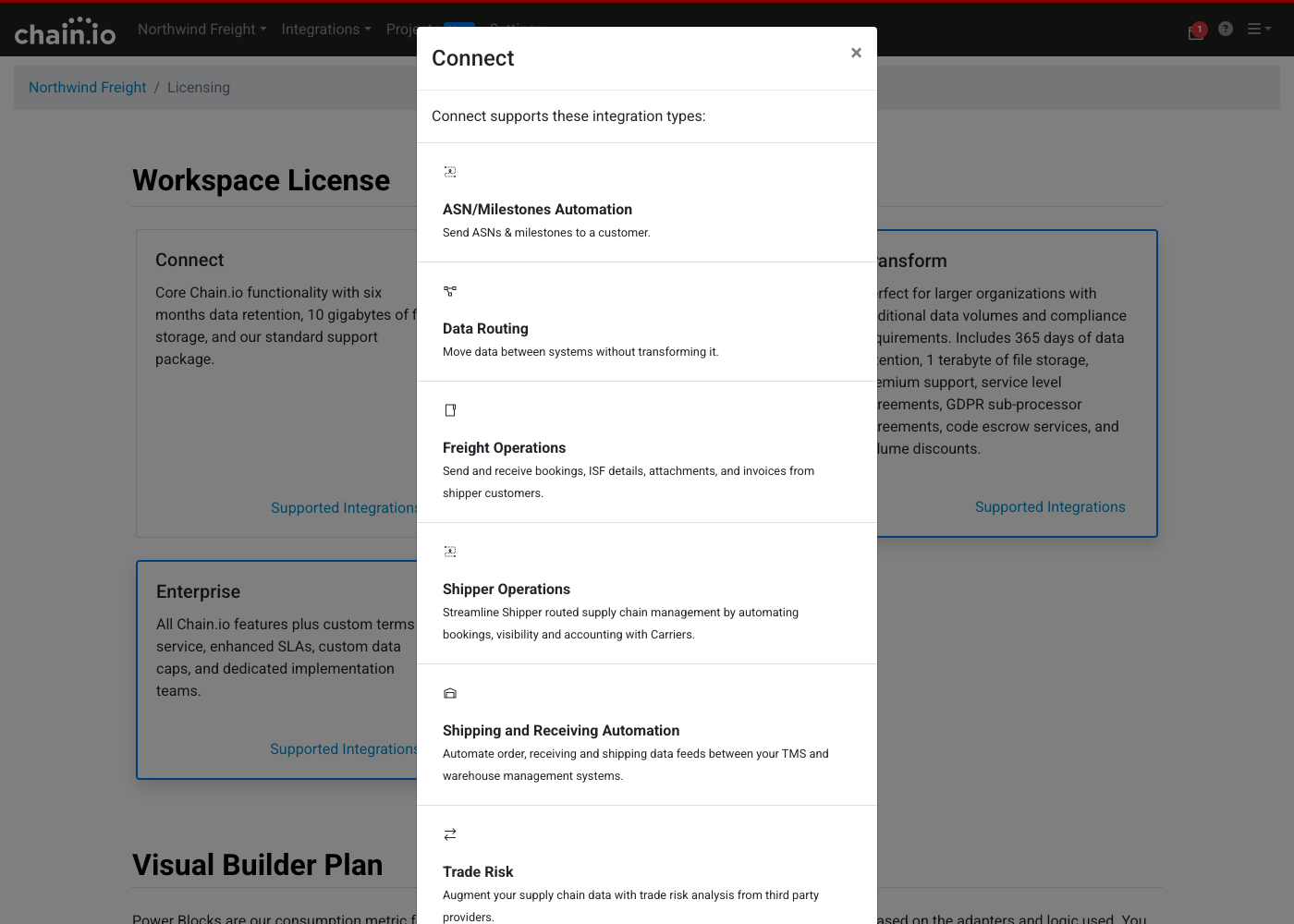
Click Supported Integrations at the bottom of a card to see the integration types that license level supports, each with a short description. Close the window with the x in its corner.
Integration Licenses
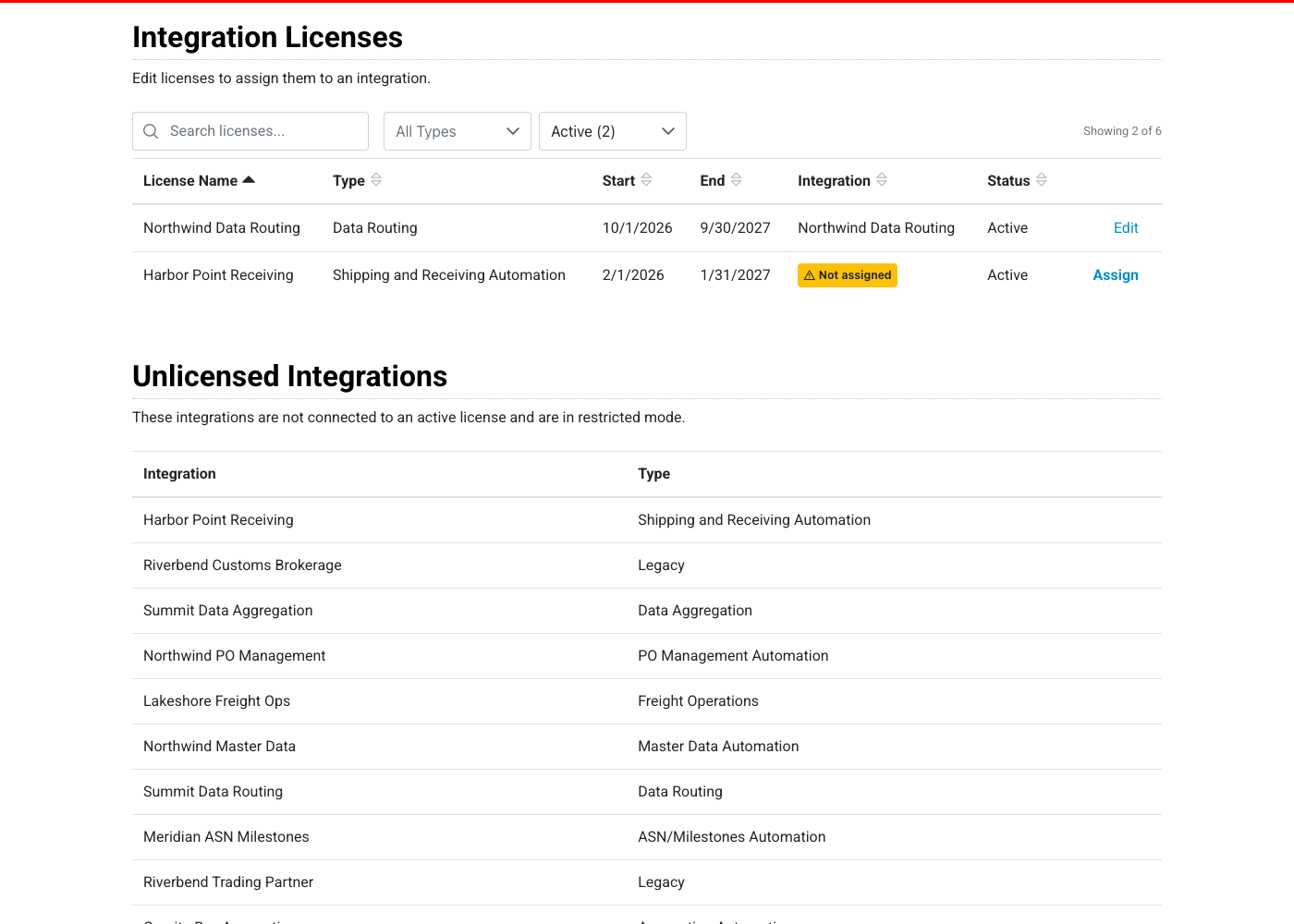
This table lists every license on your contract and shows which integration, if any, it is assigned to. The columns are License Name, Type, Start, End, Integration and Status. Click a column heading to sort by it. The table starts sorted by License Name.
A license's name doesn't assign it to anything. A license is only in use once it is assigned to an integration, and an integration is only licensed once a license is assigned to it.
Find a license
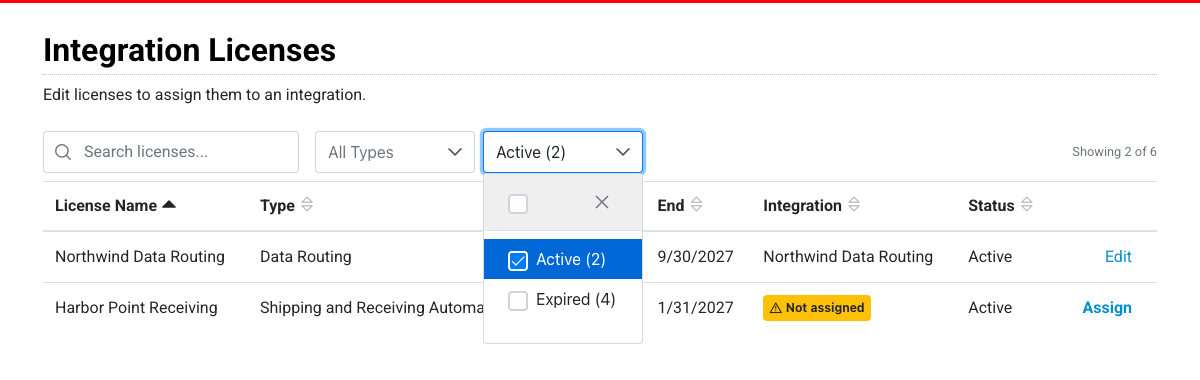
Use the search box to find licenses by license name, type or integration. Use the type filter to show one or more license types, and the status filter to show licenses by status. The table opens showing Active licenses only, so Expired and other licenses are hidden until you change the status filter. The number beside each status is how many licenses have it. A count above the table, such as "Showing 2 of 6", tells you how many licenses match your filters out of all of them.
To find licenses that aren't assigned yet, type "not assigned" (or at least the first three letters, "not") in the search box.
Assign a license to an integration
Active and Pending licenses that aren't assigned yet show a yellow Not assigned tag in the Integration column and a bold Assign link at the end of the row. Licenses that are already assigned show Edit instead.
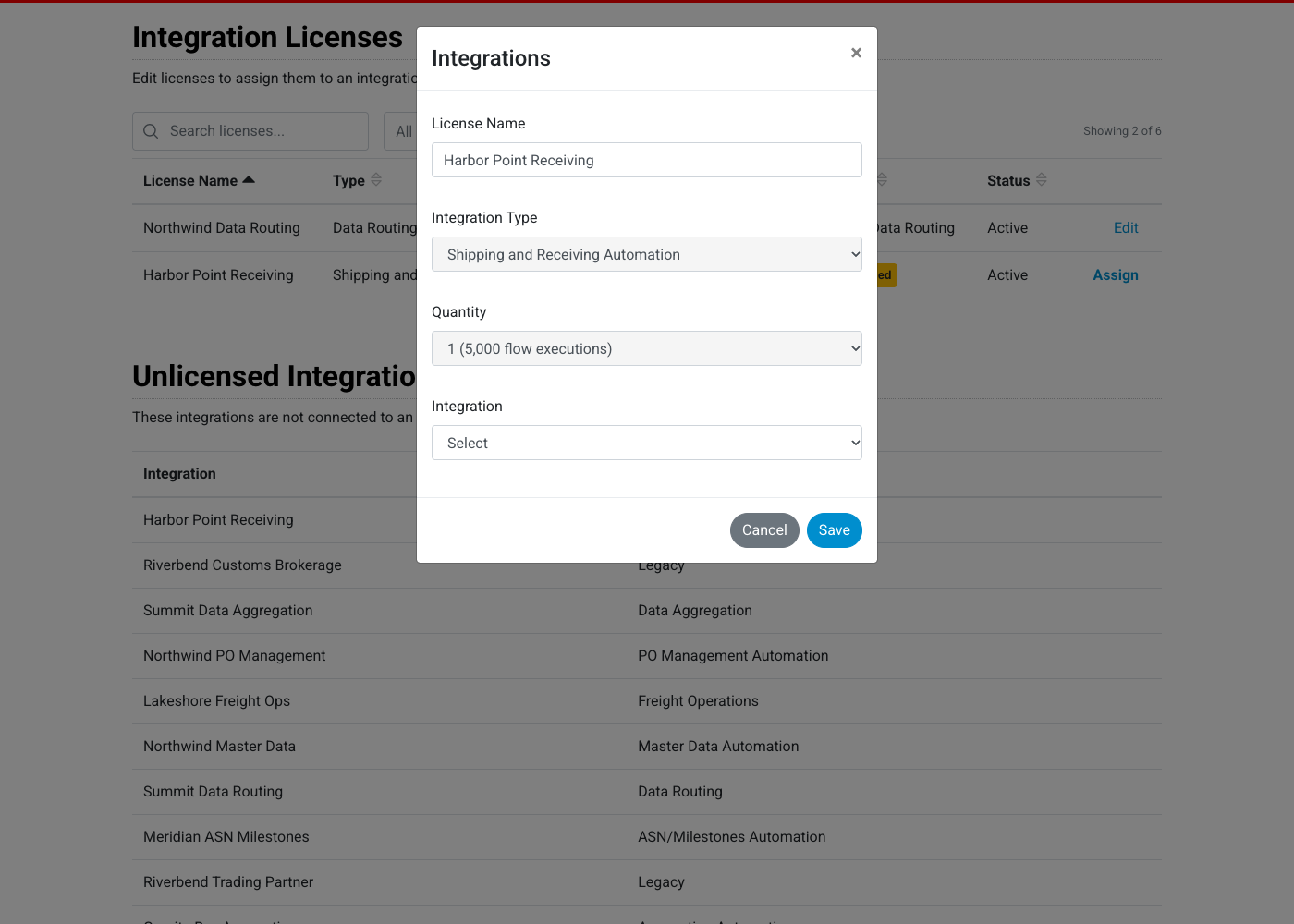
- Click Assign (or Edit to change an existing license).
- In the Integrations window, check the License Name and Integration Type. The Quantity field shows how many flow executions the license covers.
- Choose the integration from the Integration list. It lists the integrations in your workspace that match the license's type.
- Click Save.
If no integration matches the license's type, the Integration list tells you so. You'll need to create an integration of that type first.
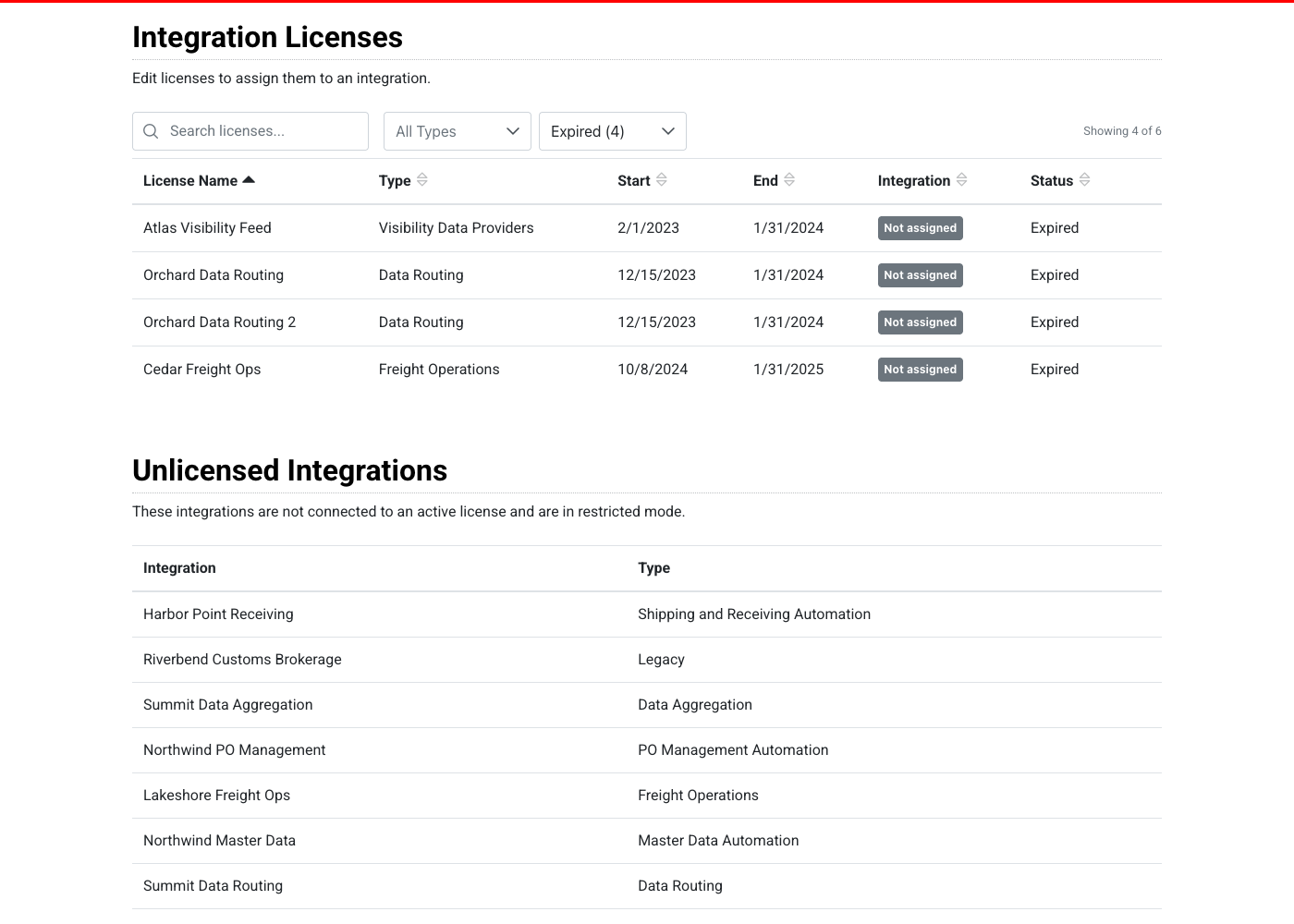
A license that has expired and isn't assigned shows a grey Not assigned tag and no Assign link, because an expired license can't be put to use. If you need an expired license renewed, contact your account executive or support@chain.io.
Unlicensed Integrations
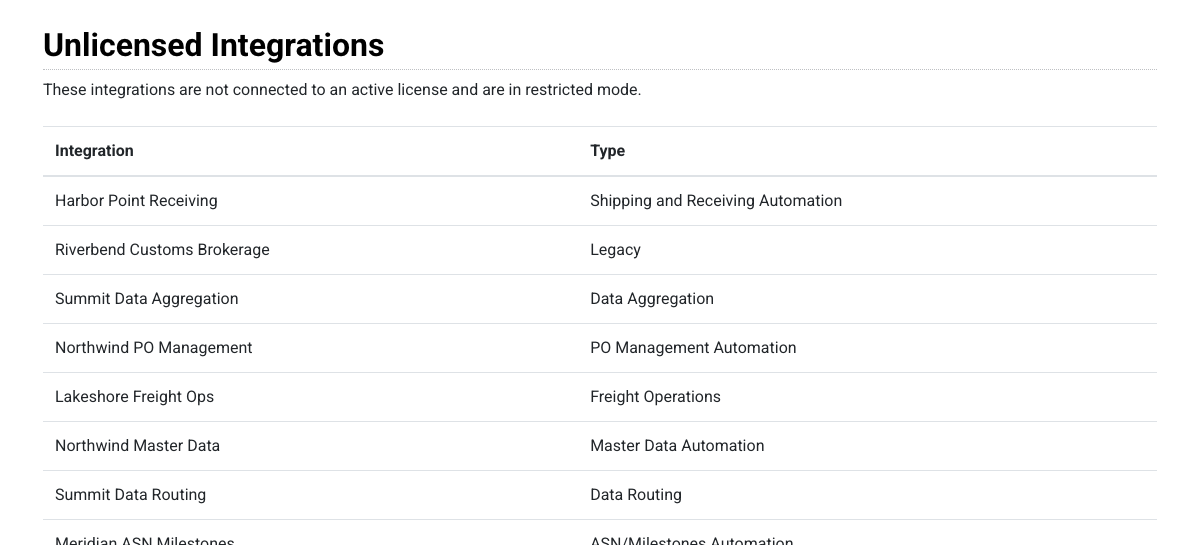
Integrations that aren't connected to an active license are listed under Unlicensed Integrations, with each integration's name and type. These integrations are in restricted mode, which is meant for limited use and testing, not production workflows. After 7 days without a license all of an integration's flows are disabled. To license one, assign a license of the matching type to it in the Integration Licenses table above. If you don't have a license of that type, contact your account executive or support@chain.io.
Was this article helpful?
That’s Great!
Thank you for your feedback
Sorry! We couldn't be helpful
Thank you for your feedback
Feedback sent
We appreciate your effort and will try to fix the article