TABLE OF CONTENTS
How to use MFA
When you attempt to login you will be asked to pair your authenticator app with the site. This is accomplished by scanning a QR code with the authenticator app. Once the QR code is scanned, the application will provide them with a code that they need to enter to complete the set up process.
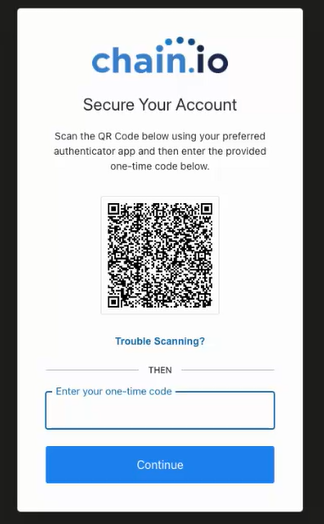
If you do not have an authenticator app, here is a list of some of the most widely used:
**NOTE**
We have been experiencing difficulties with the Microsoft Authenticator application and are working on the issue. Until we have this resolved, we highly recommend using one of the authenticator applications above to avoid any issues. We apologize for this inconvenience on our Microsoft Authenticator users.
Once the setup has been completed, the user will be required to enter a code generated by their authentication application each time they log in to the site.
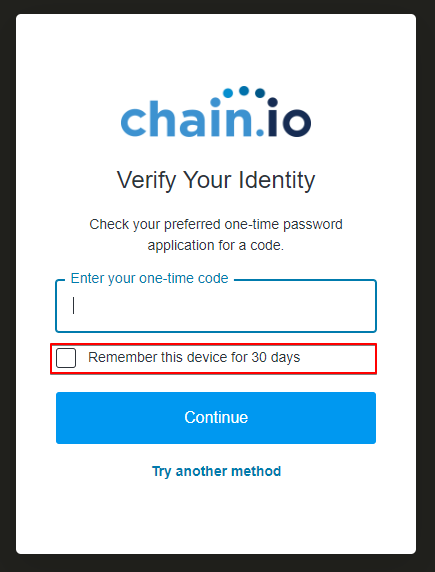
Take note that you can select the option to "Remember this device for 30 days" to enable a more expedited experience. If selected, you will be prompted in thirty days to re-authenticate using your one-time code.
If you would like to use an alternative process for MFA you can select "Try another method" to see options available to you.
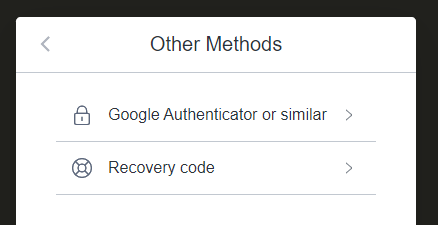
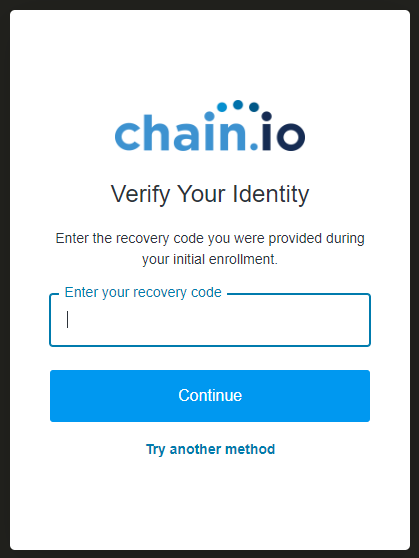
If you choose to use a recovery code, you will be prompted for that code when you attempt to log in again:
Resetting Your MFA (If you lose your authentication method)
Any user with Owner or Editor permissions in the same Workspace that you are a member of can reset you MFA. They should navigate to the user settings either in Workspace Settings or Integration settings and choose Reset MFA from the manage button next to your name.
Was this article helpful?
That’s Great!
Thank you for your feedback
Sorry! We couldn't be helpful
Thank you for your feedback
Feedback sent
We appreciate your effort and will try to fix the article