Overview
Some partner APIs require your connection to present a client certificate during the TLS handshake. This is called mutual TLS, or mTLS: the server proves its identity to you with its certificate, and you prove your identity to the server with yours. Chain.io can present a client certificate on outbound HTTPS requests so you can integrate with endpoints that require it, such as banking, customs, and government systems.
mTLS is configured directly on the connection. It works on both API Server host systems and Send - API connections, and it is independent of any other authentication you have set up. Because a client certificate operates at the transport layer and methods like Basic, Token, or Custom authentication operate at the HTTP layer, you can use mTLS together with any of them. An endpoint that wants both a client certificate and a Bearer token in the header is fully supported.
What You Need Before You Start
You will need your client certificate and its private key in PEM format. Most partners provide these as a single bundled .pem file, though you may also receive the certificate and key as separate files. If your partner's certificate was issued by a Certificate Authority, you may also have one or more intermediate certificates.
The private key must be unencrypted. Chain.io does not accept passphrase-protected keys. If your key is protected with a passphrase, remove it first with a command like the following, then upload the unencrypted result:
openssl rsa -in key.pem -out key-unencrypted.pem
The private key is stored encrypted at rest and is never embedded in the deployed flow, so it stays protected once uploaded.
Enabling mTLS on a Connection
Step 1: Open the connection
Open the API Server host system or the Send - API connection you want to configure. The mTLS section appears in the connection form just below the Disable Strict SSL option.
Step 2: Turn on Client Certificate (mTLS)
Check the Client Certificate (mTLS) box. The certificate fields appear only after the toggle is on, so existing connections are unaffected until you enable it.
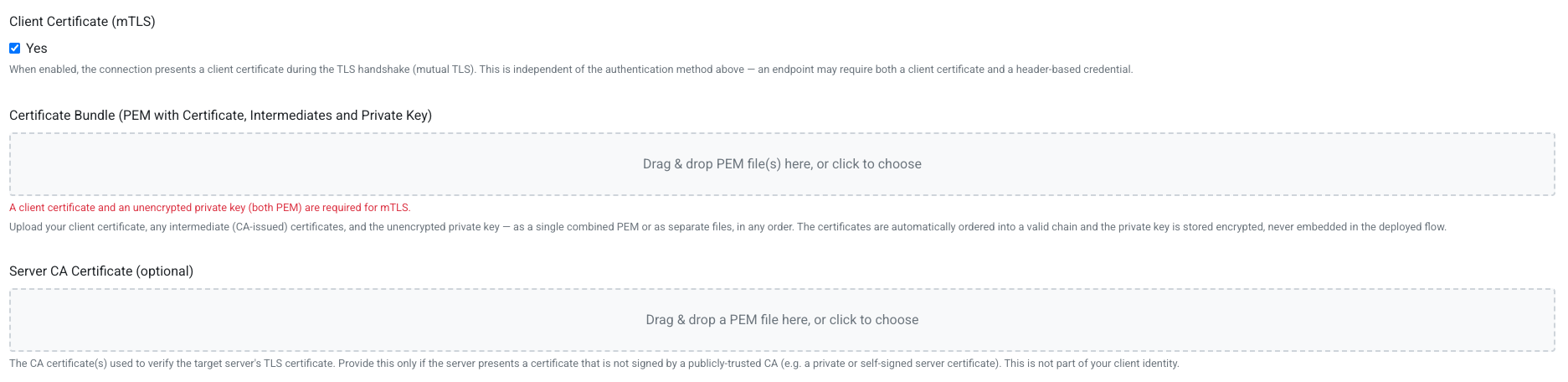
Step 3: Upload the certificate bundle
In the Certificate Bundle field, provide your client certificate, any intermediate certificates, and the unencrypted private key. You can drag and drop the files onto the field or click to browse for them. You can upload a single combined PEM file, or upload the certificate and key as separate files. The fields accept entry only by upload, so you cannot paste text directly into them.
Chain.io reads the files and assembles them into a correctly ordered certificate chain for you. It identifies the leaf certificate, places it first, follows it with any intermediate certificates in the right order, and drops the root certificate, which the partner's server already trusts. This means you do not have to worry about the order of the files you upload or about removing the root yourself.
Step 4: Review the certificate details
Once a valid bundle is loaded, a panel shows the certificate's Common Name, Issuer, and validity dates. Use this to confirm you uploaded the right certificate before saving.
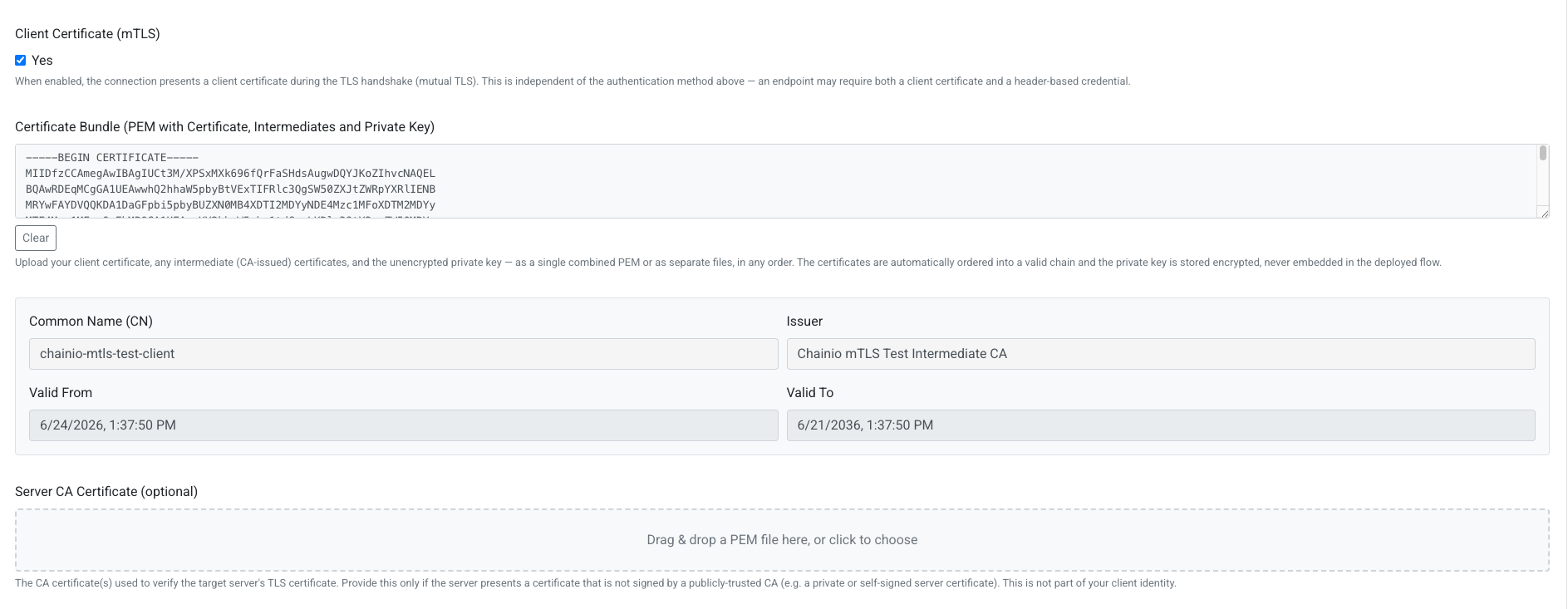
Step 5: Add a server CA certificate if needed (optional)
The Server CA Certificate field is separate from your client identity. It holds the CA certificate used to verify the partner's server certificate. Provide it only if the server presents a certificate that is not signed by a publicly trusted CA, such as a private or internal certificate authority. Most connections leave this field empty.
Step 6: Save
Save the connection. Your certificate and any intermediates are stored with the connection, and the private key is split out and stored encrypted. When you reopen the connection later, the certificate bundle is shown again so you can review or replace it.
Validation and Warnings
Chain.io checks your certificate material as you upload it and surfaces problems before you save. Some issues block saving, while others are warnings that let you save but flag something worth checking.
The following problems block saving until you fix them:
- The certificate or the private key is missing from the bundle.
- The private key is passphrase-protected. Remove the passphrase and upload the unencrypted key.
- The certificate and private key do not match. This usually means the wrong key or the wrong certificate was uploaded.
- A certificate or the server CA is not valid PEM.
The following are warnings only. They do not block saving, because the configuration may still work depending on the partner's server:
- No intermediate certificate was provided. If the partner's server rejects the handshake, upload the CA-issued intermediate certificate along with your client certificate.
- The certificate could not be fully assembled into a chain. Verify you uploaded the correct intermediate certificates.
- The certificate has expired, is not yet valid, or expires within 30 days. An expired or not-yet-valid certificate will cause the TLS handshake to fail, and the Valid From or Valid To date is marked in the details panel.
Renewing or Replacing a Certificate
Client certificates expire, and an expired certificate will cause every request on the connection to fail at the handshake. When you receive a renewed certificate from your partner, open the connection, click Clear on the certificate bundle field, upload the new bundle, and save. The new certificate takes effect the next time the connection runs.
Chain.io also tracks your mTLS client certificate in the Certificate Report and in the certificate expiration notifications, so you receive advance notice before a certificate lapses. Watch for those notifications and renew ahead of the expiration date to avoid an interruption.
Frequently Asked Questions
Does enabling mTLS replace my existing authentication?
No. mTLS is independent of your other authentication. If your connection uses Basic, Token, or Custom authentication, that continues to work alongside the client certificate.
Do I need to include the root certificate?
No. Chain.io drops the root certificate automatically because the partner's server already has it. Include your leaf certificate and any intermediate certificates only.
What is the difference between the certificate bundle and the server CA field?
The certificate bundle is your identity, which you present to the server. The server CA field is how Chain.io verifies the partner's server when that server uses a private or internal certificate authority. They are different certificates for different purposes, and the server CA field is optional.
My handshake is failing even though the certificate looks correct. What should I check?
The most common cause is a missing intermediate certificate. If you uploaded only the leaf certificate, upload the CA-issued intermediate along with it and save again. Also confirm the certificate has not expired and that you uploaded the certificate and key that actually belong together.
Was this article helpful?
That’s Great!
Thank you for your feedback
Sorry! We couldn't be helpful
Thank you for your feedback
Feedback sent
We appreciate your effort and will try to fix the article