What is a layout?
A layout is a plan for your integrations: the partners, systems, and data flows involved, written down before anything is built. You can name it, save it, share it, and come back to it as the project takes shape. When the plan is ready, Chain.io can turn it into real integrations and draft flows for you.
Each integration in a layout is a tab. You pick an integration type for the tab (for example, Freight Operations or Carrier Operations), and you can rename the tab to something that means more to your team, like the name of the system or partner. Inside each tab you add planned flows. A planned flow has a flow type and a name, and optionally a source and destination, each with an application, file type, and protocol, plus free-text notes. Only the flow type and name are required, so you can start rough and fill in details as you learn them.
Above the flows, the Flows by type · license allowance chips show how many flows of each type you have planned against how many the integration type's license includes, written as "used / max" (for example, Receive Bookings 1 / 3). These counts are a planning guide only. You can always plan more flows than the license allows; the flows over the limit are highlighted and the tab shows a warning so you know an upgraded license may be needed.
Planning with a layout gives you a single place to agree on scope with your team, your customers, or Chain.io before setup starts, and it saves you from re-entering the same details once you're ready to build.
Planning in the public planner
You don't need a Chain.io account to start a layout. Open the planner at https://planner.chain.io and click New layout. The layout starts as "My Integration Layout"; click the pencil next to the title to rename it. Your changes save automatically as you work.
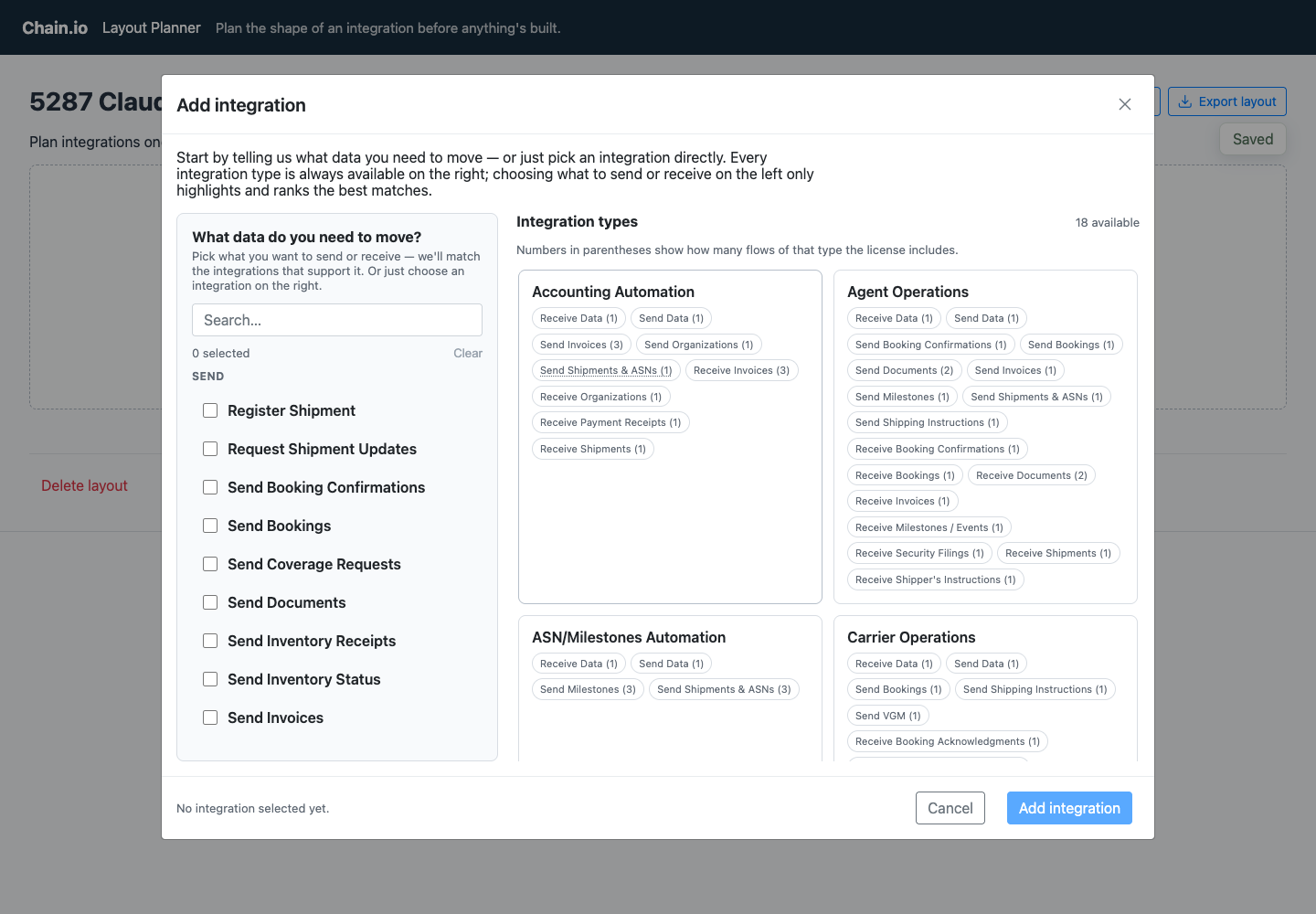
Click Add integration to choose an integration type. On the left, under What data do you need to move?, you can tick the kinds of data you want to send or receive to narrow the list. On the right, Integration types lists every type you can choose. The numbers in parentheses show how many flows of that type the license includes. Click the name of a type to select it, then click Add integration.
The new tab is named after the integration type. The picker lists integration types rather than specific systems, so it's a good idea to rename the tab: click the pencil on the tab, type a name such as "CargoWise One", and click Apply name.
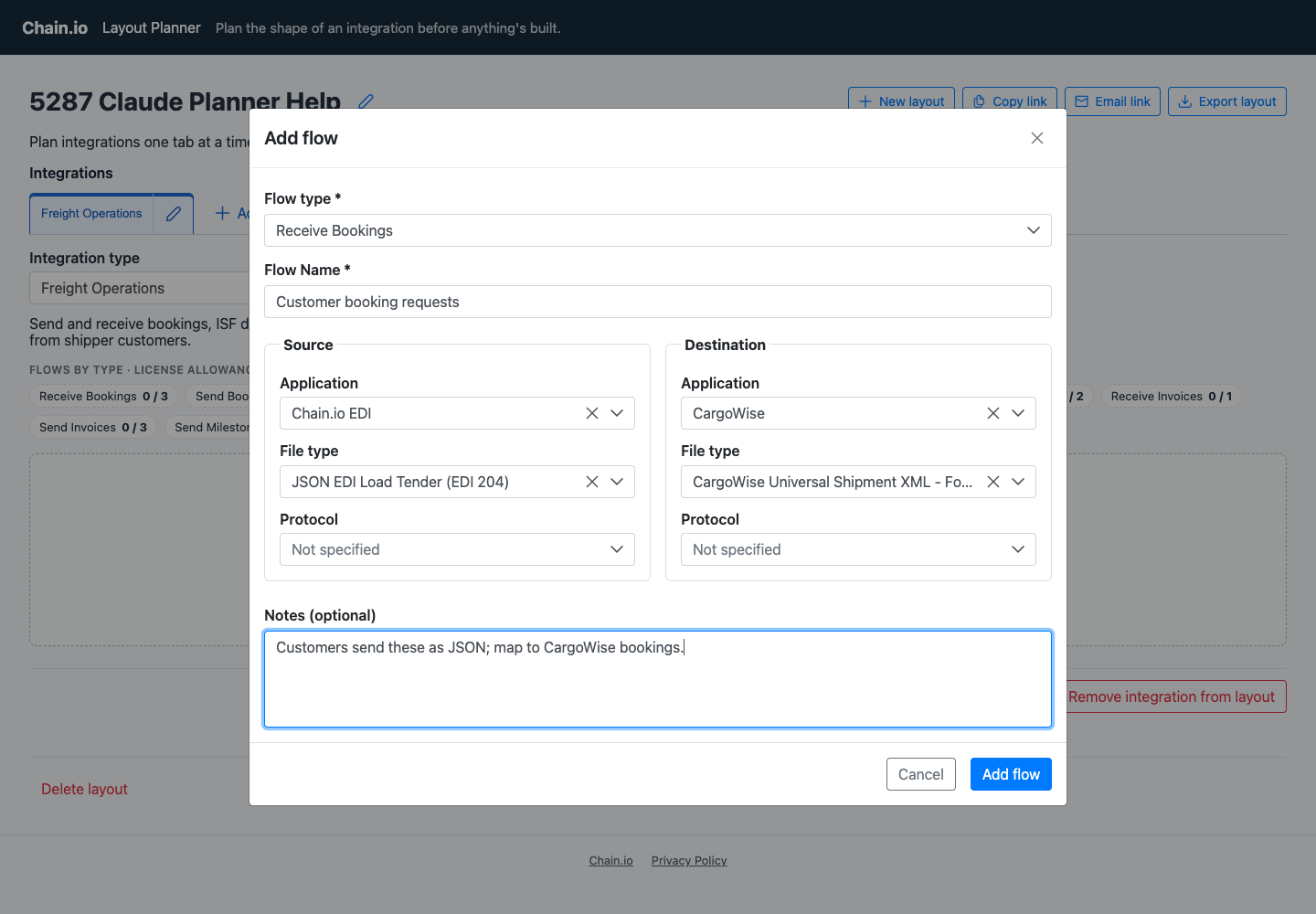
To plan a flow, click Add flow. Choose a Flow type, and the Flow Name fills in with the type so you can edit it. For the Source and Destination, pick an Application, then a File type, then a Protocol. Any of these can stay "Not specified" if you don't know yet. Use Notes (optional) for anything else worth remembering, such as timing, volumes, matching rules, or contacts, then click Add flow.
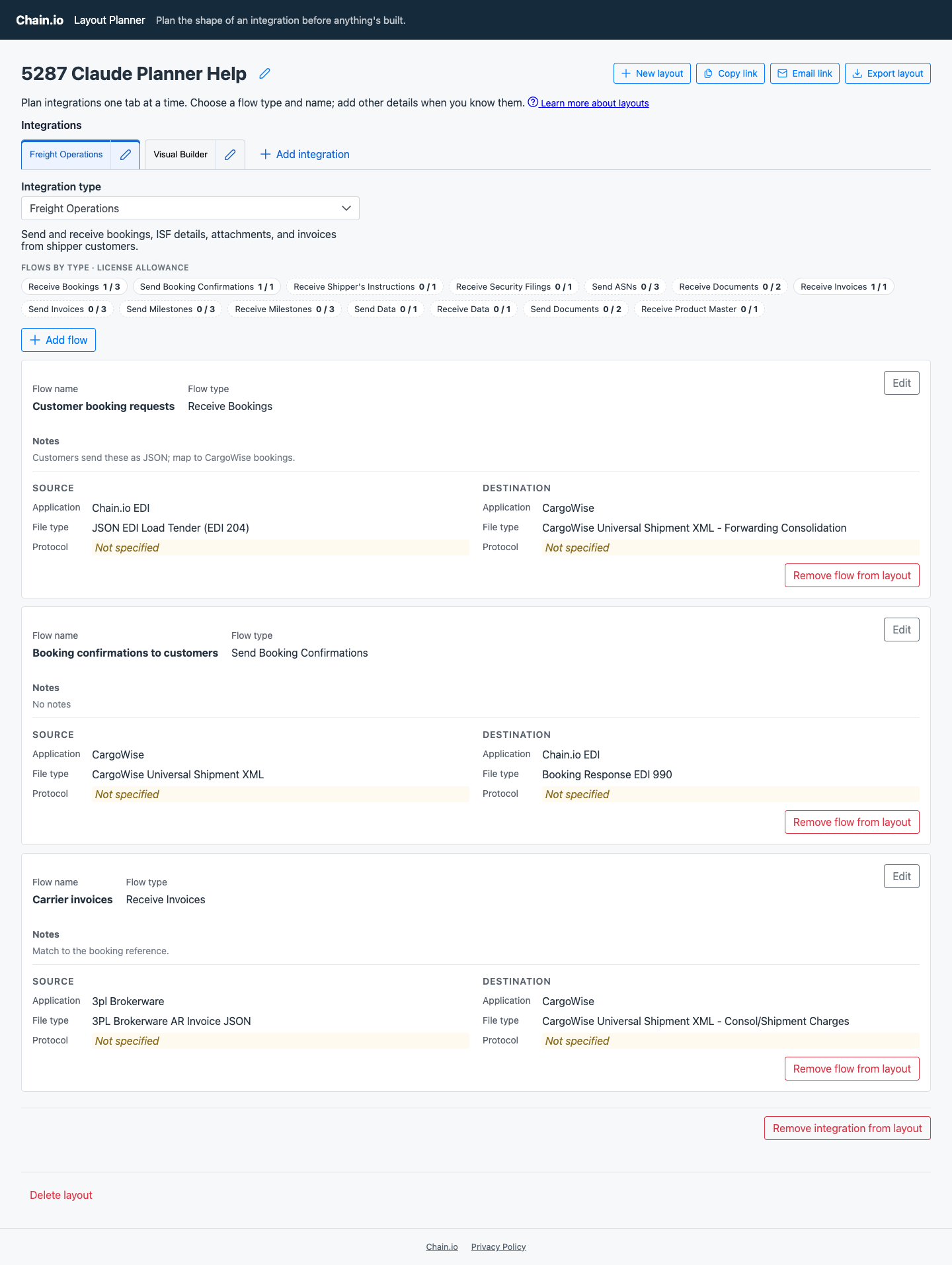
Each planned flow appears as a card showing its name, type, notes, source, and destination. Use Edit to change a flow, or the red Remove flow from layout button at the bottom of its card to take it out of the plan. To take a whole integration out of the plan, use Remove integration from layout at the bottom of its tab. Add as many integrations and flows as you need; each integration stays on its own tab.
Planning Visual Builder integrations
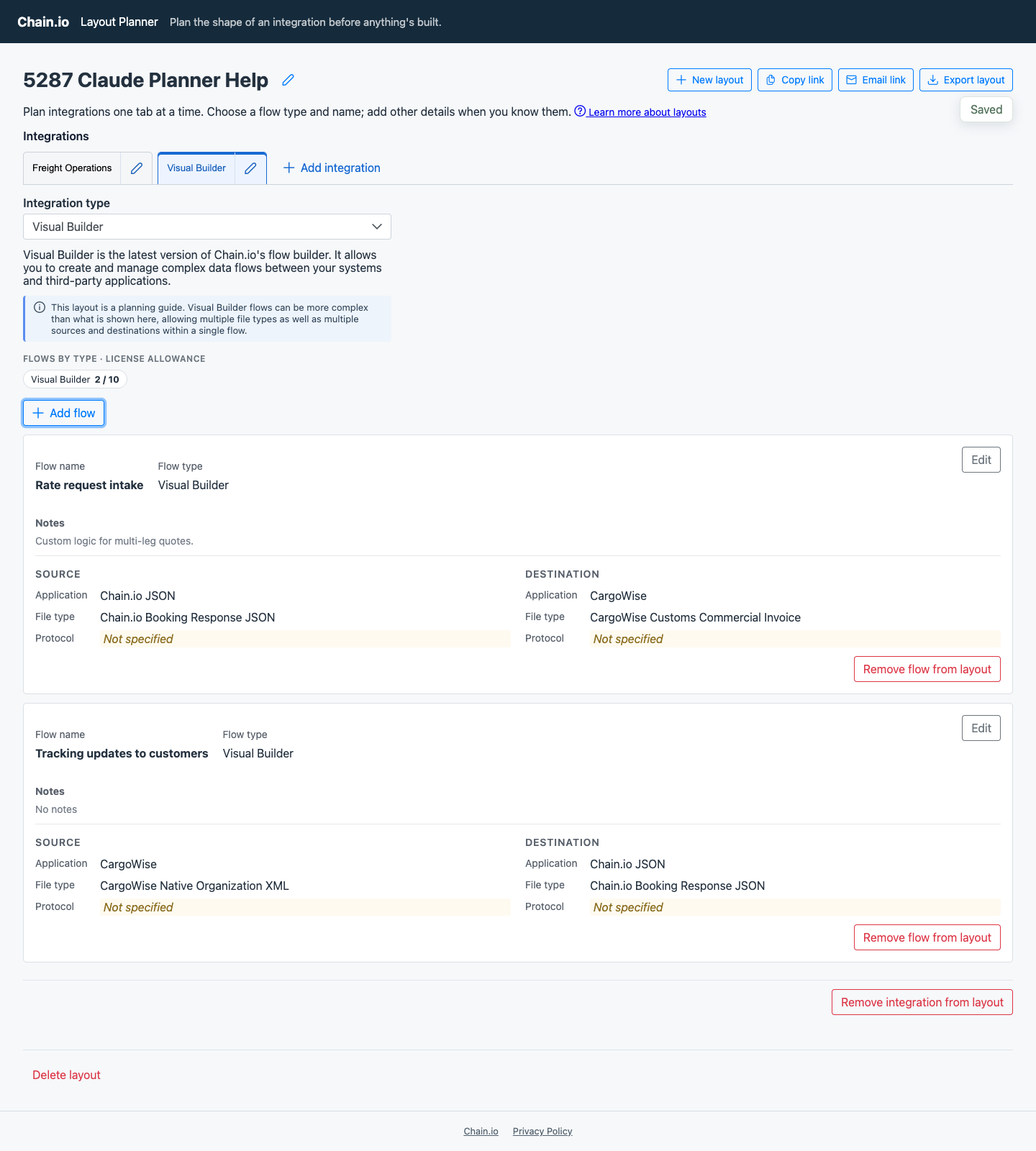
You can also choose Visual Builder as an integration type. Visual Builder flows don't have a flow type, so the Add flow dialog asks only for a name, source, destination, and notes. Keep in mind that the layout is a planning guide: a Visual Builder flow can be more complex than a single card shows, with multiple file types and multiple sources and destinations in one flow.
Sharing a planner layout
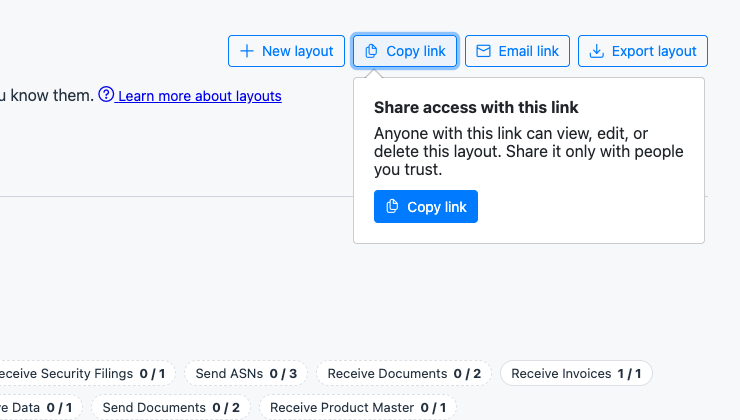
Use the buttons at the top right to share your layout. Copy link copies the layout's link to your clipboard, and Email link sends the link to an email address you enter, whether that's your own or a colleague's. Export layout saves the layout to a file; see Export and import layouts below.
Treat the link like a key. Anyone with it can view, edit, or delete the layout, so share it only with people you trust.
Layouts in your Chain.io workspace
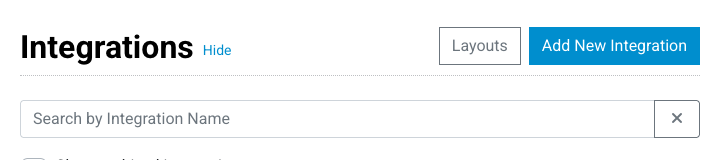
Every workspace has its own Layouts page. To get there, open your workspace and click the Layouts button next to Add New Integration in the Integrations panel.
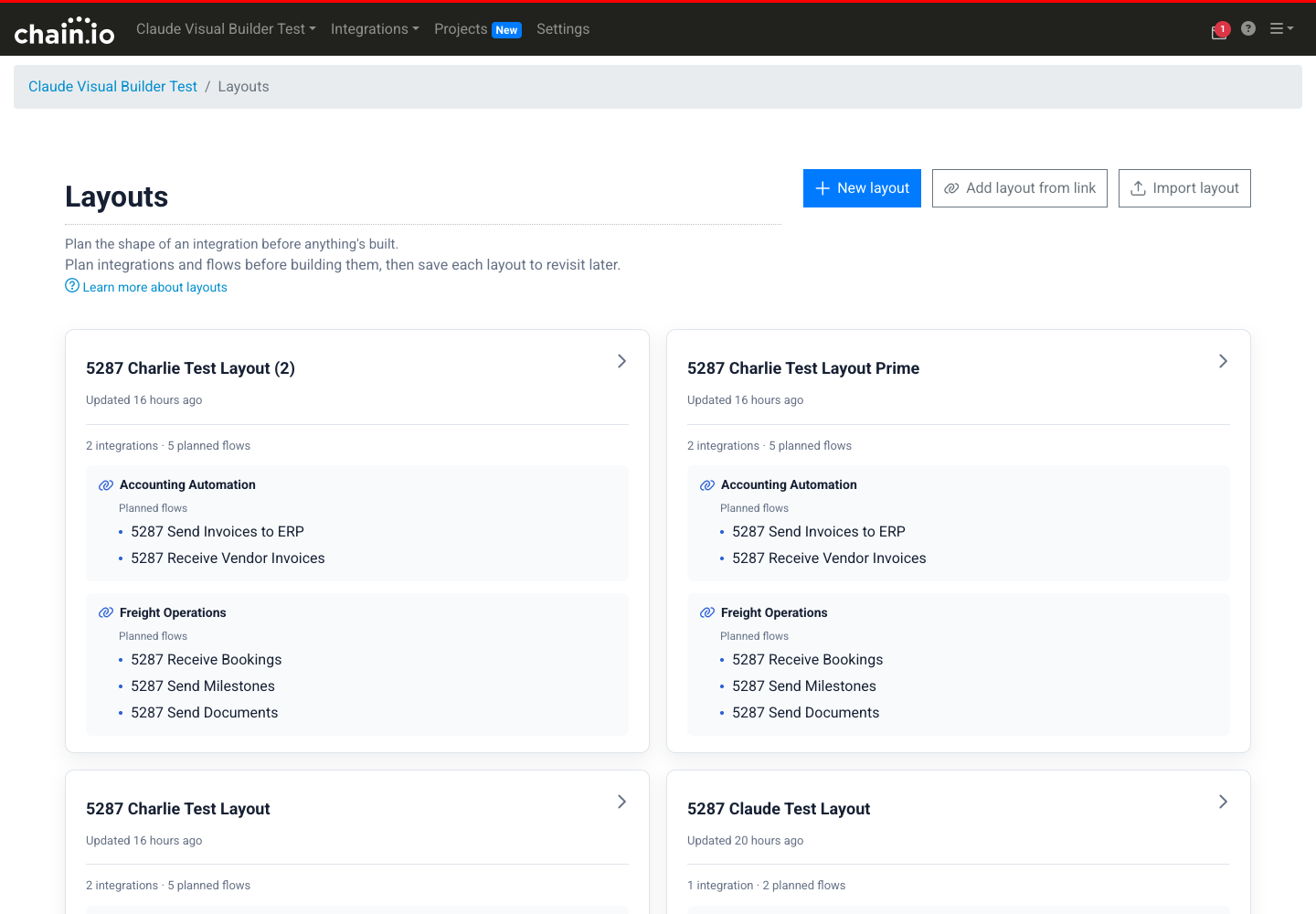
The Layouts page lists the workspace's layouts, each with how many integrations and planned flows it contains. The buttons for starting a new layout, bringing one in from a link, or importing a layout file sit at the top, beside the title. If the workspace has none yet, you can start with Create your first layout.
Building a layout in your workspace
You don't have to start in the public planner. If you already have a workspace, you can build a layout right there: on the Layouts page, click New layout at the top of the page, beside the title (or Create your first layout if the workspace has none yet). The editor works exactly like the planner. You add integrations as tabs, plan flows with Add flow, and fill in sources, destinations, and notes the same way, and your changes save automatically. A layout built in the workspace belongs to the workspace from the start, so only workspace members can see it, and you can implement it whenever you're ready.
Bringing a planner layout into your workspace
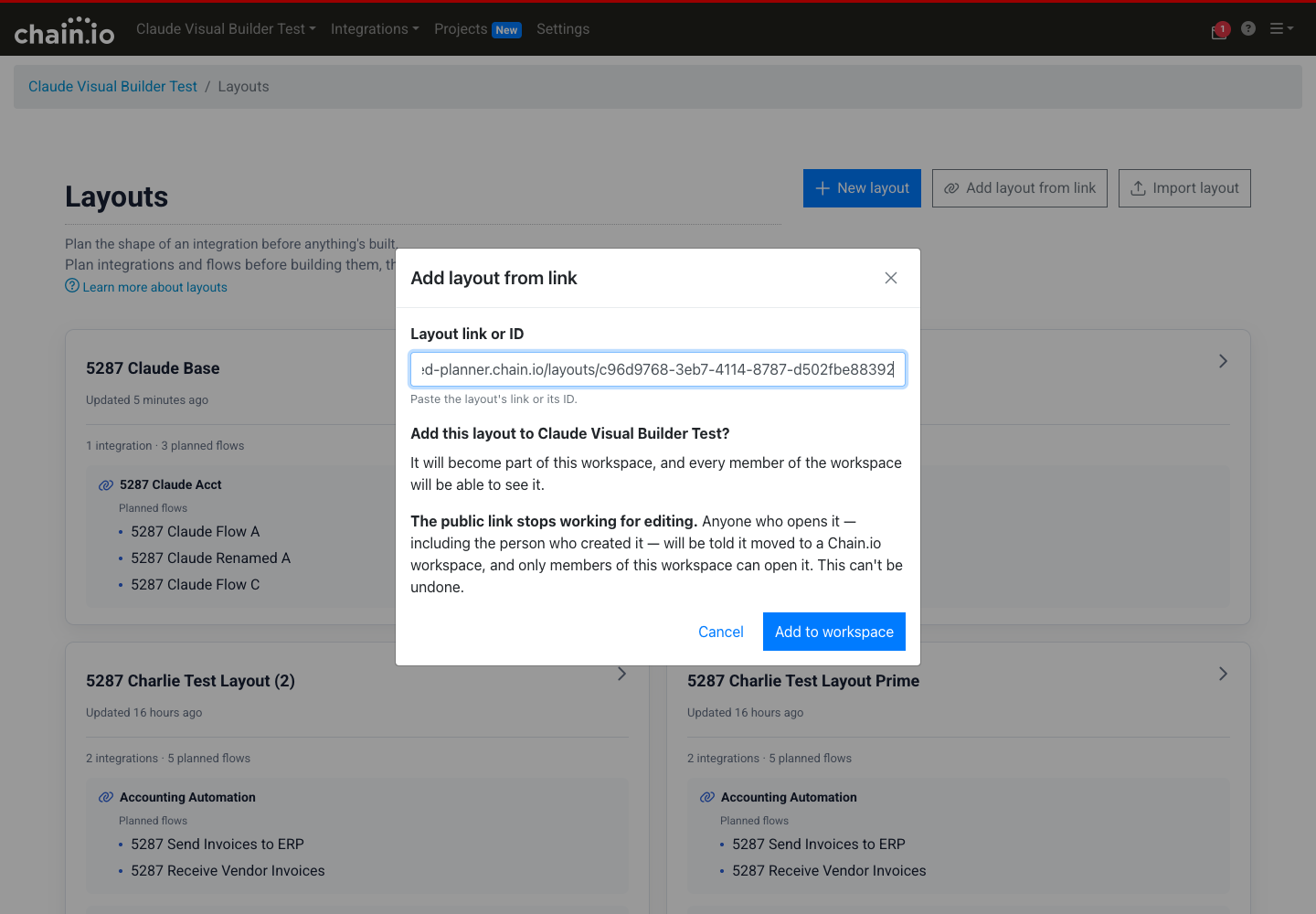
If you started in the public planner, you can move that layout into a workspace. On the Layouts page, click Add layout from link at the top, paste the layout's link (or its ID) into Layout link or ID, and click Add to workspace.
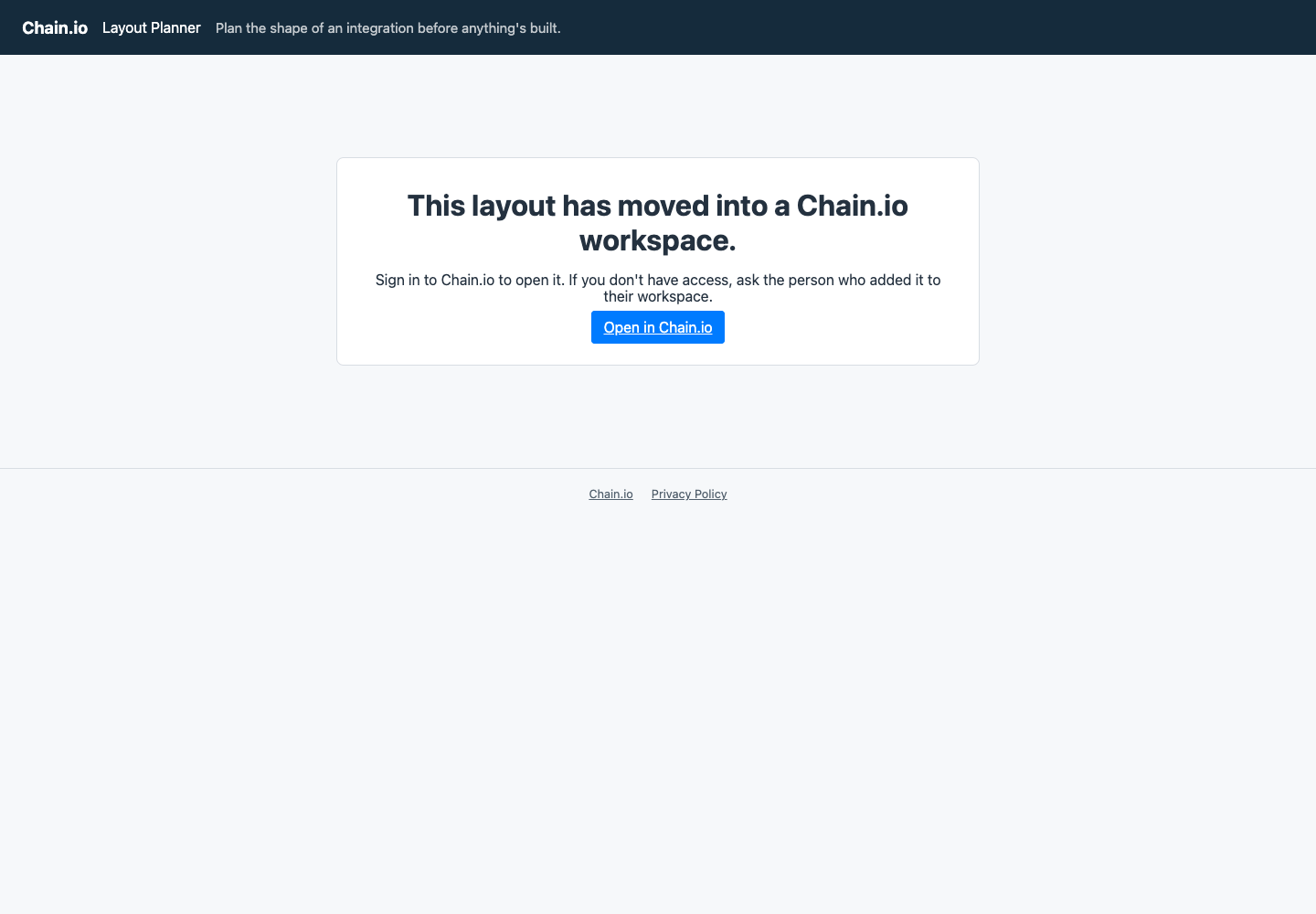
Before you confirm, note what happens next. The layout becomes part of the workspace, and every member of the workspace can see it. The public link stops working for editing: anyone who opens it, including the person who created it, is told the layout has moved into a Chain.io workspace, and only workspace members can open it. This can't be undone.
From then on, opening the old planner link shows a notice that the layout has moved, with an Open in Chain.io button that takes workspace members to it after they sign in.
Editing a layout in the workspace
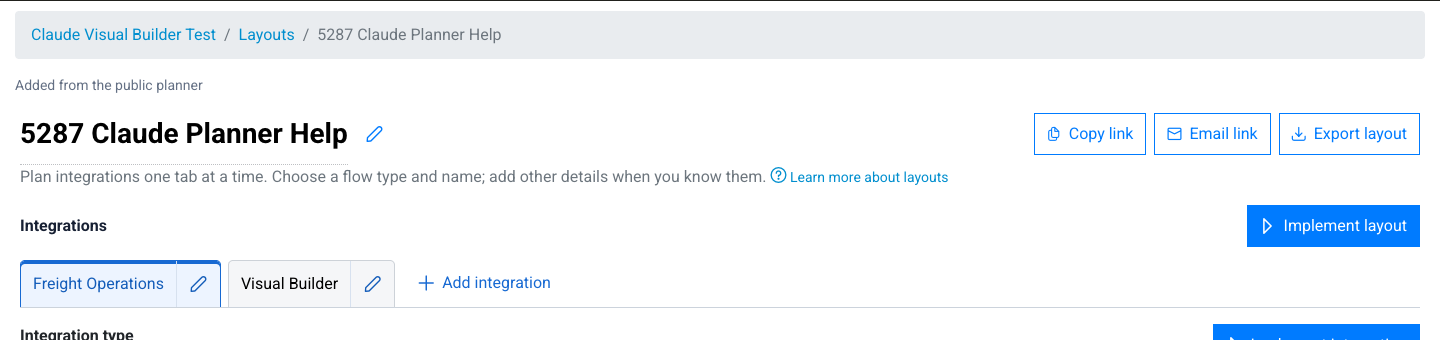
Click a layout card to open it. You work with it the same way as in the planner: add, rename, and edit integrations and flows on their tabs. A layout that came from the planner is labeled Added from the public planner. Copy link, Email link, and Export layout are still available at the top right, but in a workspace only users with access to the workspace can view the layout, and editing it requires edit permission in the workspace. To get back to the list, click Layouts in the breadcrumb at the top of the page.
A few buttons are worth knowing about. Implement integration and the button that opens the integration (for example, Open Freight Operations) are at the top right of each integration. Add flow sits just above the list of flows. The red outlined buttons are at the bottom: Remove flow from layout on each flow card, Remove integration from layout below the flows, and Delete layout at the very bottom of the page. Integration and flow names need at least one letter or number, and a flow name can be up to 79 characters.
Export and import layouts
You can save a layout to a file and bring it back in later. This is handy for keeping a standard setup you reuse, like the integrations and flows you plan for every new customer, so you don't have to rebuild it each time. It's also a way to move a layout between workspaces, or between the public planner and a workspace.
Exporting a layout
Open the layout and click Export layout, next to Copy link and Email link. This works in your workspace and in the public planner, and your browser saves the layout as a file.
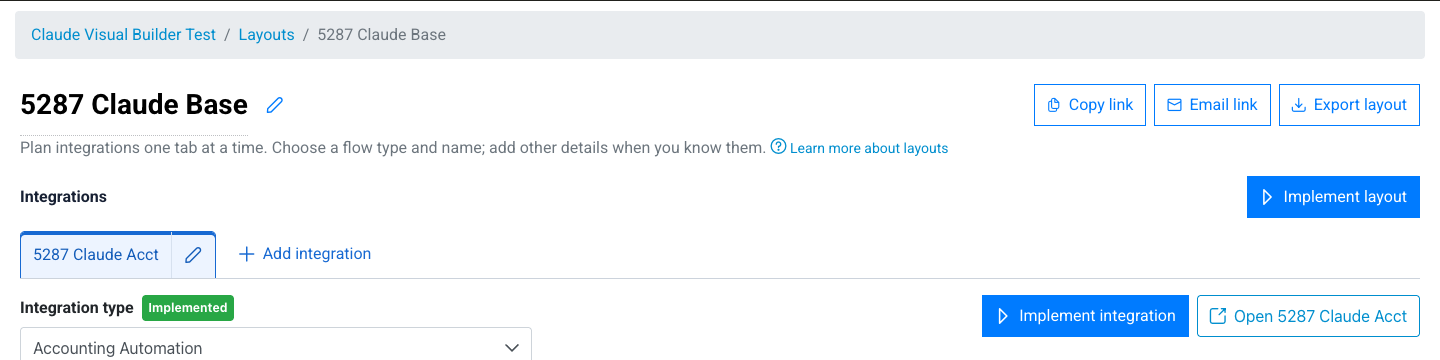
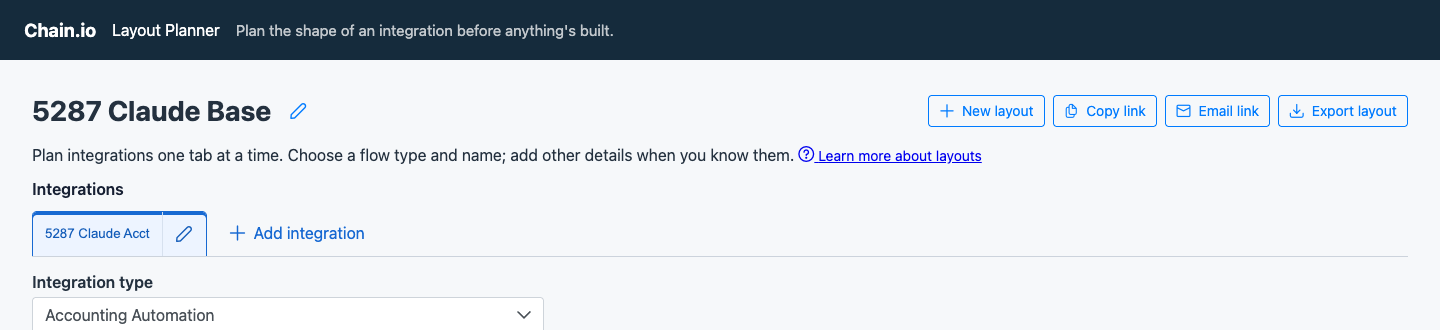
The file contains only the plan: the layout name, its integrations, and each integration's flows with their notes, sources, and destinations. It doesn't include anything about your workspace, your users, which parts have been implemented, or any links, so it's safe to share. Every layout, integration, and flow needs a name before you can export, so if the export is blocked, check for anything that's still unnamed.
Importing a layout
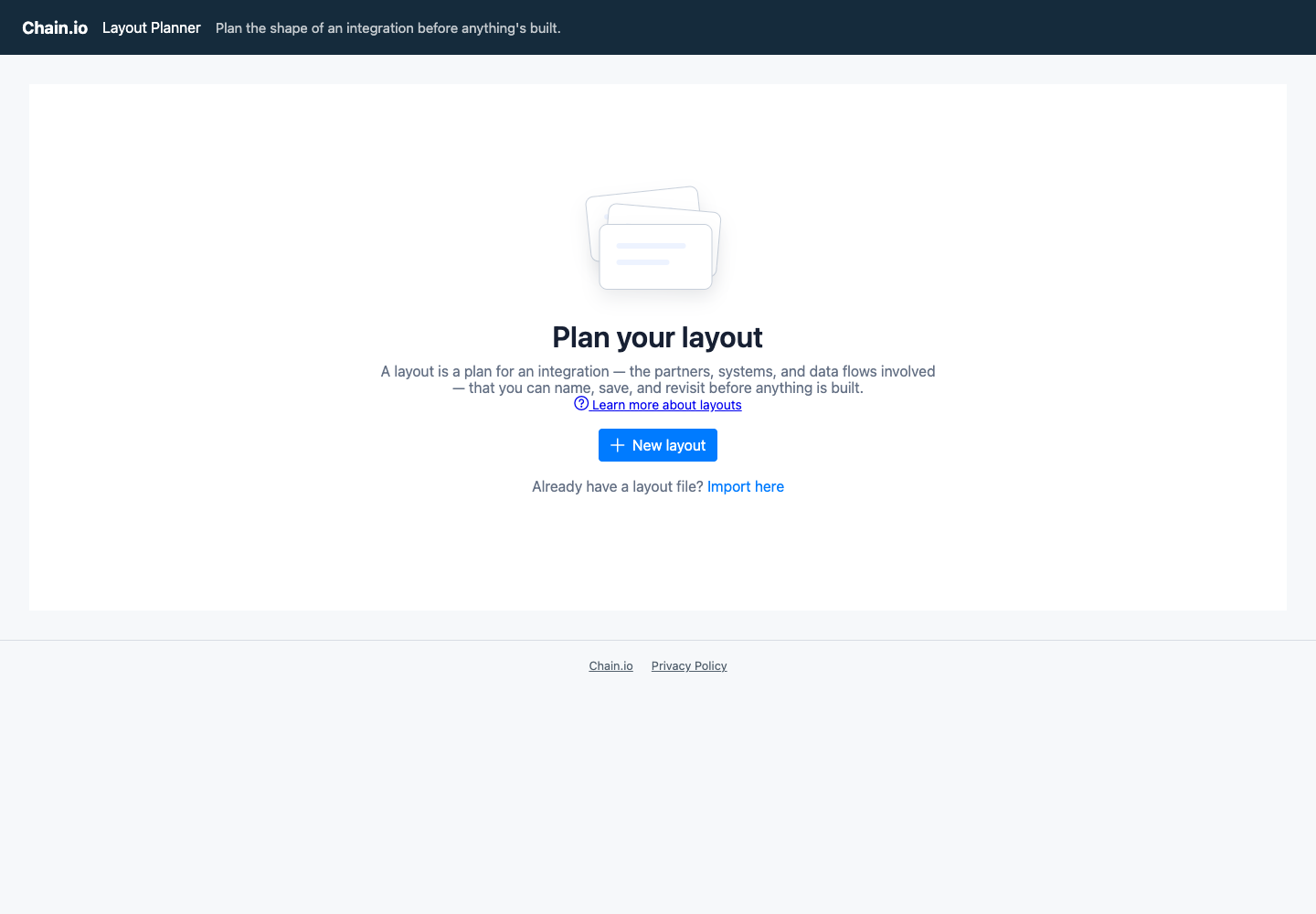
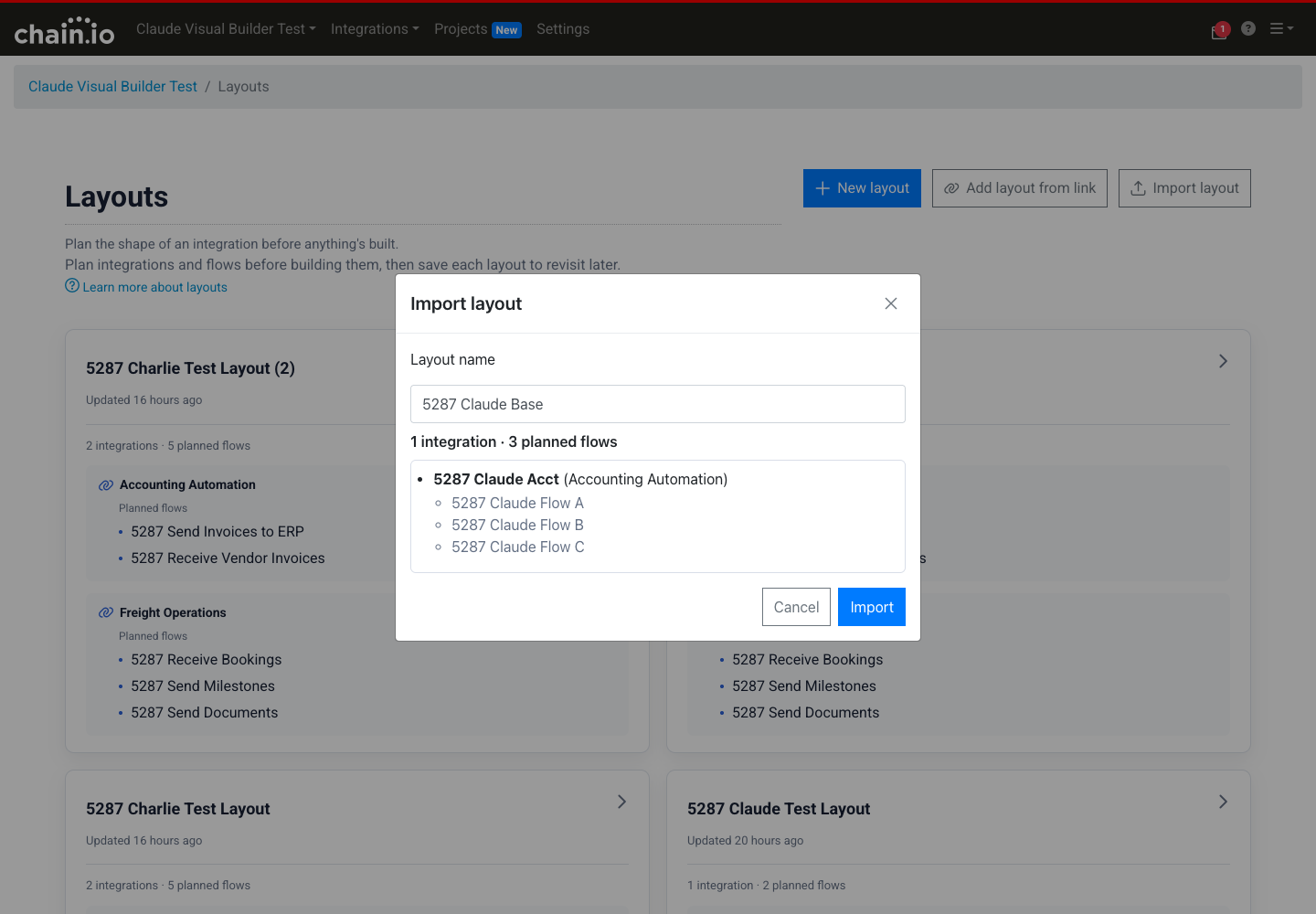
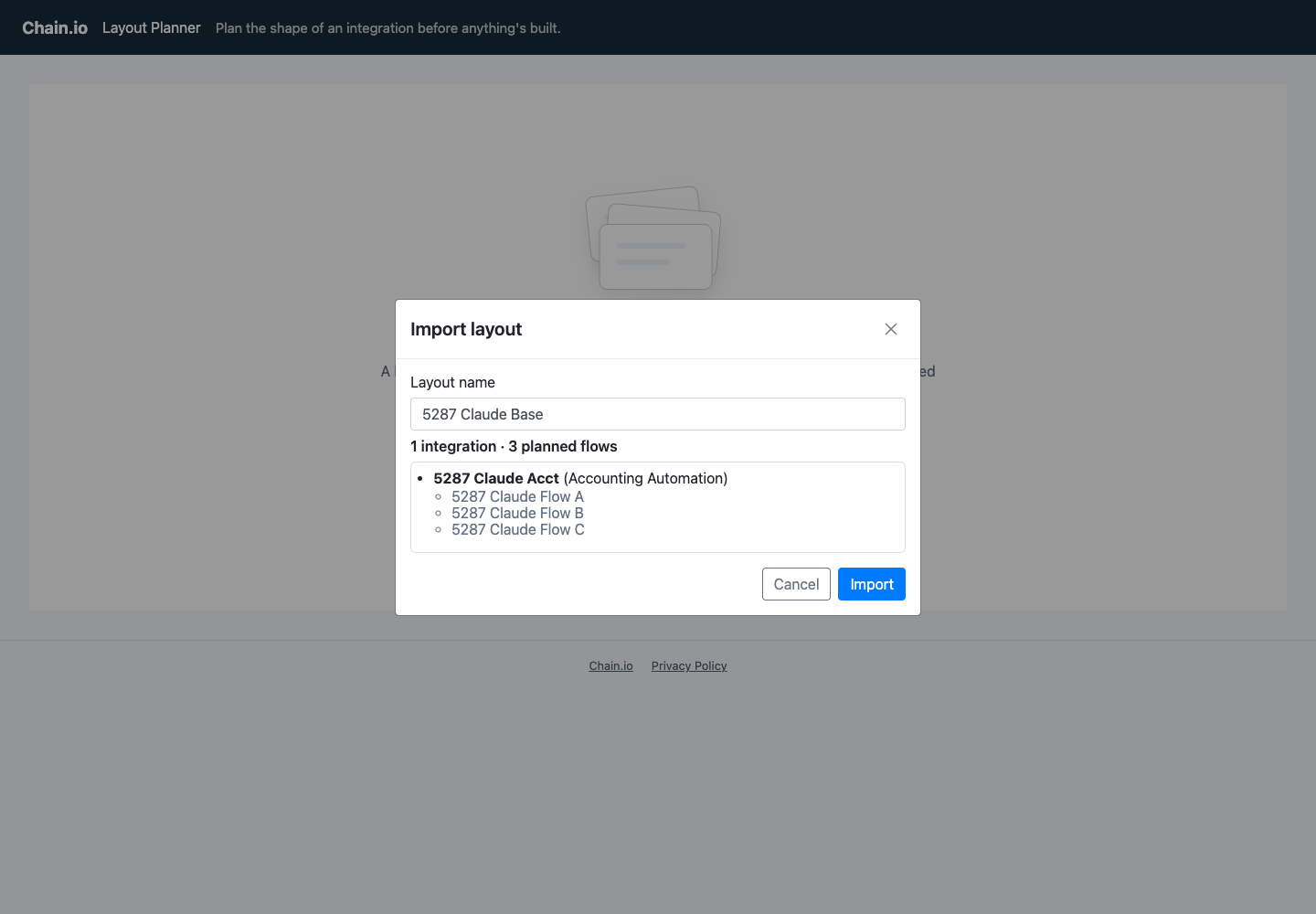
In your workspace, click Import layout at the top of the Layouts page, beside the title, and choose the file. In the public planner, click Import here in "Already have a layout file?" on the start page.
A confirmation dialog shows the layout's name, which you can change, and a summary of the integrations and flows in the file. Click Import to go ahead.
Importing always creates a new layout. The layout you exported it from isn't touched, and you can import the same file as many times as you like. If the file isn't a layout export, or it has integrations or flows without names, Chain.io rejects it and tells you why.
Implementing a layout
When the plan is ready, Chain.io can build it for you. Open the layout in your workspace and click Implement layout. Implementing creates a new integration in the workspace for each planned integration you choose, with a draft flow for each planned flow. Nothing is deployed: you finish setting up each flow and deploy it afterwards.
Reviewing what will be created
The Implement layout dialog starts with a review of every integration in the layout. For each one you can:
- Clear Implement this integration to leave it out of this run.
- Change the Integration name, which is the name shown in your Integrations list. You can change it later, too. Integration and flow names need at least one letter or number, and a flow name can be up to 79 characters.
- Choose a Flow type for each flow, and optionally a Source file type and Destination file type. If you leave the file types blank, you can choose them later in the flow editor.
- Adjust each flow's Notes, which start out with the notes from the layout.
- Leave Include ticked on a flow to implement it (it's ticked by default), or clear it to skip the flow. You can add a skipped flow to the integration later with Implement in integration (see below).
- Edit each flow's Flow name, which starts out with the name from the layout.
The review also shows the Flows by type - license allowance chips for each integration, counting the flows you're implementing against your license allowance of enabled flows. Going over is allowed here, so the review never stops you. However, deploying or enabling a flow beyond the allowance will fail, so check the counts if you're close to a limit.
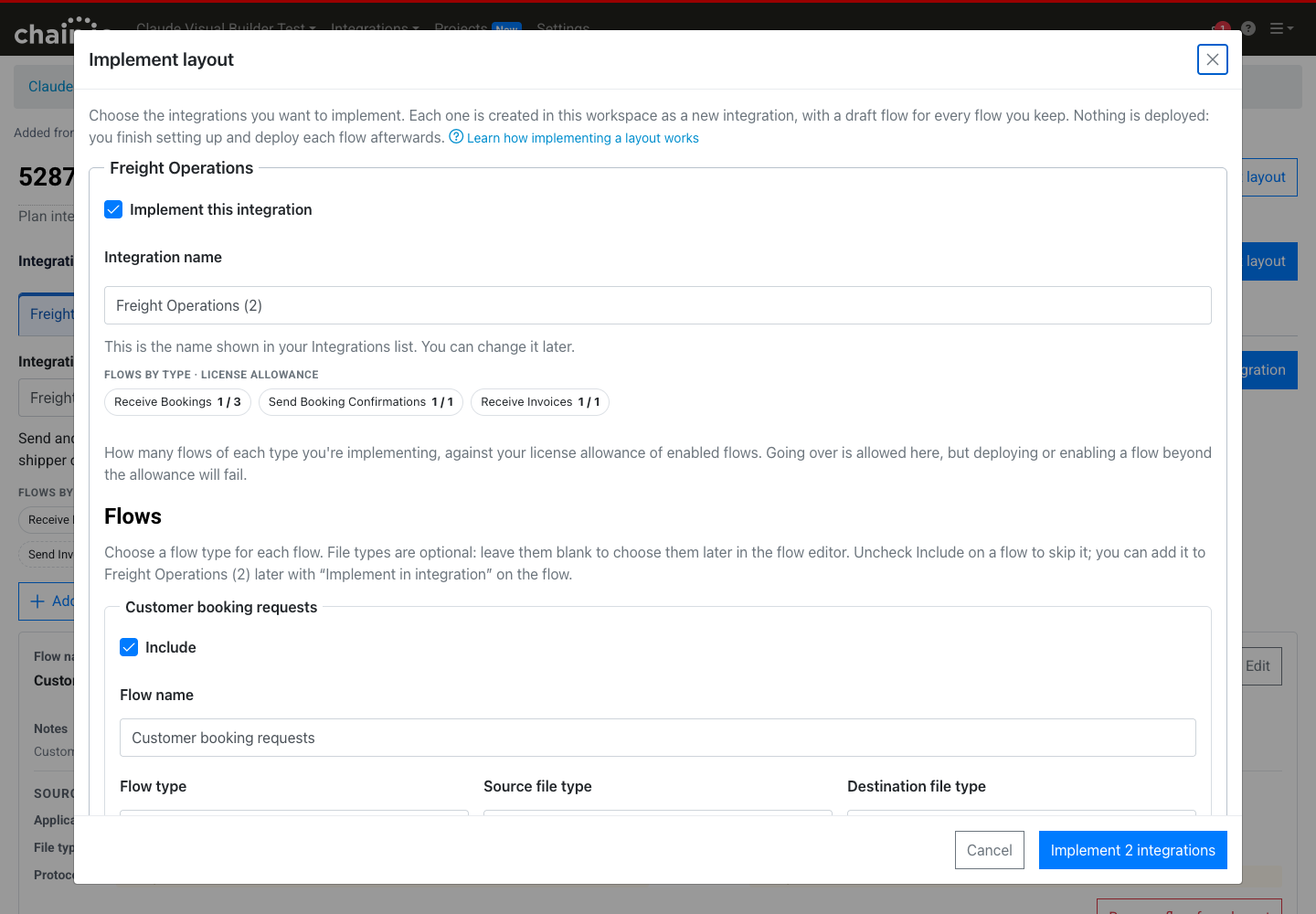
When everything looks right, click the button at the bottom of the dialog. It names how many integrations will be created, for example Implement 4 integrations.
Watching the run
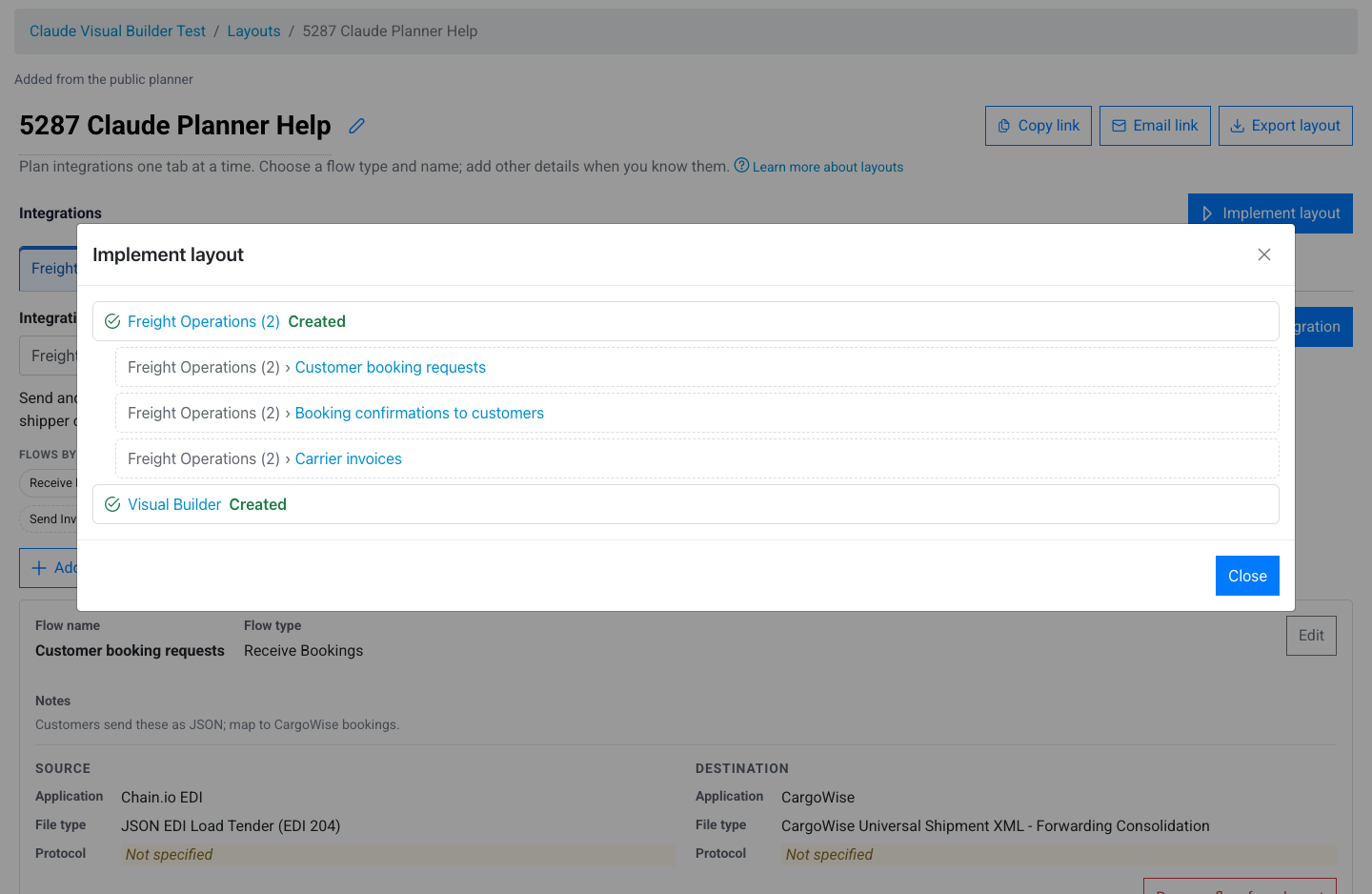
Chain.io creates the integrations one at a time, and a progress bar tracks the run. Each integration has its own line: it shows Waiting… until its turn, Implementing… while it's being created, and Created once it's done, along with links to its new flows.
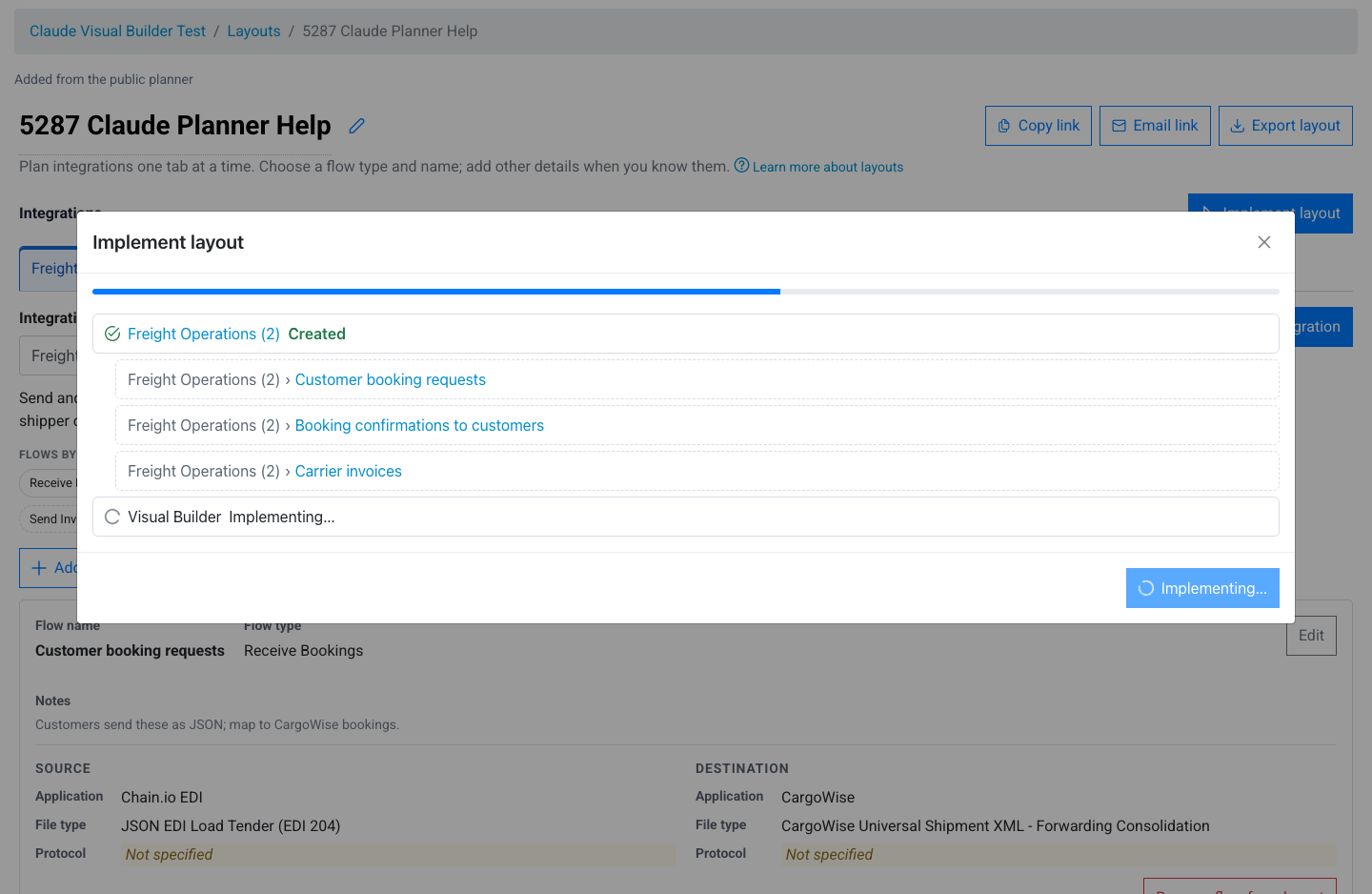
When the run finishes, the summary lists every integration with its result and links to each integration and flow that was created. These links open in a new tab, so the layout stays open where you left it. Click Close when you're done.
What gets created
Each implemented integration appears in your Integrations list under the name you gave it, with a draft flow for every planned flow you kept. Each flow's notes carry over from the layout. When the layout listed a source or destination for the flow, Chain.io adds a short Planned in layout section to the end of the flow's notes recording the application, file type, and protocol you planned for each side. That keeps the plan in front of whoever finishes setting up the flow.
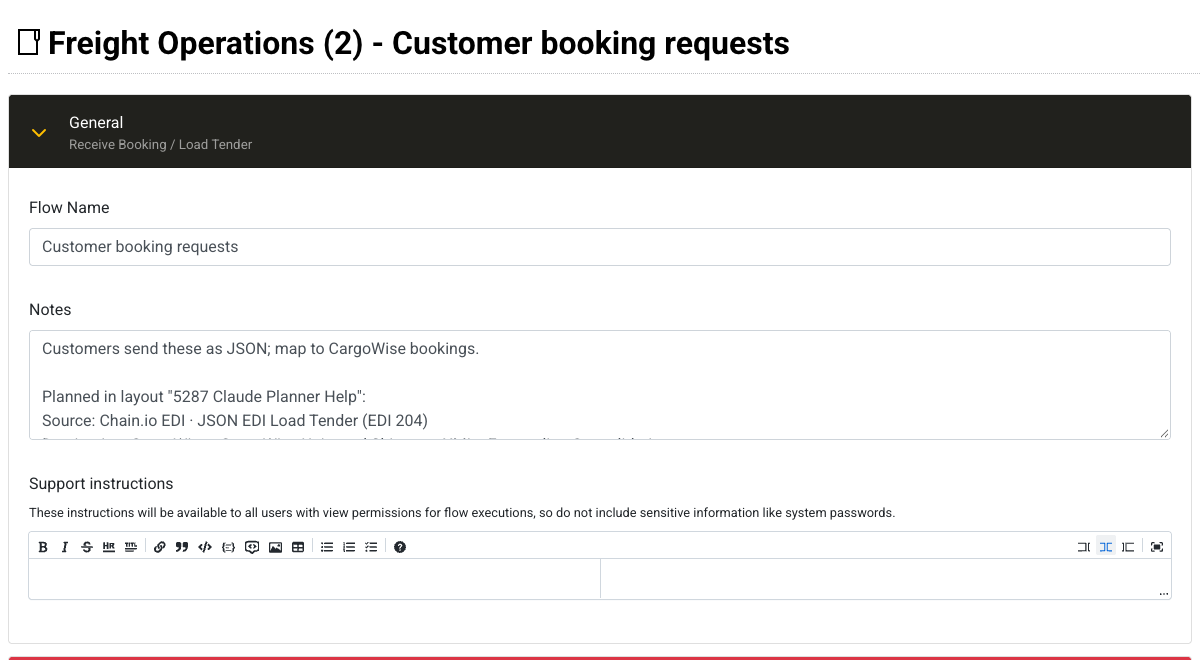
The flows are drafts. Open each one, complete its configuration, and deploy it when it's ready, just as you would for a flow you created by hand.
Your layout after implementing
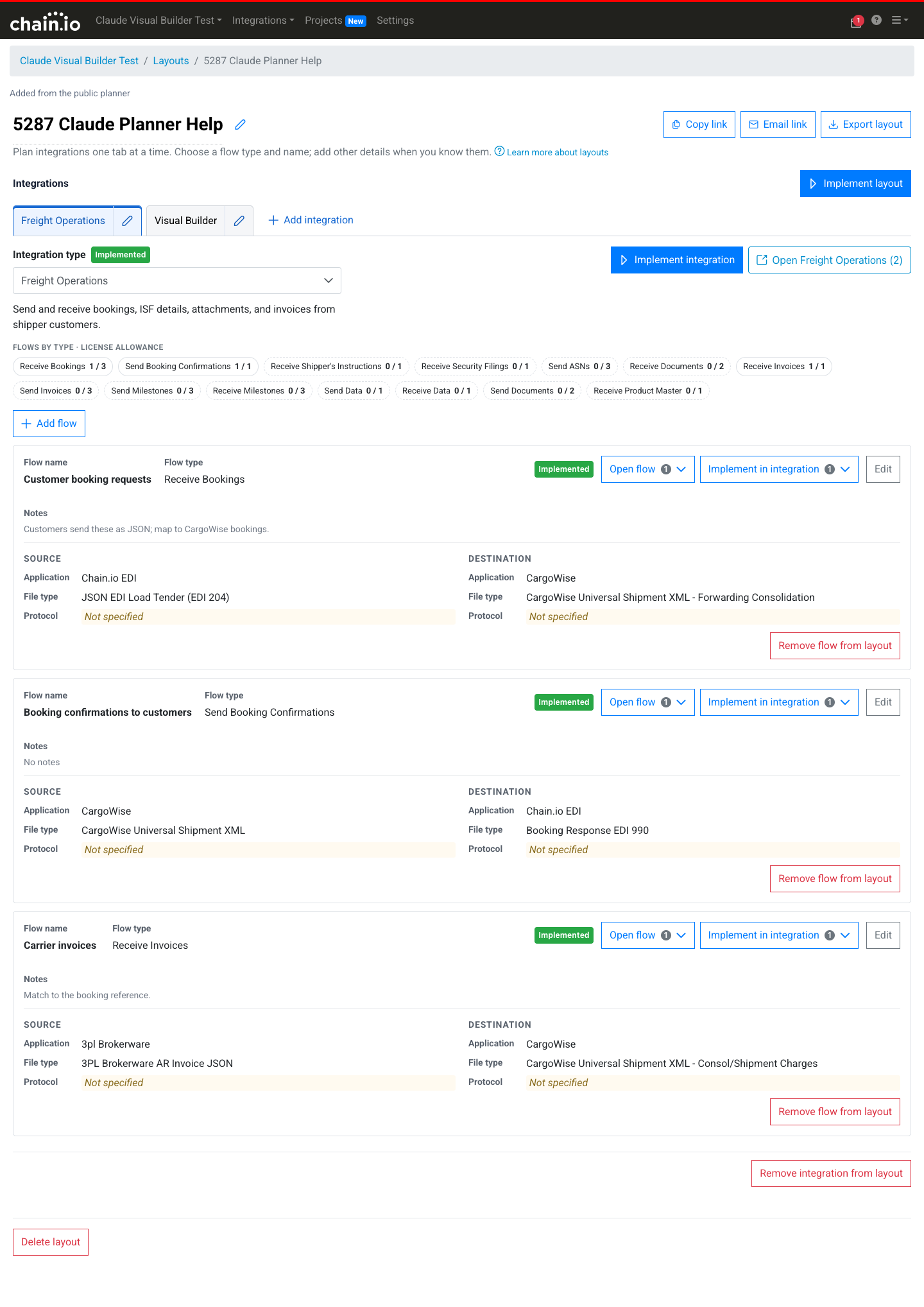
Back on the layout, each implemented integration shows an Implemented badge next to Integration type, and each implemented flow card shows its own Implemented badge. Use Open flow on a card to jump to the flow that was created from it. At the top right of the integration, the open button (for example, Open Freight Operations) takes you to the integration itself. Implement integration next to it implements that single integration.
Adding flows to an implemented integration
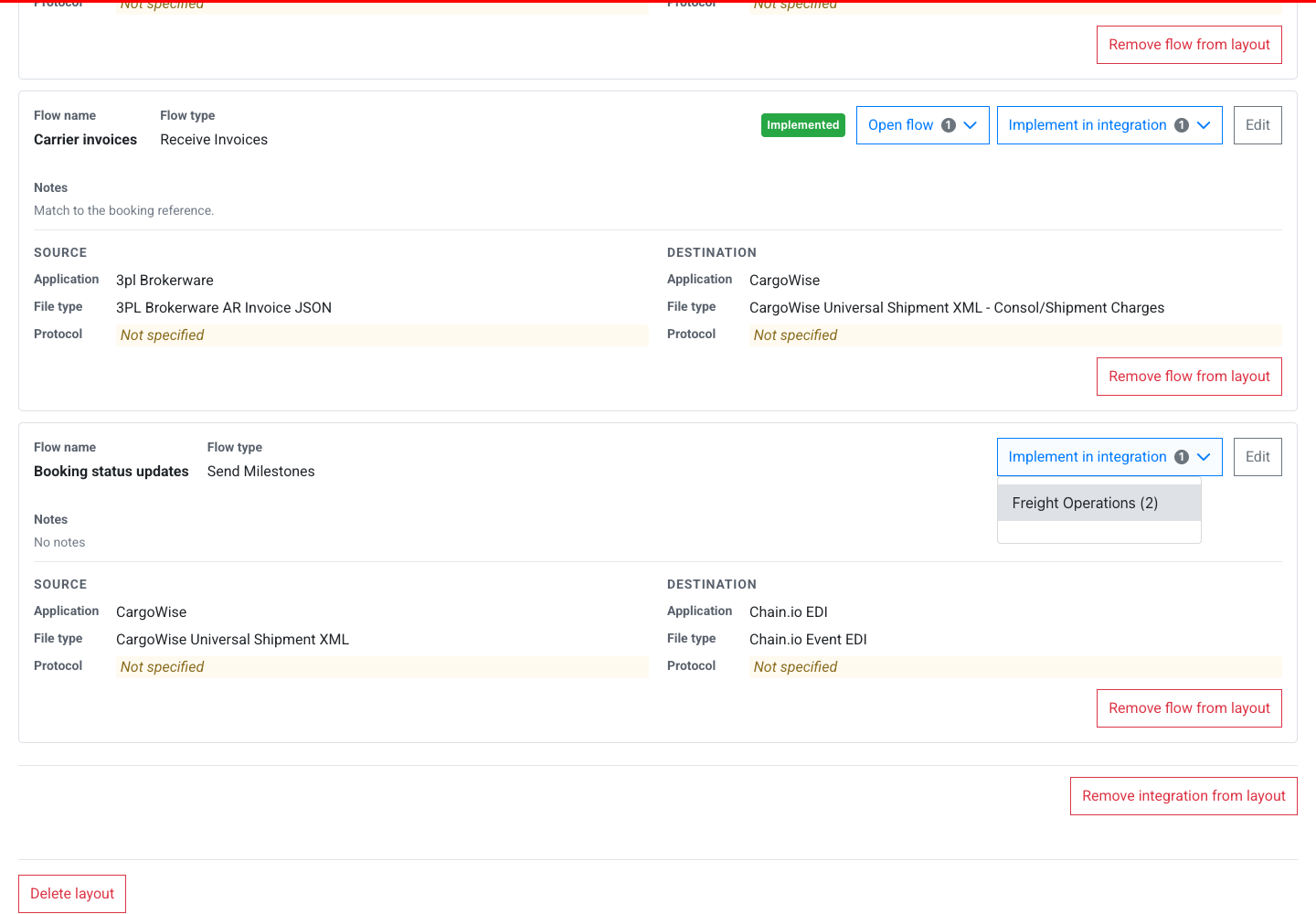
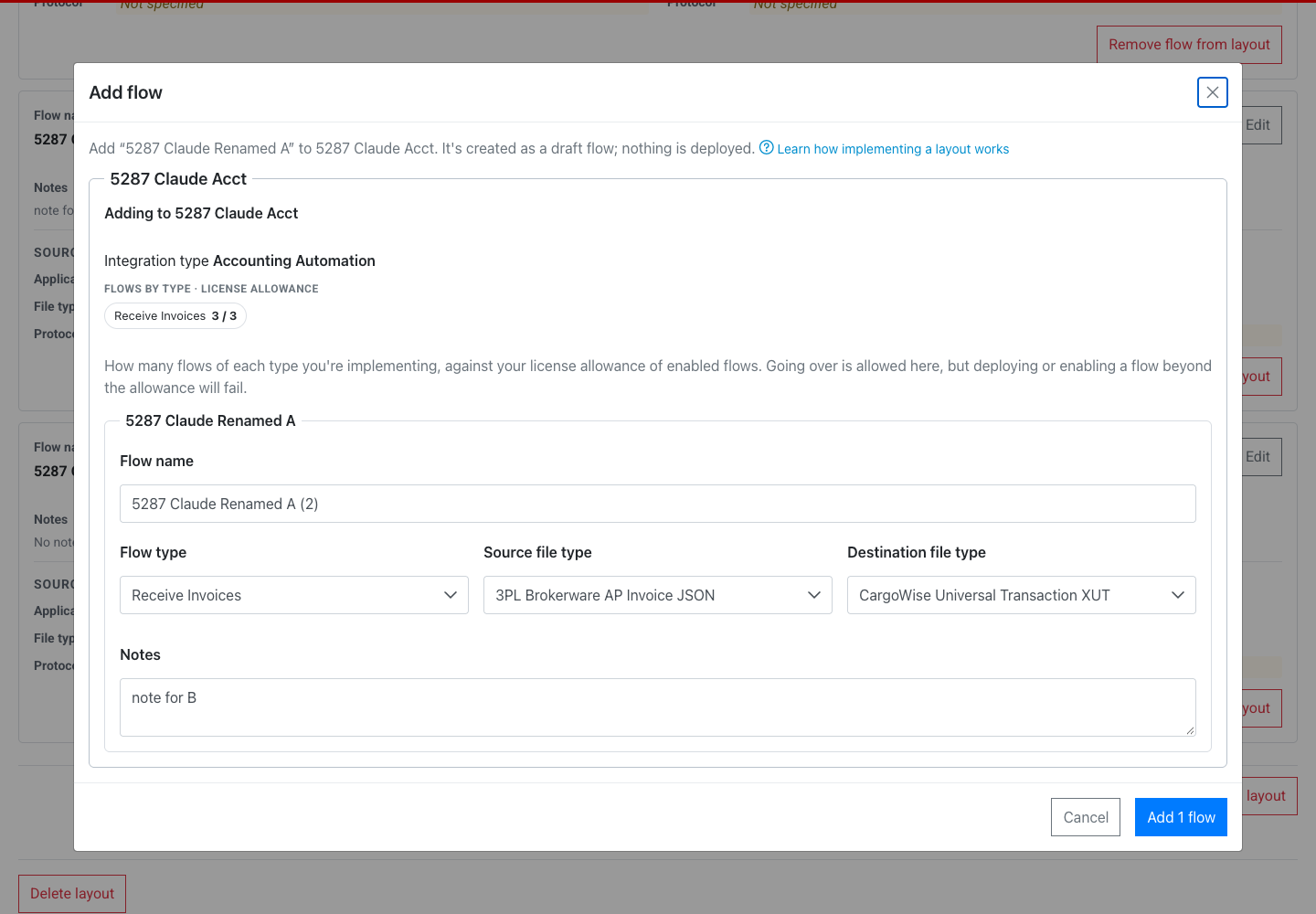
Plans grow. To add a flow to an integration you've already implemented, add the flow to the layout as usual with Add flow. Then click Implement in integration on the new flow's card and choose the integration from the menu.
An Add flow dialog opens for that one flow. You can edit its Flow name, choose the Flow type and optional file types, and adjust the Notes. The license allowance chips count the integration's existing flows plus the new one. Click Add 1 flow to create it as a draft flow in that integration. As with a full implementation, nothing is deployed.
The menu lists every integration created from that tab. If an integration already has the flow, it's marked "(already has this flow)". You can still choose it, which creates another draft copy of the flow.
Visual Builder integrations
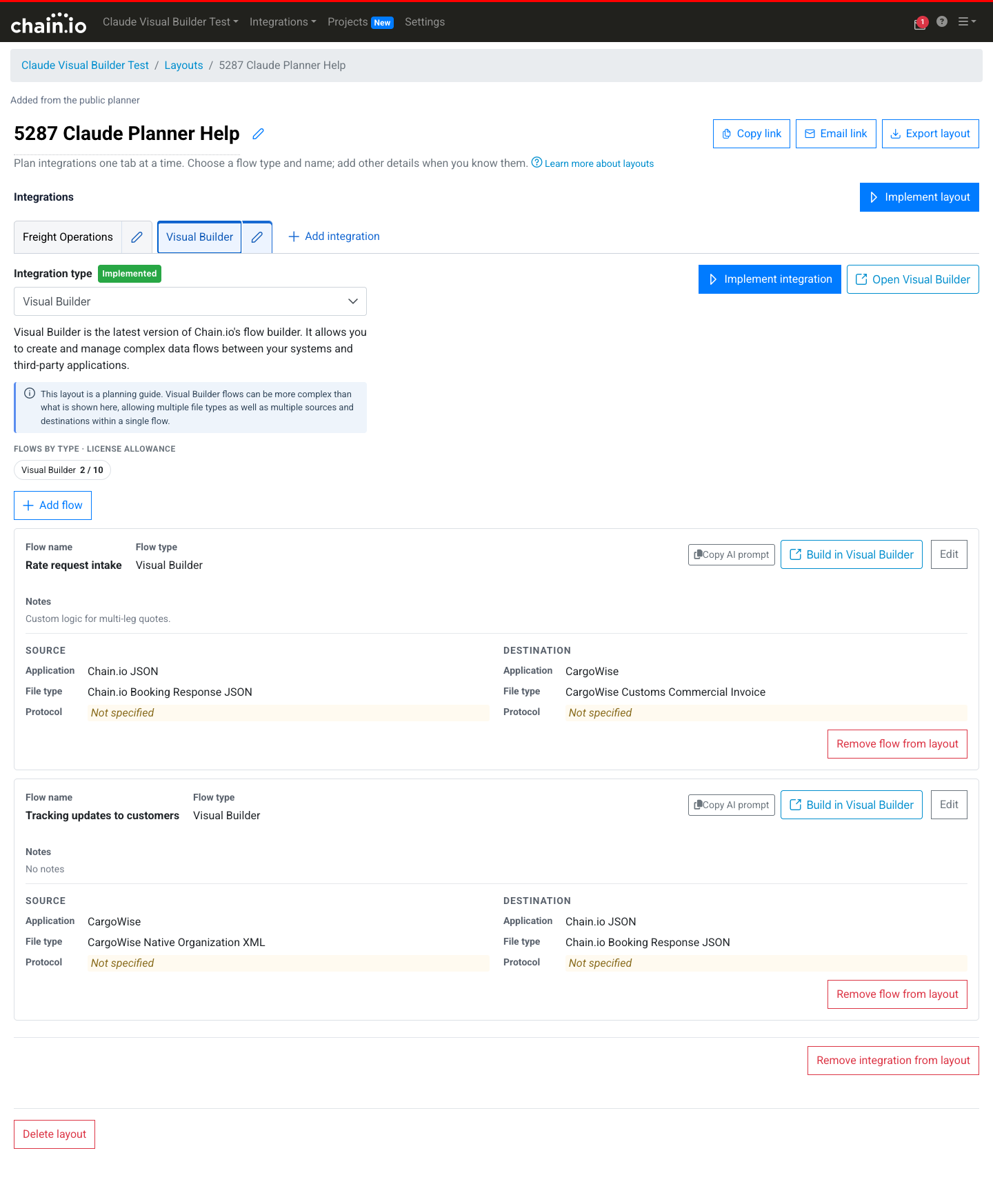
Implementing a Visual Builder integration creates the integration only, with no flows. Visual Builder flows are built in Visual Builder itself, and the layout helps you get started.
After implementing, each planned flow on a Visual Builder tab has two buttons. Copy AI prompt copies a prompt that describes the flow you planned, including its source, destination, and notes. Build in Visual Builder opens Visual Builder in a new tab, ready to start a new AI-built flow in the integration. Paste the prompt into the Visual Builder AI chat to start building the flow from your plan.
For more on building flows in Visual Builder, see the Visual Builder User Guide.
Common Questions
Do I need a Chain.io account to plan a layout?
No. Anyone can build and share a layout in the public planner at https://planner.chain.io. You need a workspace to implement it.
Does implementing a layout deploy anything?
No. Implementing creates integrations and draft flows only. You finish configuring each flow and deploy it yourself.
What happens if I plan more flows than my license allows?
Nothing is blocked. The layout and the review warn you, but you can still plan and implement the flows. Deploying or enabling a flow beyond your license allowance will fail, so you may need an upgraded license for the extra flows.
Can I implement the same integration more than once?
Yes. Each run creates a separate integration, and the Implemented badge shows how many times it has been implemented. If you only need to add flows to an existing integration, use Implement in integration instead.
Can I reuse a layout in another workspace?
Yes. Use Export layout to save the layout to a file, then Import layout in the other workspace, or in the public planner. The file holds only the plan, with no workspace details, users, or implementation status. See Export and import layouts.
If I remove something from the layout, does it delete the integration or flows I created?
No. Removing an integration or flow from the layout only changes the plan. The integrations and flows you created stay as they are; they just won't show as implemented on the layout any more.
Can I move a workspace layout back to the public planner?
No. Adding a planner layout to a workspace can't be undone, and the public link stops working for editing.
Was this article helpful?
That’s Great!
Thank you for your feedback
Sorry! We couldn't be helpful
Thank you for your feedback
Feedback sent
We appreciate your effort and will try to fix the article